Transfer results from Inspera to your Learn.UQ course (Ultra)
Video Guide
Transfer Inspera exam results to Gradebook (YouTube 3m 52s)
Note: Although this video uses Original Blackboard to demonstrate the steps, the underlying principles remain the same in Ultra Blackboard. The following guide provides updated instructions with images from the Ultra interface.
Instructions
To transfer Inspera exam results to your Learn.UQ course, four steps are required:
Note: If you need to transfer grades multiple times from several Inspera tests/committees to a single column in Gradebook (e.g. in case of committee marking), you will need to repeat Step 3 and Step 4 in this guide until you have all your students' grades from Inspera to Gradebook.
1. Create a column in Gradebook
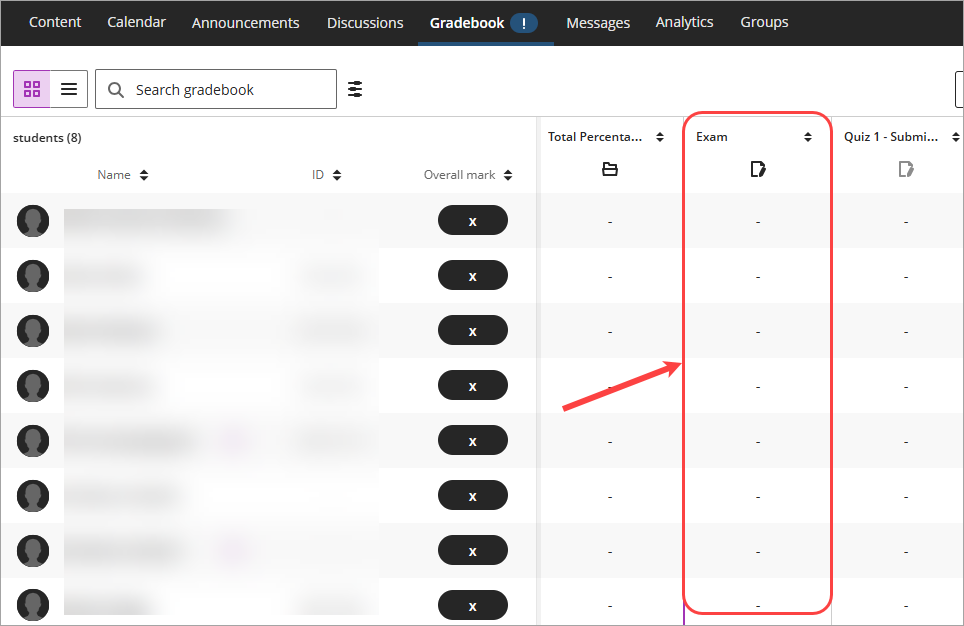
Creating a column in the Gradebook to record Exam results. In this example, the exam is marked out of 100 points.
Creating a column in the Gradebook to record Exam results. In this example, the exam is marked out of 100 points.
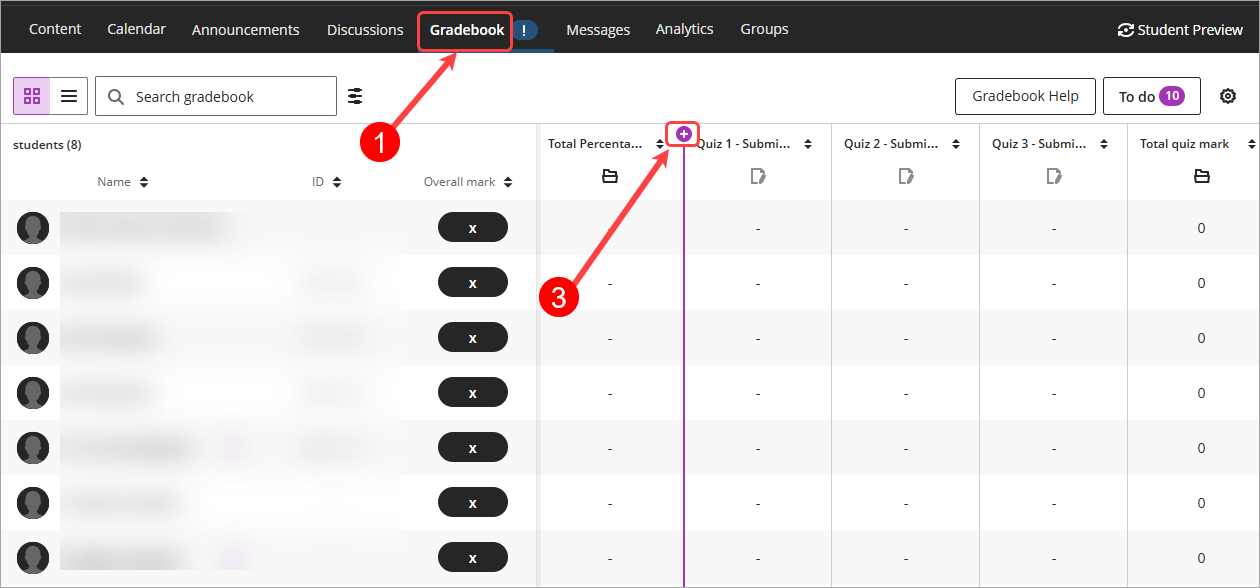
- Access your Learn.UQ course's Gradebook.
Tip: The default view is Grid view, if you are in List view, please click on the Grid view (4 squares) button. - Decide where you want to place the column.
- Click on the Add new gradebook column (+) button.
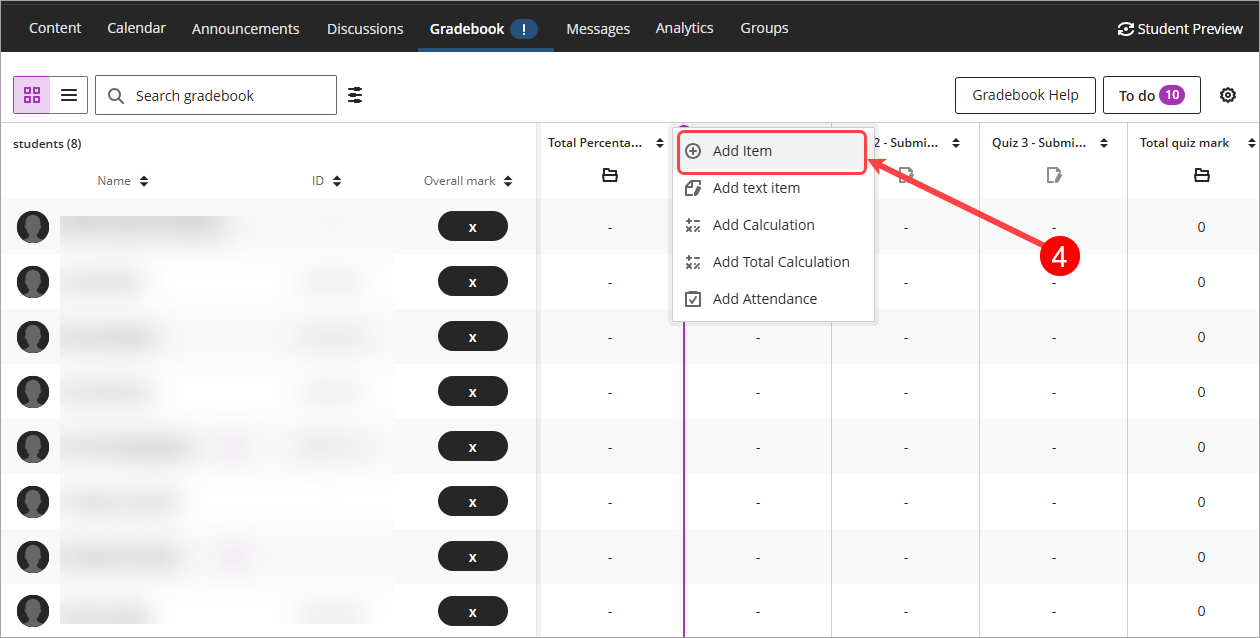
- Select the Add item option from the drop-down menu.
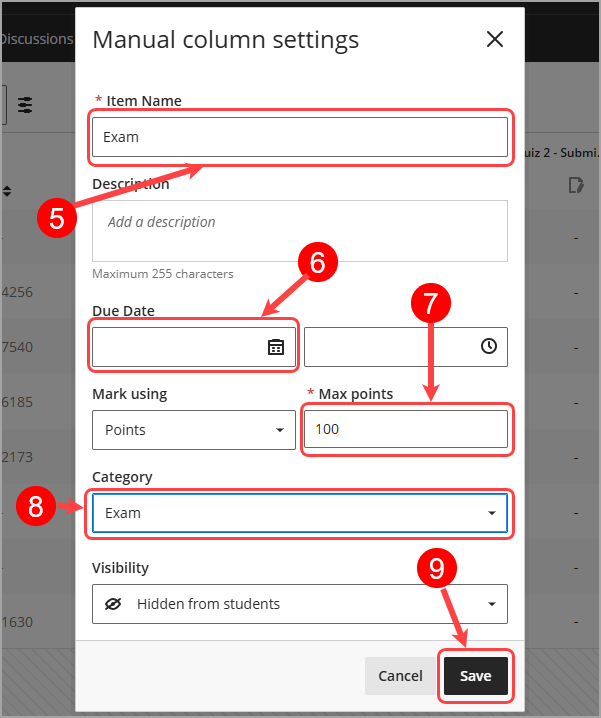
- Enter the column name: i.e. Exam
- Delete the due date because it is not needed. Having a due date will send students notifications.
- Enter the exam's Maximum points, e.g 100.
- Select the category for the column drop-down menu, i.e. Exam.
- Click on the Save button.
- The Exam column is added to Gradebook.