Inspera Exam Viewing (Ultra)
After the exam is graded, students might book an appointment with you to view their exam paper. You could download the PDF submissions of individual students and print them out for exam viewing. Alternatively, you could download the PDF submissions of the whole cohort and print out the relevant submission for viewing.
Download individual student submission
- Access the exam from Inspera - Grade.
- In the Grading overview area, you can search for the student by their student ID.
- Click on the more option ( ... ) and select Download and print.

Download the cohort's submissions
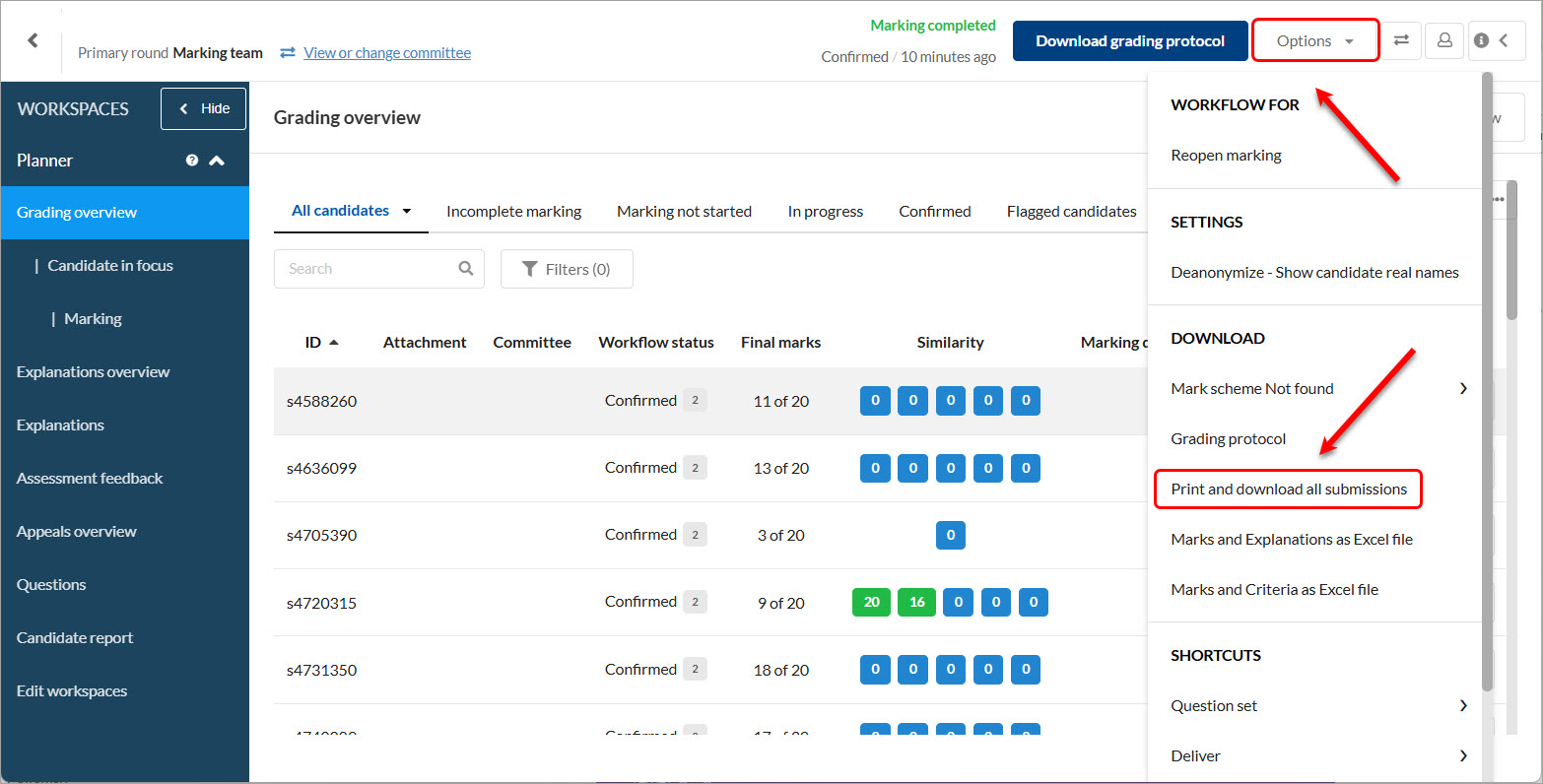
- In the Grading overview area, click on the Options button.
- Select the Print and download all submissions option from the dropdown menu.
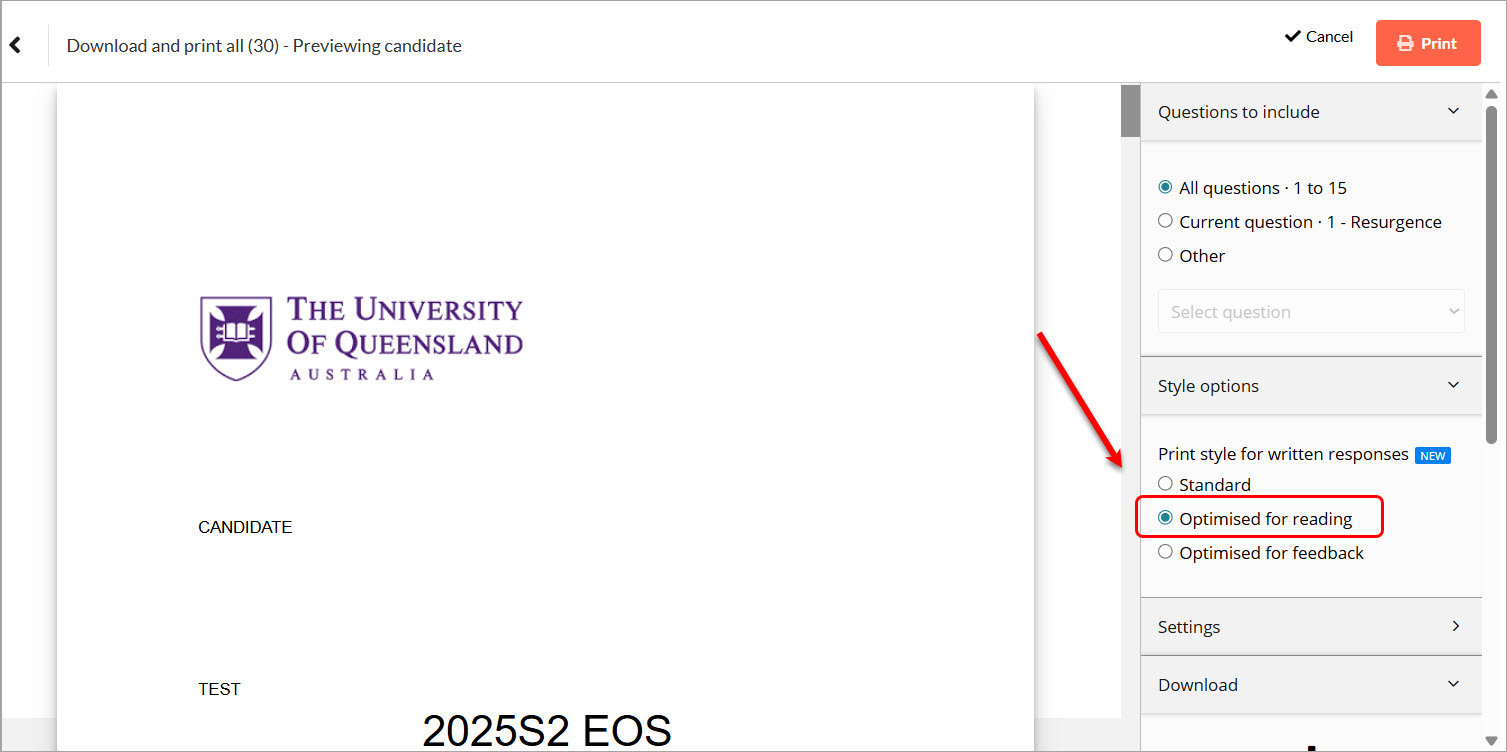
- Select the option Optimised for reading. This option maximises the text to allow clearer viewing on paper.
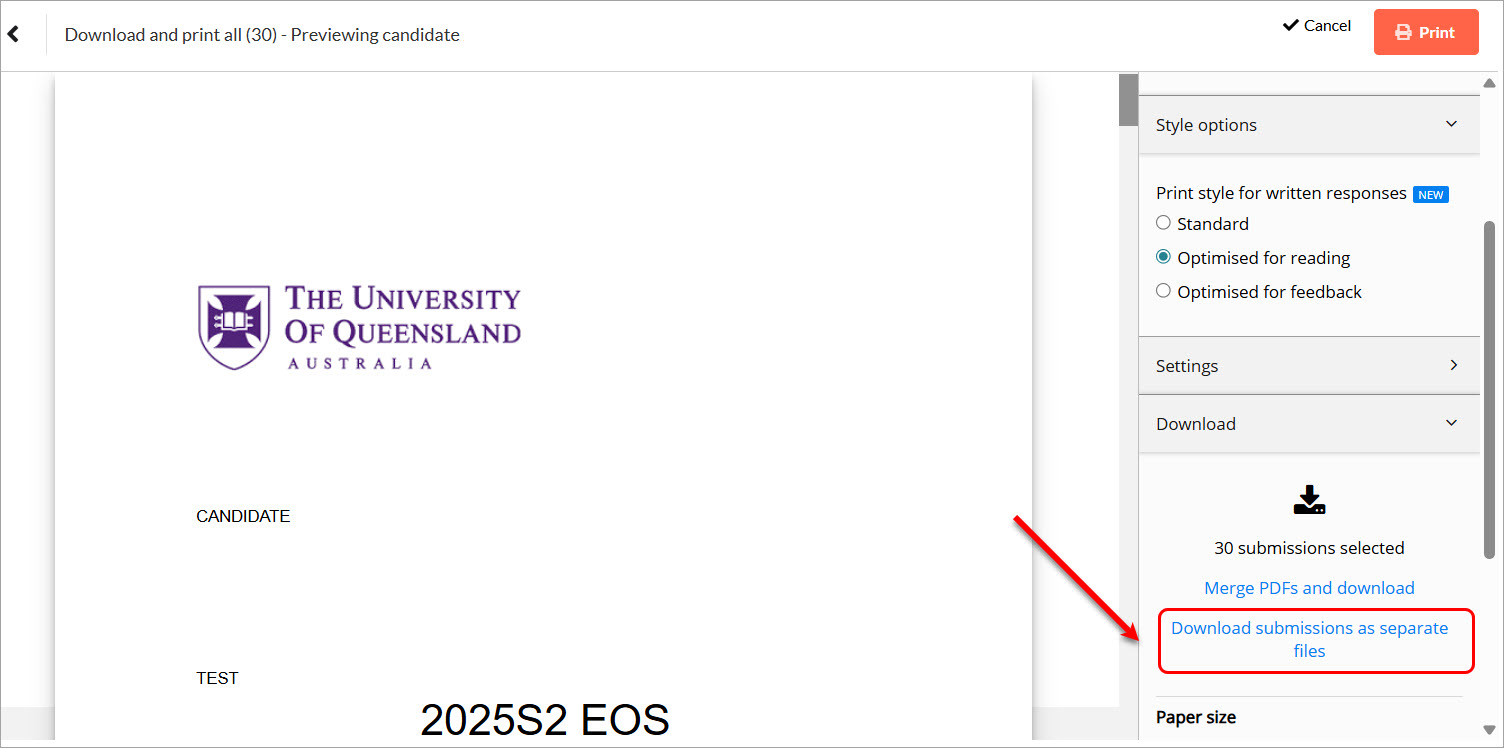
- Select the option Download submissions as separate files. You will then be able to print the required submission papers for viewing.