
Academic Integrity Review in Inspera (Ultra)
When assessing students' submissions in Inspera, graders have a number of methods to review if students have upheld the academic integrity.
Two main methods are:
- Turnitin Similarity Reports
- Inspera Exam Portal recordings
Turnitin Similarity Reports
If your assessment’s question set contains Essay or Upload Assignment types and “Request Similarity report” is enabled in the assessment’s settings, Graders will be able to view the Turnitin Similarity Report via the Grade area in Inspera.
The Turnitin similarity report in Inspera guide provides detailed instructions.
Note: Turnitin Similarity Reports can be viewed for any assessments that meet the criteria noted in the first paragraph, not just those run through Inspera Exam Portal.
Review Inspera Exam Portal recordings
Overview
The students’ exam taking process is recorded by Inspera Exam Portal, which includes:
- The student’s webcam
- The student’s microphone
- The student’s screen
Inspera Exam Portal will flag certain events that it detects that you may wish to review. Students are made aware of the events that get flagged so they can work to avoid having flagged events in their recordings.
Flagged events are as follows:
- Students fully or partially covering their face (for example, leaning on their hands)
- Students talking or making other loud noises
- Students covering or disconnecting their camera
- Student disconnecting their microphone
- Students leaving their computer or disappearing from the view of the camera
- Students closing Inspera Exam Portal before submitting their exam
- Additional people being present in the room where the student is taking the exam
Note: flagging of events does not immediately indicate academic misconduct in the same way text matching tools (like Turnitin) do not immediately indicate plagiarism. Any suspected breaches of academic integrity should be reviewed under the UQ Student Integrity and Misconduct policy (https://ppl.app.uq.edu.au/content/3.60.04-student-integrity-and-misconduct). Incidents are investigated under usual UQ procedures, in the same way that an incident report from a pen and paper exam is investigated.
Determine a process for review
Inspera Exam Portal tends to be quite sensitive in flagging the events noted above and in many cases, flagged events are false positives, e.g., it may flag that a student has left the video frame and re-entered when the student has simply turned their head to the side. As such, you may wish to work out a process for determining which recordings will be reviewed. Some options are:
- Review the Turnitin Similarity Reports first to determine any suspected collusion, then review recordings for students who are suspected of collusion to determine if any evidence of collusion can be found in those recordings
- Only review recordings over a certain threshold of flagged events
Accessing recorded data
To access data recorded by Inspera Exam Portal:
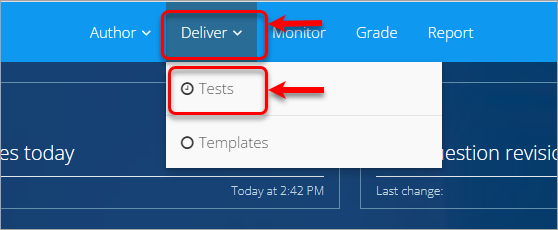
- In https://uqi.inspera.com/admin, go to Deliver.
- Click on the Tests button.
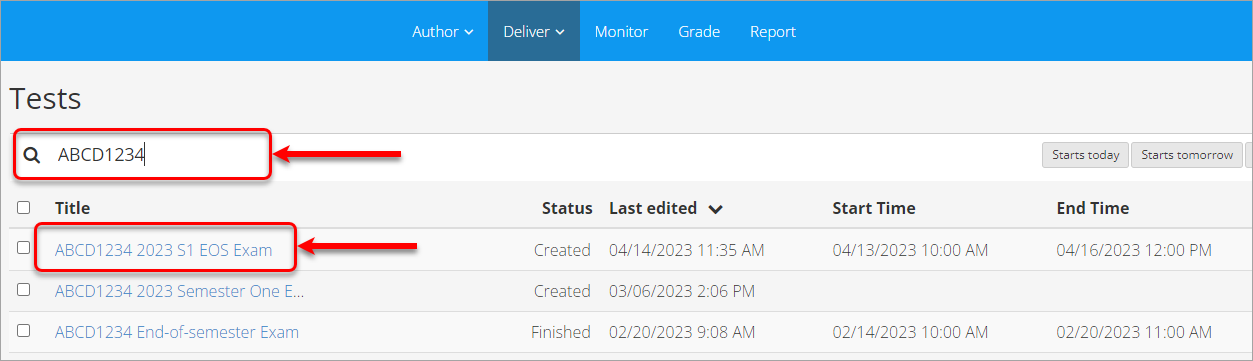
- Type the required test name in the search bar.
- Click on the exam title to view its settings.
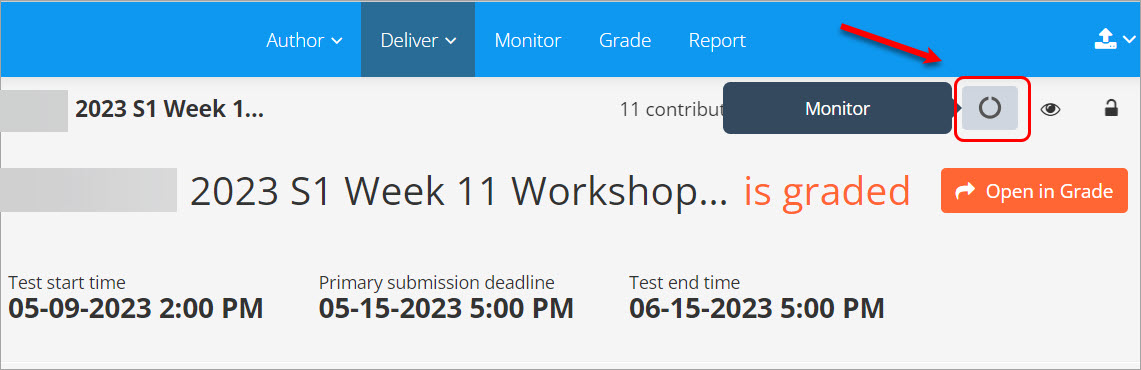
- Click the circle icon to open the assessment in Monitor.
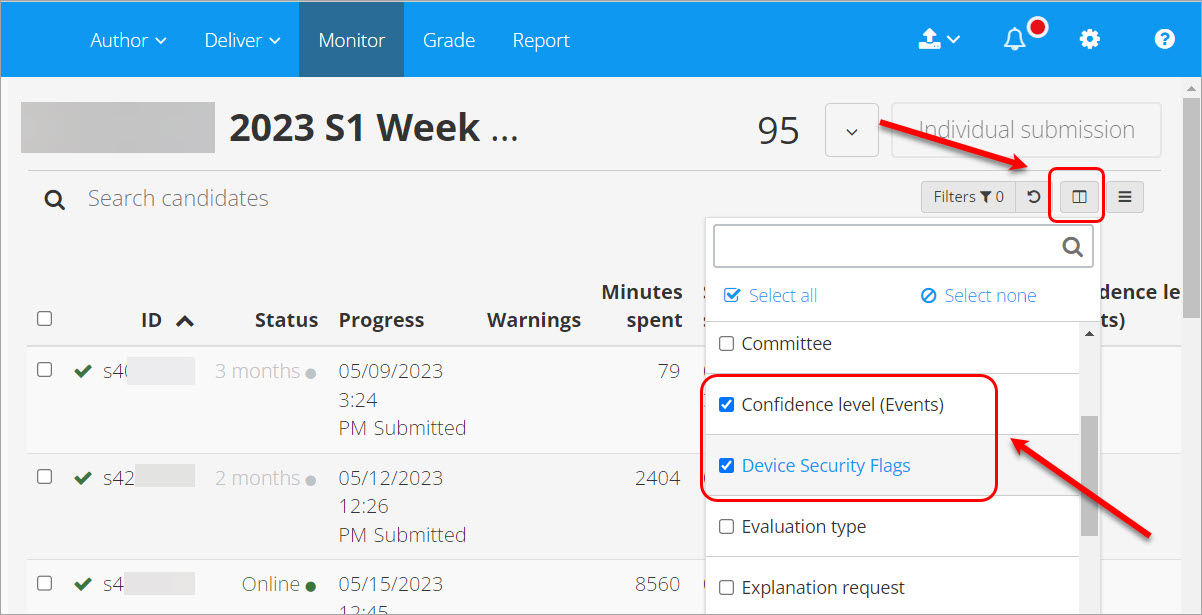
- Click the columns icon.
- Select the Confidence level and Device Security Flags checkboxes to display this information in Monitor.
See Monitor Inspera assessment for more information about the Monitor module.
Interpreting recorded information
Warnings
Information in the Warnings column is typically related to a student losing Internet connection, going offline, then logging back in. Sometimes the Warnings will also relate to a student being away from the view of the camera, or having the camera covered, for more than the acceptable time (20 seconds), though information on this is provided in more detail in the Confidence level (Events) column.
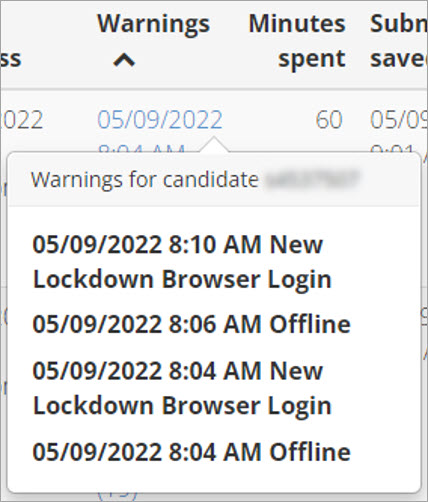
A full list of IEP warnings can be found at
https://elearning.uq.edu.au/guides/inspera-assessment/inspera-exam-portal-warning-types
Device Security Flags
This column shows processes on the student’s computer that have been blocked by Inspera Exam Portal, e.g., the Siri service on MacOS devices. The column will also indicate which security level has been applied to the assessment (Open, Moderate or Strict) and may also indicate if uploading of a student’s recording was cancelled prematurely, or if the assessment was terminated due to repeated attempts by the student to perform a blocked activity (e.g., trying to take screenshots). If the Open security setting is applied to an assessment, this column will also indicate when the student has shifted focus to another application on their computer.
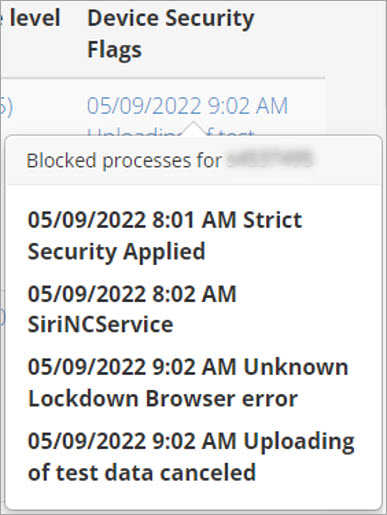
Confidence level (Events)
Information from the Warnings and Device Security Flags columns could be used as secondary information to confirm/support information that is provided in the Confidence level (Events) column, but the Confidence level (Events) column contains the most information about a student’s activity while completing an assessment.
There are two sets of data in the column:
- Confidence level: Calculated by comparing all faces recorded by the camera with the photo captured during ID verification to determine how confident Inspera is that the same person is sitting the test the whole time. Note that the confidence level can be negatively impacted if device security violations or suspicious behaviours are recorded in the above two columns (sometimes setting confidence to 0.00%)
- Events: the number of events that have been flagged by Inspera, e.g., noise events recorded from the student’s microphone or when the student’s face leaves the view of the camera.
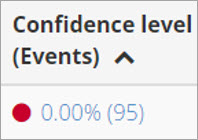
You may choose to review the recordings of students whose confidence level is low and number of events is high (as above).
Viewing recordings and events log
To view a student’s recording and events log:
- Click the confidence level in the student’s row
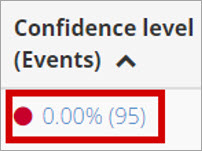
- The recording opens. After it has loaded, you will see coloured lines dotted along the bottom of the video progress bar. These are the locations of flagged events in the recording. You can play the video or skip ahead by clicking and dragging (scrubbing) along the progress bar to view the flagged events.
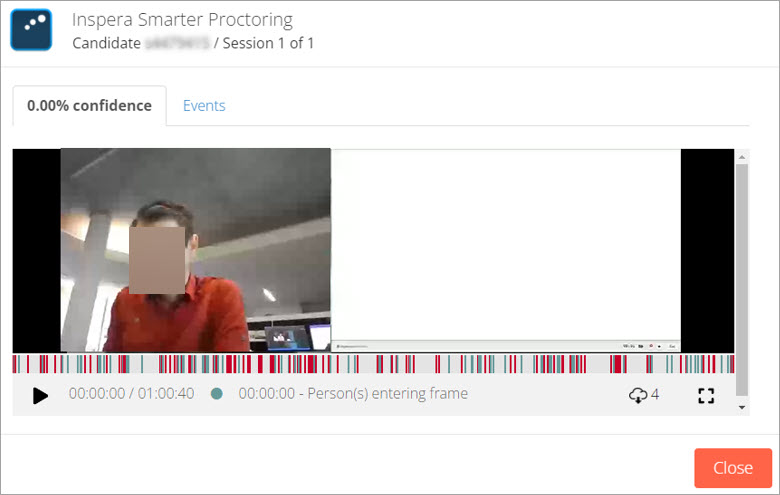
The left of the recording shows the student’s webcam. The right of the recording shows the student’s screen.
Note: if a student has exited and re-entered Inspera Exam Portal, there will be more than one recording. Each recording is called a “session” and you will see a list of sessions to choose from before the screen above if there is more than one. Click a session to view it.
- Click the Events tab above the recording to see a summary of the events and snapshots taken at the moment they occurred.
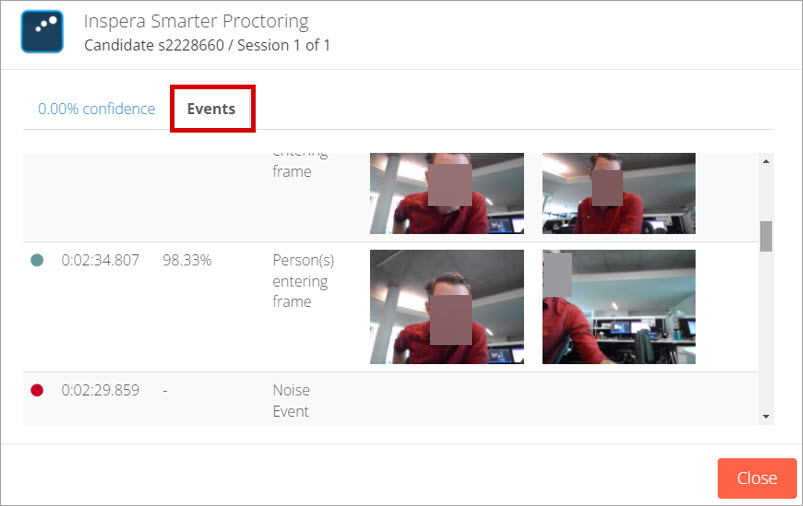
Camera events display two images. The image on the left is the photo the student took at the beginning of the assessment to identify themselves. The photo on the right is the snapshot taken at the time an event occurred.
In these instances, Inspera has noticed a difference between the appearance of the person on the left and the person on the right, causing the event to be flagged. A quick look through these will often confirm that the student has either exited/entered the view of the camera or turned their face away from the camera.
Noise events are noted here, too, but you would need to return to the recording to hear them.
The student’s photo of their ID card is also shown in the Events tab for visual verification purposes.
Note: If the student completely covers the camera, this will also be flagged as “person(s) leaving frame” event.
- Academic Integrity Review in Inspera (Ultra)
- Access Inspera (Ultra)
- Access your Inspera test for marking (Ultra)
- Add Academic Integrity Statement to Inspera assessment (Ultra)
- Add Resources (pdf files, links) to an Inspera Question Set (Ultra)
- Add graders to an Inspera test (Ultra)
- Add media content to questions (Ultra)
- Add one-time users to an Inspera test (Ultra)
- Add staff (contributors) to an Inspera assessment (Ultra)
- Add the Assumption and Queries question in an Inspera exam (Ultra)
- Additional pages required in Inspera exams (Ultra)
- Answer key corrections - MCQ (Ultra)
- Assign Inspera questions to graders (Ultra)
- Complete an Inspera test as a student (Ultra)
- Confirm grades in Inspera (Ultra)
- Copy a question set from Inspera Training to Inspera Admin (Ultra)
- Create Inspera Questions (Ultra)
- Create Inspera bands and criteria (Ultra)
- Create Inspera marking committees (Ultra)
- Create Inspera practice exam with Safe Exam Browser (Ultra)
- Create a Question Set (Ultra)
- Create a non-exam assessment in Inspera (Ultra)
- Create an Inspera submission link in Learn.UQ (Ultra)
- Create an Inspera test in Deliver (Ultra)
- Create marking committees using CSV (Ultra)
- Download Inspera Exam Assumptions and Queries responses (Ultra)
- Edit question weight in Inspera (Ultra)
- Enable After-test settings in Inspera (Ultra)
- Enrol students in Inspera test using CSV file (Ultra)
- Explanations on student responses (Ultra)
- Export an Inspera Question Set to PDF (Ultra)
- Export questions from Blackboard to Inspera (Ultra)
- False Start (Ultra)
- Filter functionality in Inspera marking (Ultra)
- Flag students in Inspera test (Ultra)
- Incident Adjustments for students who experience technical delays (Ultra)
- Inspera - Apply Student Access Plan (SAP) and/or Alternative Exam Arrangements (AEAs) (Ultra)
- Inspera Assessment User Roles (Ultra)
- Inspera Assessment access methods for students (Ultra)
- Inspera Exam Requests (Ultra)
- Inspera Exam Viewing (Ultra)
- Inspera Examination Information Sheets (Ultra)
- Inspera Examination Information Sheets (Ultra)
- Inspera Grade Workspaces (Ultra)
- Inspera Observed User Testing (Ultra)
- Inspera Question Set Version Control (Ultra)
- Inspera Rubrics (Ultra)
- Inspera School-based Off-campus Exams (Ultra)
- Inspera Terminology (Ultra)
- Inspera Test settings (Ultra)
- Inspera analytics (Ultra)
- Inspera marking navigation (Ultra)
- Invite students to an Inspera assessment via Test Code (Ultra)
- Late submissions and extensions in Inspera Assessment (Ultra)
- Manually marked questions: Mark and feedback (Ultra)
- Monitor Inspera Assessment (Ultra)
- Name and label questions in Inspera Assessment (Ultra)
- Navigate Inspera (Ultra)
- Override scoring of questions in Inspera (Ultra)
- Pilot an Inspera assessment (Ultra)
- Review Inspera assessment (Ultra)
- Sections in an Inspera Question Set (Ultra)
- Share a question set in Inspera (Ultra)
- Support students to use Inspera Assessment (Ultra)
- Things to look for in an Inspera assessment review (Ultra)
- Transfer results from Inspera to your Learn.UQ course (Ultra)
- Turnitin similarity report in Inspera (Ultra)
- View student responses in Inspera (Ultra)