Enrol students in Inspera test using CSV file (Ultra)
This guide provides instructions on enrolling students in an Inspera test using CSV file.
One use-case of this method is enrolling students in a Practice Exam that uses a Safe Exam Browser to simulate a central exam experience.
Three steps are involved:
- Download the course list from the Grade Centre
- Prepare the CSV file to upload
- Upload your CSV file to your Inspera test.
Video Guide
Enrol students to an Inspera test using CSV file (YouTube 2m 50s)
1. Download course list from Gradebook
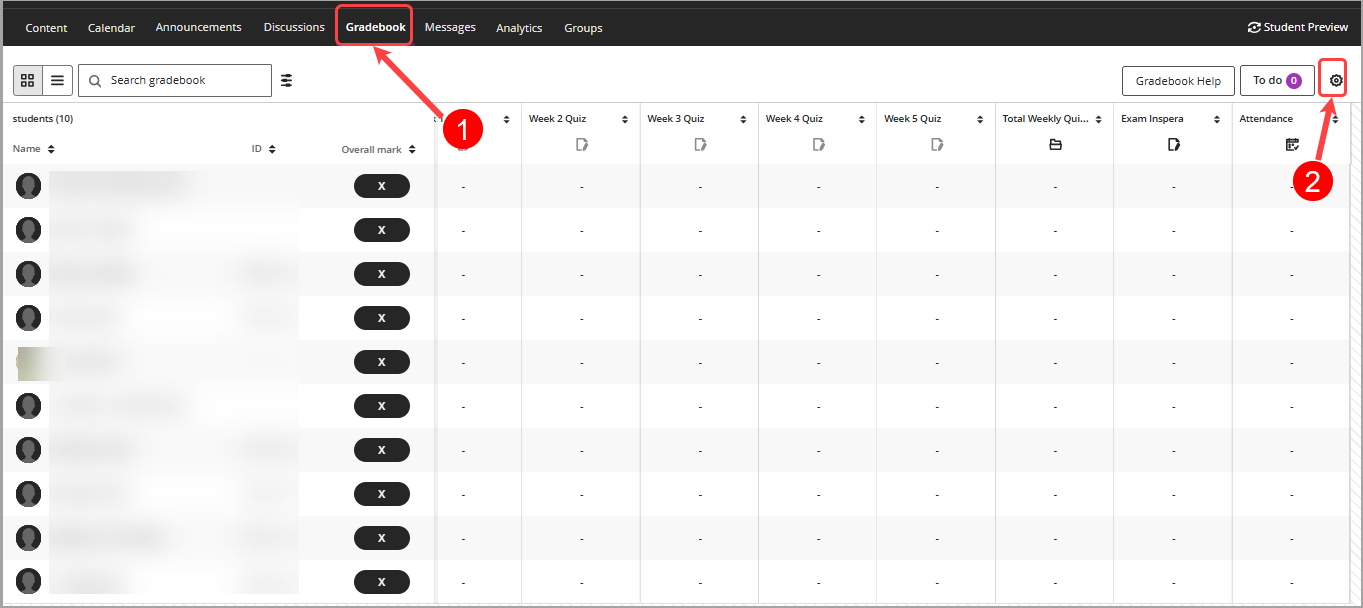
- Select Gradebook from the navigation bar.
Tip: The default view is Grid view, if you are in List view, please click on the Grid view (4 squares) button. - Click on the Gradebook Settings icon.
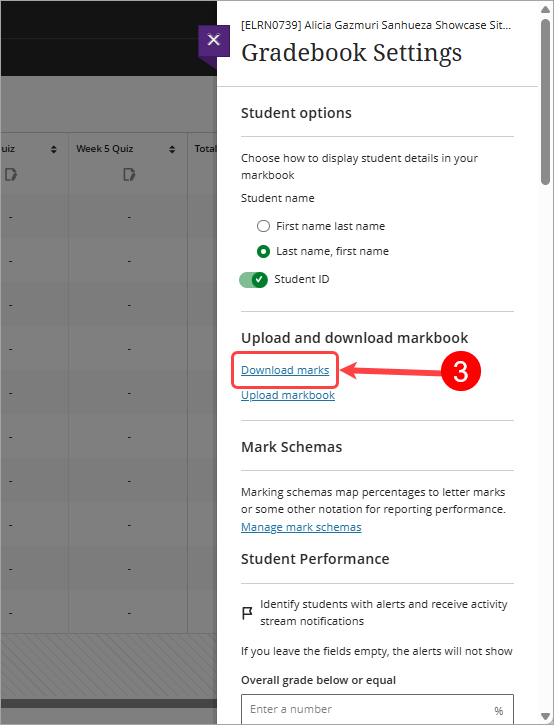
- Click on the Download marks link under Upload and download markbook.
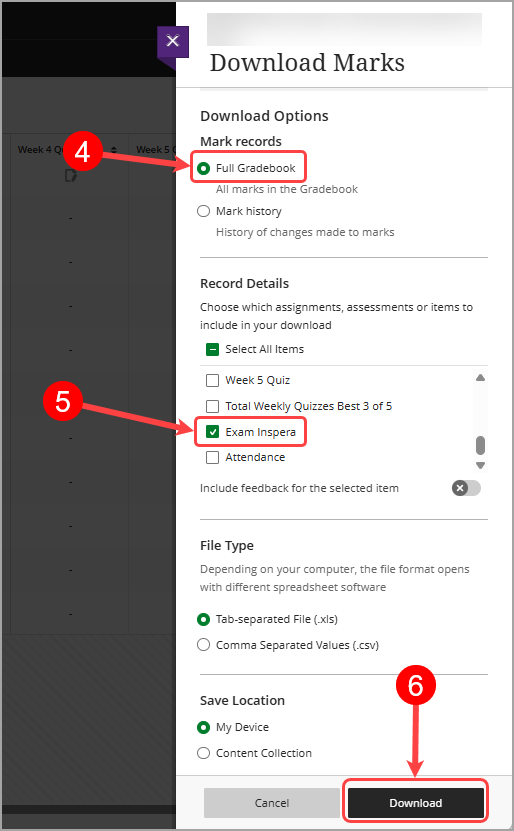
- The download option Full Gradebook is selected by default.
- Check any of the checkboxes, e.g. Inspera Exam to enable the download option.
- Click on the Download button.