
Total Percentage Gradebook column (Ultra)
Why would I use Total Percentage column?
A Total percentage column can be used to show you the total percentage mark achieved by students in your course and is used as a check to ensure your overall mark is displaying the correct UQ grade.
A total percentage column is included in courses as part of the master template and by default should appear next to the Overall mark column. eLearning recommends leaving the Total percentage column next to the overall mark column.
There are 2 options for creating a Total percentage column:
Option 1: Weighted total
A weighted total allows any assessment to be scaled down to the correct percentage weighting as outlined in your course profile. This is best suited when all assessments in your course have been marked out of 100 or another value.
Option 2: Points total
A points total allows for a total of assessments when they have been marked at the precise mark value as outlined in your course profile. Best suited when all assessments directly add up to a score of 100.
Setup a weighted total percentage column
- Select Gradebook from the navigation bar.
Tip: The default view is Grid view, if you are in List view, please click on the Grid view (4 squares) button. - Click on the Total percentage column heading.
Note: If your course doesn't have a Total percentage column or it has been deleted, refer to the Create a Total percentage column section below.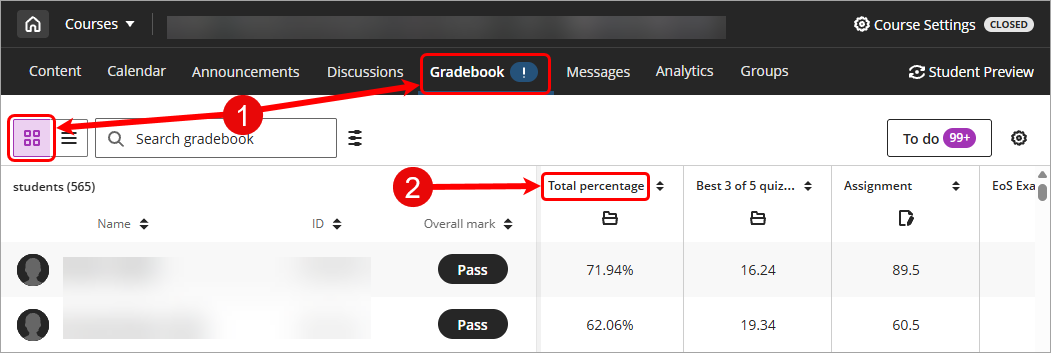
- Click on the Settings icon.
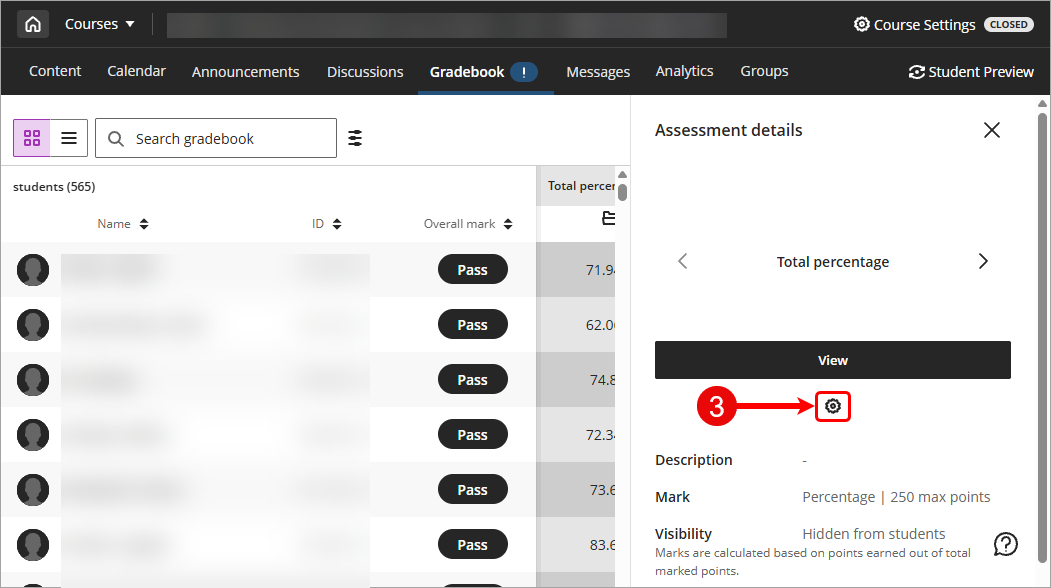
- Select Weighted for the Calculation Type.
- Uncheck the Calculate marks based on points earned out of total marked points checkbox.
Warning: this setting is unchecked so that all required assessments are included in the grade calculation and assumes that if a task does not have a mark recorded it is treated as though the student has received a mark of zero (0) for that task. - Select Percentage from the Select a mark schema drop-down box.
Note: In rare cases, such as some EDUC courses, you may need to select points instead of percentage.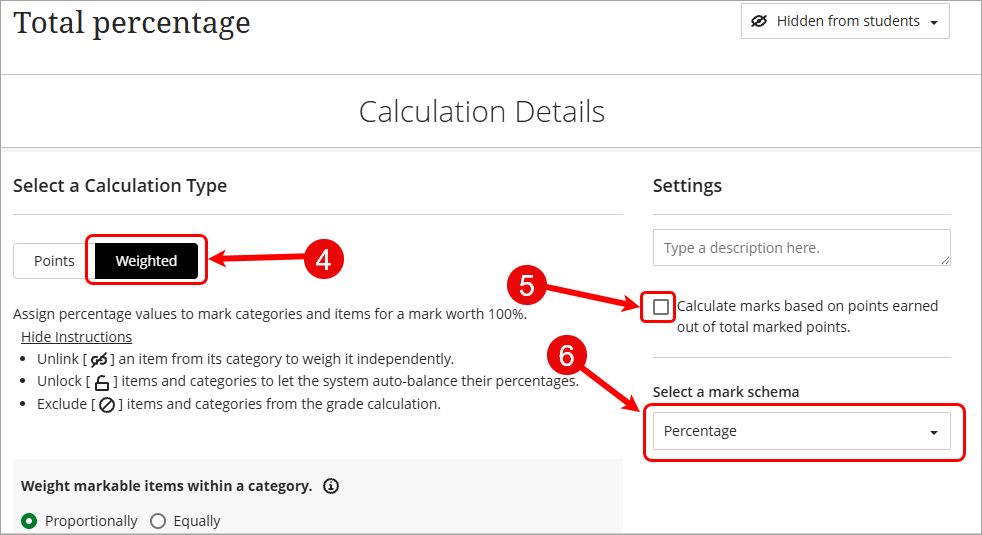
- Click on the Exclude category (circle with diagonal line) button for any categories that contain 0 items.
Tip: The Exclude category (circle with diagonal line) button will change to purple when it is being excluded.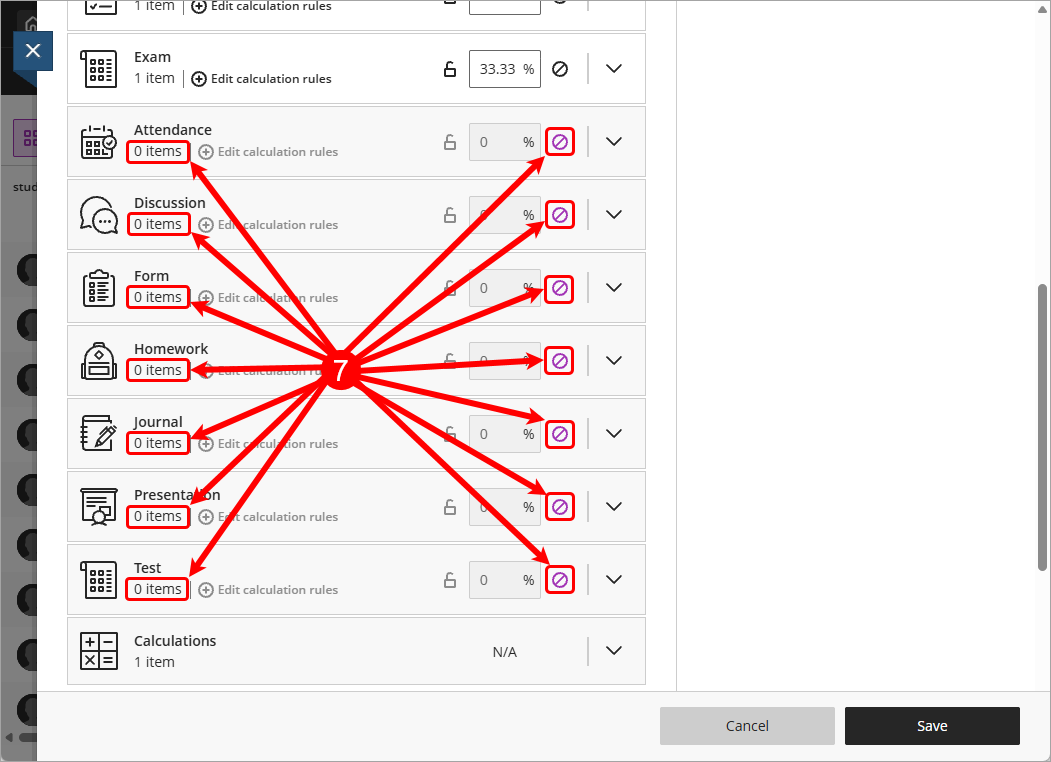
- Expand Categories that contain items. e.g. Assignment
Tip: Click on the down arrow next to the Category to expand.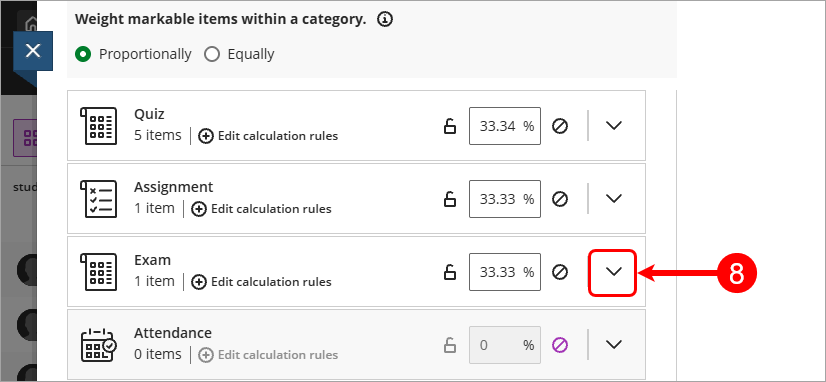
- Review each category (that contains an item), click on the Unlink (Link icon with diagonal line) button to add an individual item to the total calculation.
Tip: You are looking for the items (assessments) that need to be included in your Total percentage.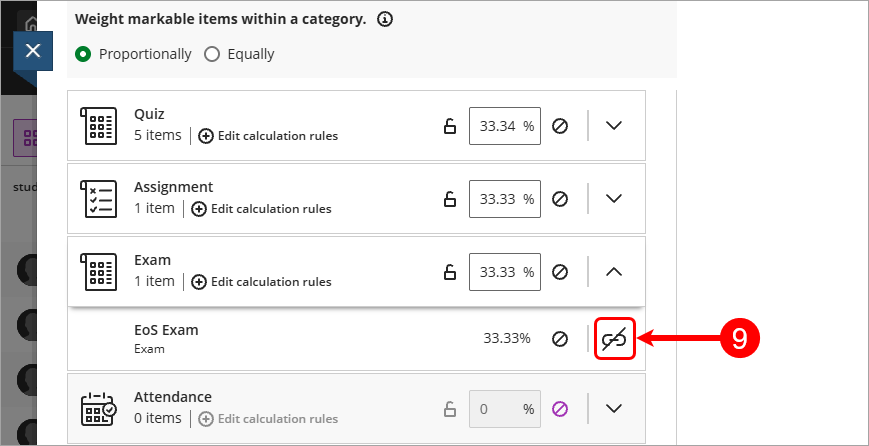
- Click on the Weight percent for item textbox, enter in the weighted percentage for the assessment (as listed in the Course Profile) e.g. 50%.
Tip: After you click off the textbox the percentage will be locked. Click on the Padlock icon to unlock and make changes. - Click on the Exclude category (circle with diagonal line) button for the category once required items have been unlinked.
Tip: The Exclude category (circle with diagonal line) button will change to purple when it is being excluded.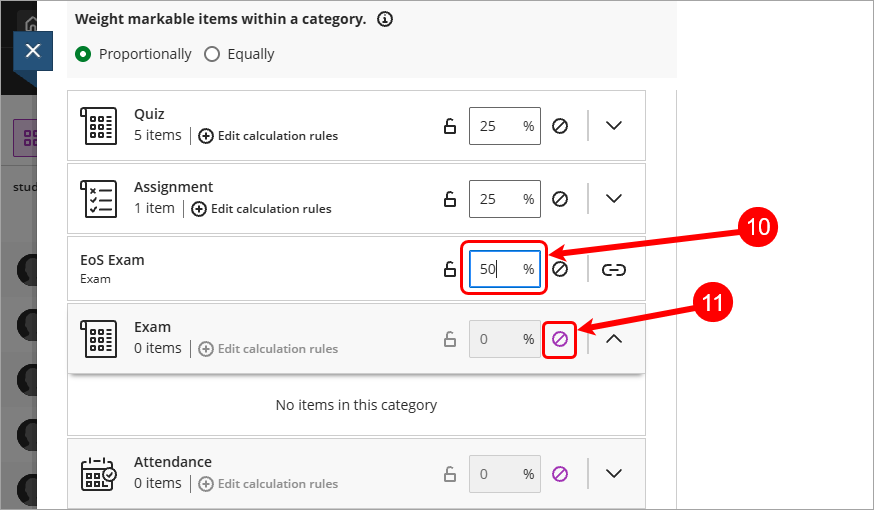
- Repeat Steps 10 & 11 for all categories with Items.
- Review Calculations.
Tip: Calculations contains any calculated columns that you may have created in your Gradebook. e.g. Best 3 of 5 quizzes. - Click on the Unlink (Link icon with diagonal line) button to add a Calculation column to the total calculation.
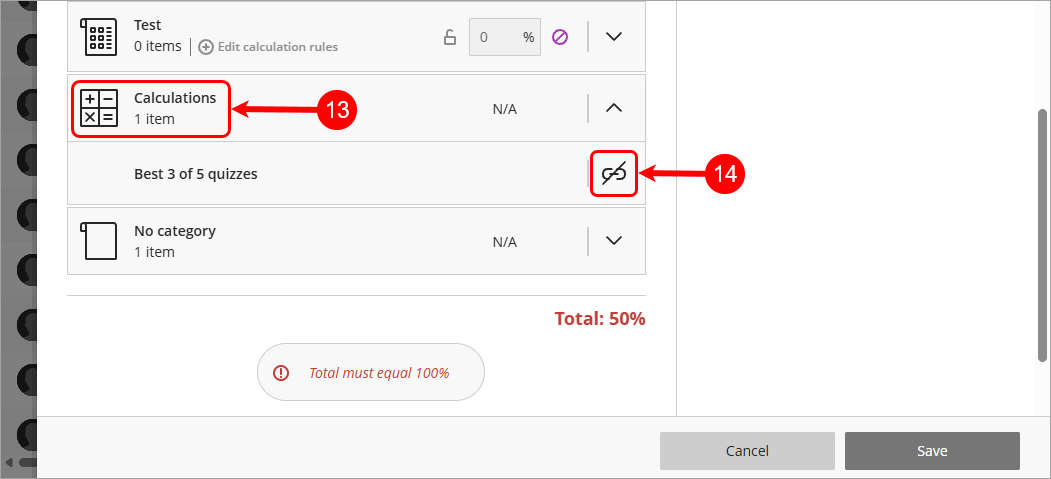
- Click on the Weight percent for item textbox, enter in the weighted percentage for the assessment (as listed in the Course Profile) e.g. 20%.
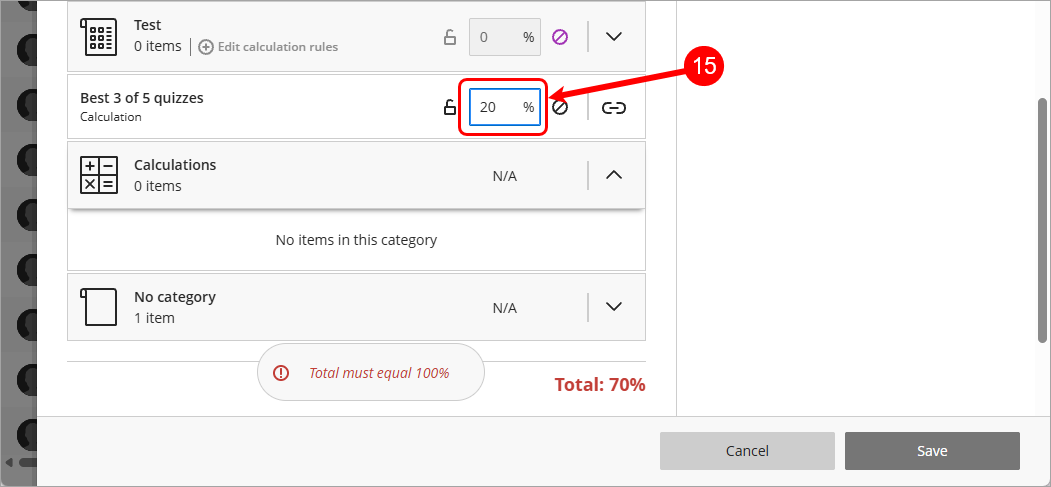
- Repeat Steps 14 & 15 for any other Calculations.
- Review No category.
Tip: No category contains any column that was setup with No cateogry including LTI tools e.g. Turnitin. - Click on the Unlink (Link icon with diagonal line) button to add No category columns to the total calculation.
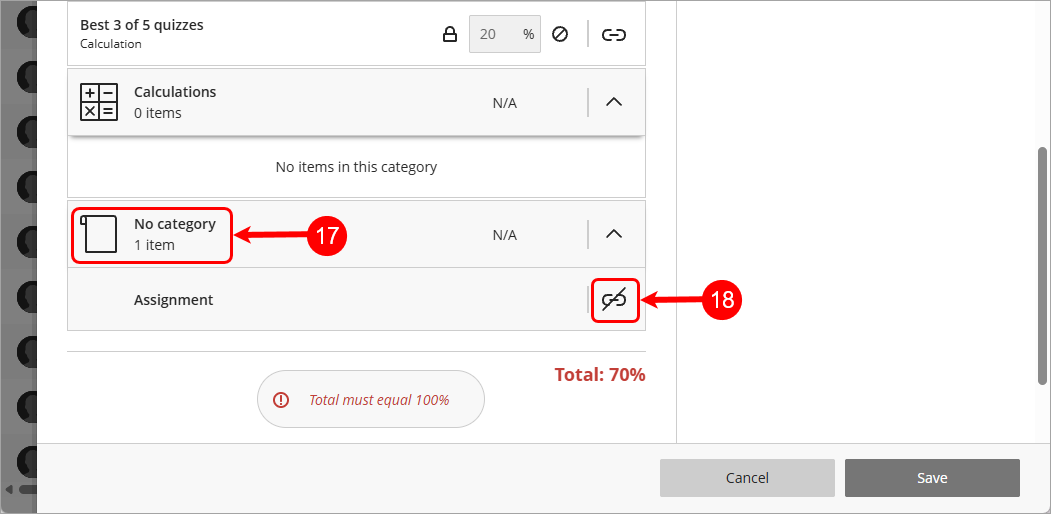
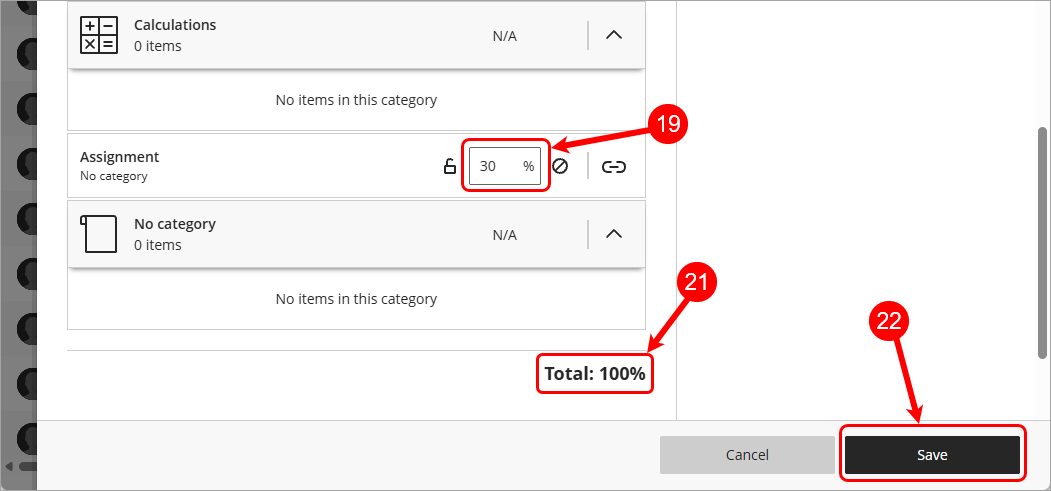
- Click on the Weight percent for item textbox, enter in the weighted percentage for the assessment (as listed in the Course Profile) e.g. 30%
- Repeat Steps 18 & 19 for any other No Category.
- Review Total Percentage is correct.
- Click on the Save button.
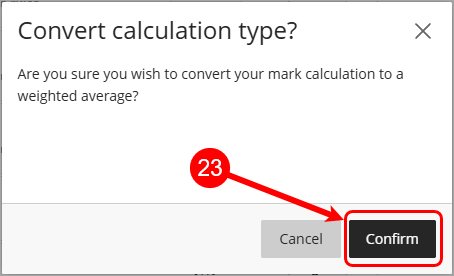
- Click on the Confirm button to convert the calculation type to weighted average.
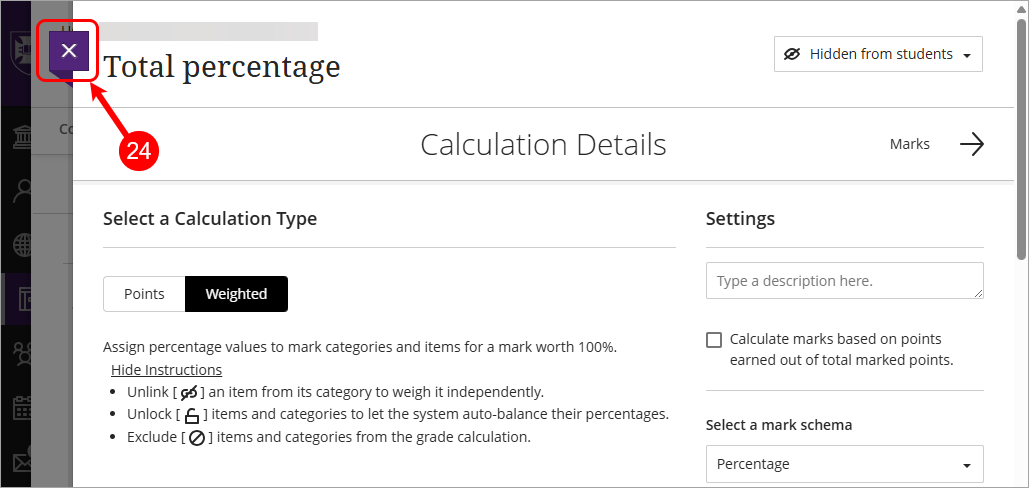
- Click on the Close (X) button.
- The Total percentage assessment details panel will be displayed with the max points.
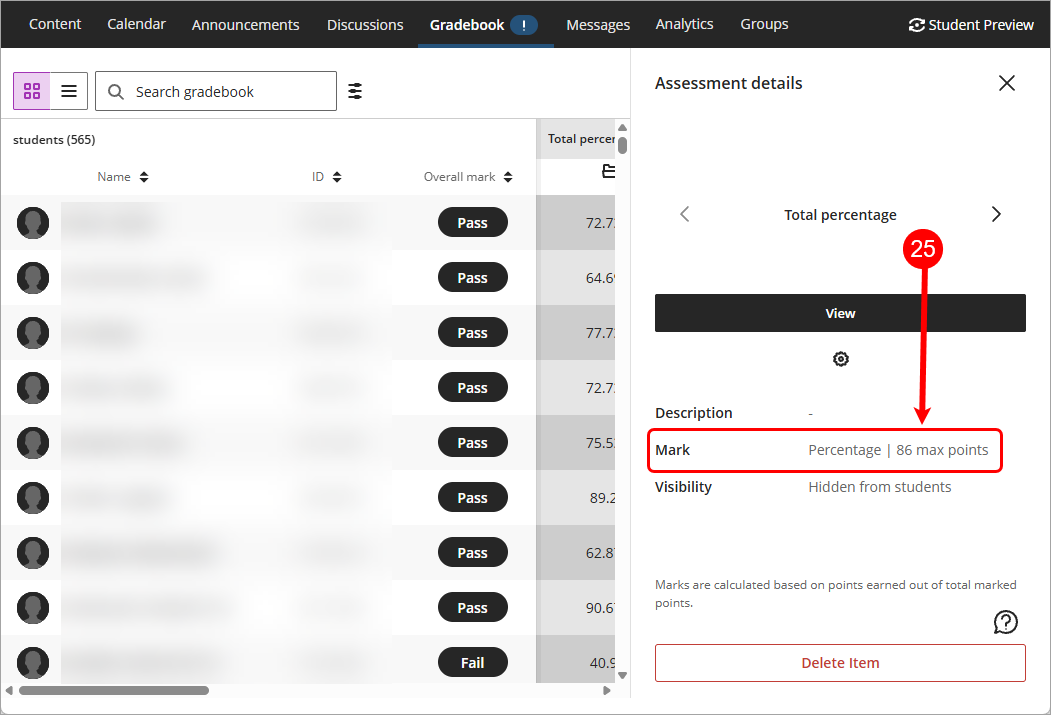
Note: The total points for the column may not equal 100, it will depend on the total mark value of each assessment.
For example:
A1 is out of 100 points and weighted at 50%, so it is worth a maximum of 50 points in the total
A2 is out of 100 points and weighted at 30% so it is worth a maximum of 30 points in the total.
A3 is out of 30 points and weighted at 20% so it is worth a maximum of 6 points in the total.
This gives the total percentage column a maximum points possible of 86.
Setup a points total percentage column
- Select Gradebook from the navigation bar.
Tip: The default view is Grid view, if you are in List view, please click on the Grid view (4 squares) button. - Click on the Total percentage column heading.
Note: If your course doesn't have a Total percentage column or it has been deleted, refer to the Create a Total percentage column section below.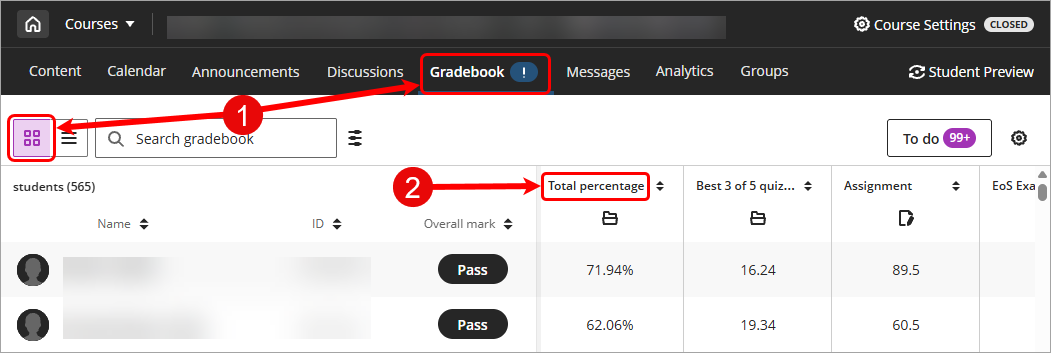
- Click on the Settings icon.
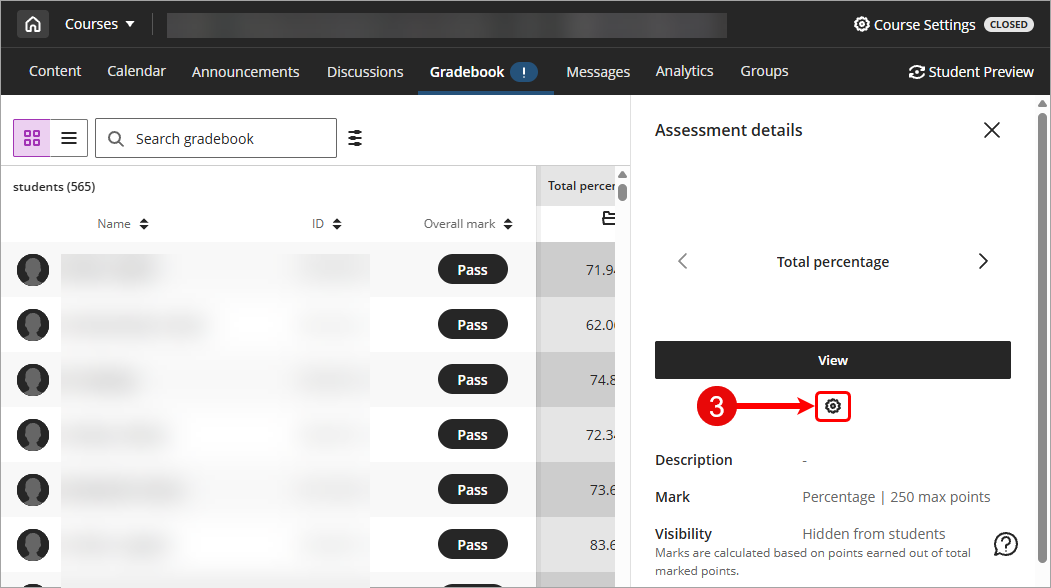
- The Points Calculation Type will be selected.
- Uncheck the Calculate marks based on points earned out of total marked points checkbox.
Warning: this setting is unchecked so that all required assessments are included in the grade calculation and assumes that if a task does not have a mark recorded it is treated as though the student has received a mark of zero (0) for that task. - Select Percentage from the Select a mark schema drop-down box.
Note: In rare cases, such as some EDUC courses, you may need to select points instead of percentage.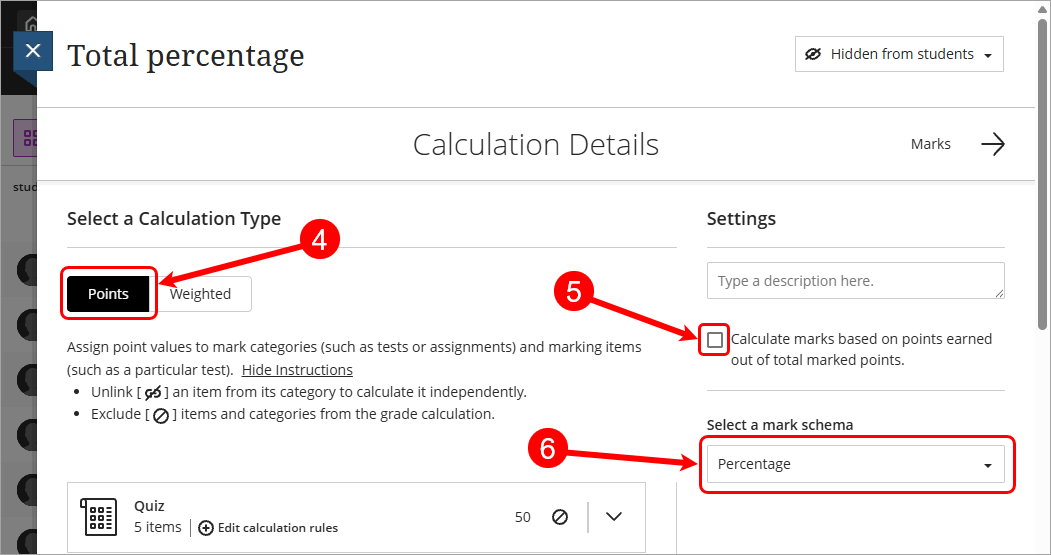
- Click on the Exclude category (circle with diagonal line) button for any categories that contain 0 items.
Tip: The Exclude category (circle with diagonal line) button will change to purple when it is being excluded.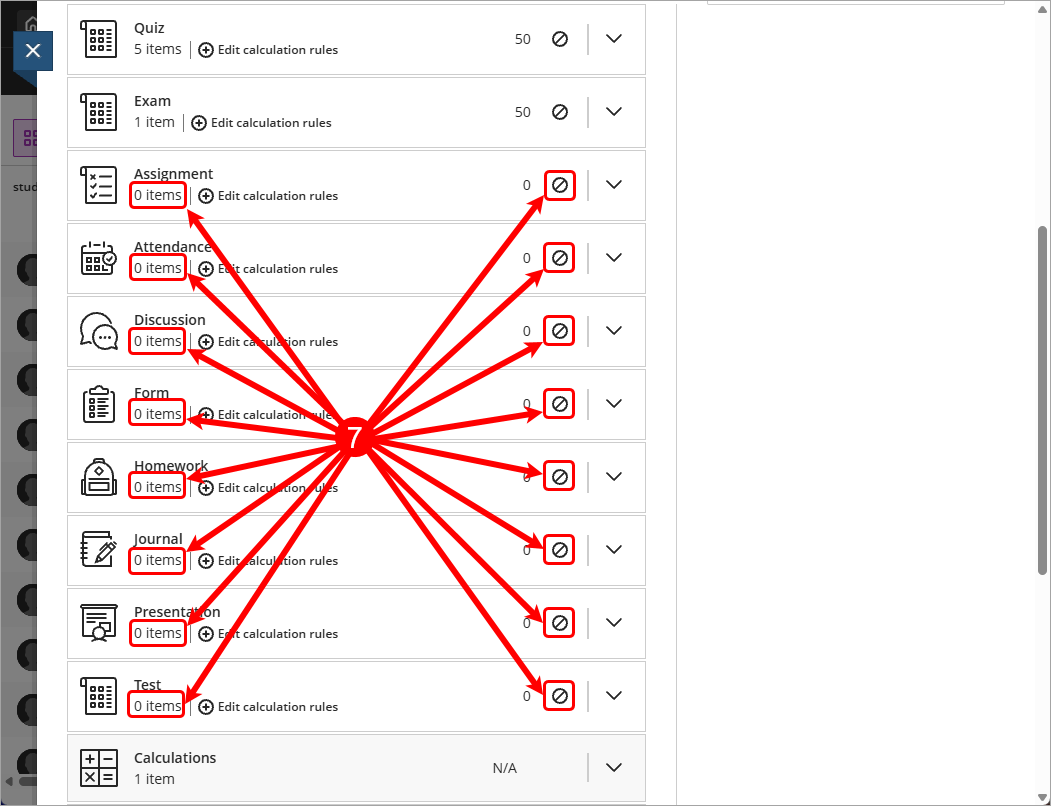
- Expand Categories that contain items. e.g. Exam
Tip: Click on the down arrow next to the Category to expand.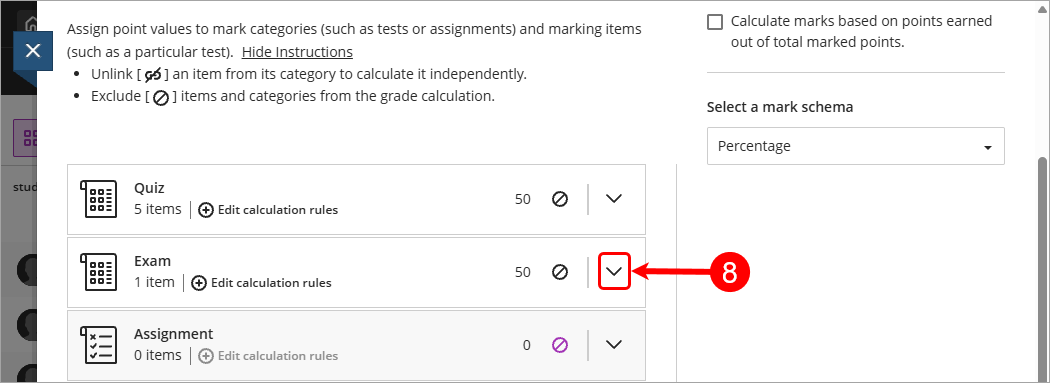
- Review each category (that contains an item), click on the Unlink (Link icon with diagonal line) button to add an individual item to the total calculation.
Tip: You are looking for the items (assessments) that need to be included in your Total percentage.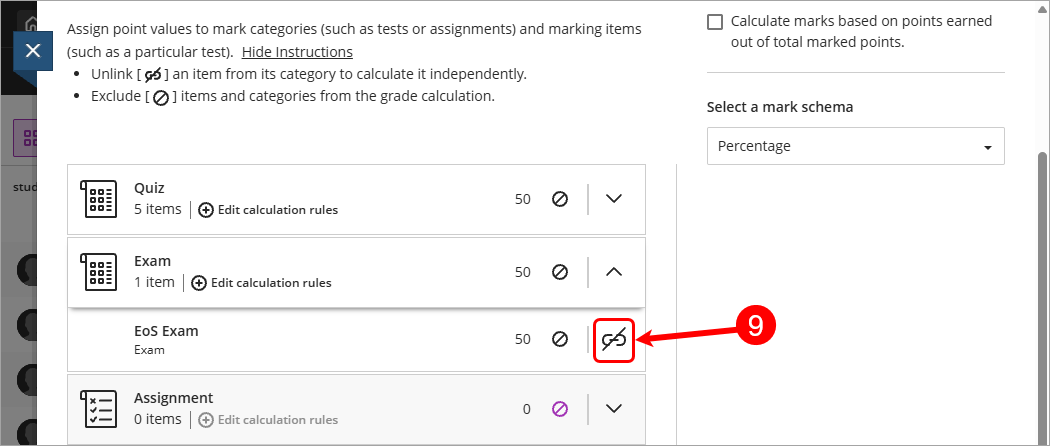
- Click on the Exclude category (circle with diagonal line) button for the category once required items have been unlinked.
Tip: The Exclude category (circle with diagonal line) button will change to purple when it is being excluded.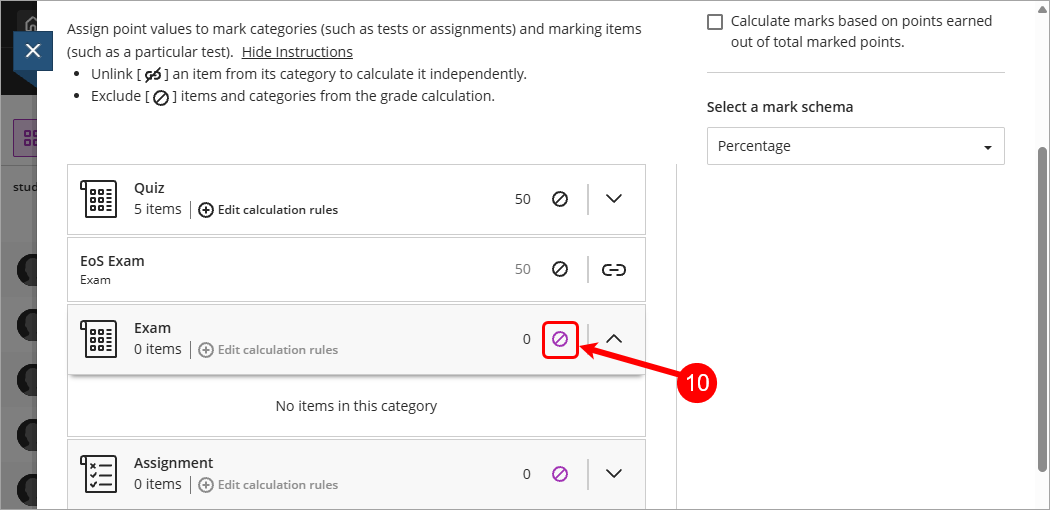
- Repeat Steps 8 to 10 for all categories with Items.
- Review Calculations.
Tip: Calculations contains any calculated columns that you may have created in your Gradebook. e.g. Total quiz column. - Click on the Unlink (Link icon with diagonal line) button to add a Calculation column to the total calculation.
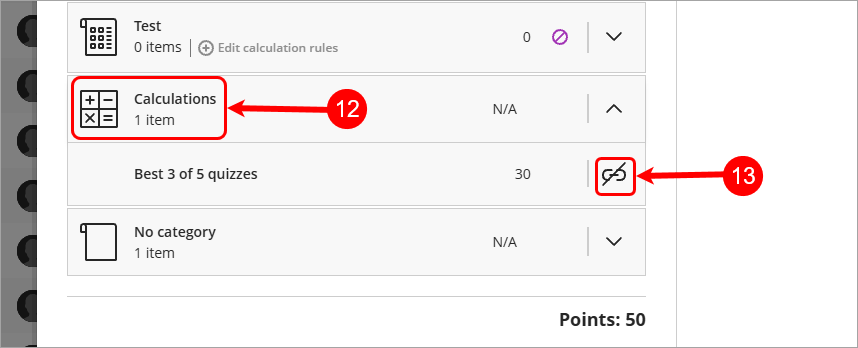
- Repeat Steps 12 & 13 for any other Calculations.
- Review No category.
Tip: No category contains any column that was setup with No cateogry including LTI tools e.g. Turnitin. - Click on the Unlink (Link icon with diagonal line) button to add No category columns to the total calculation.
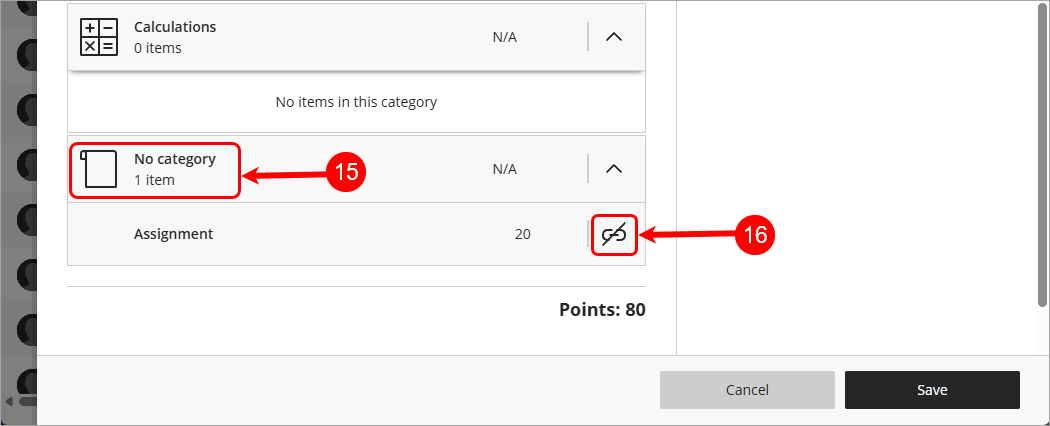
- Review Total Points is correct.
- Click on the Save button.
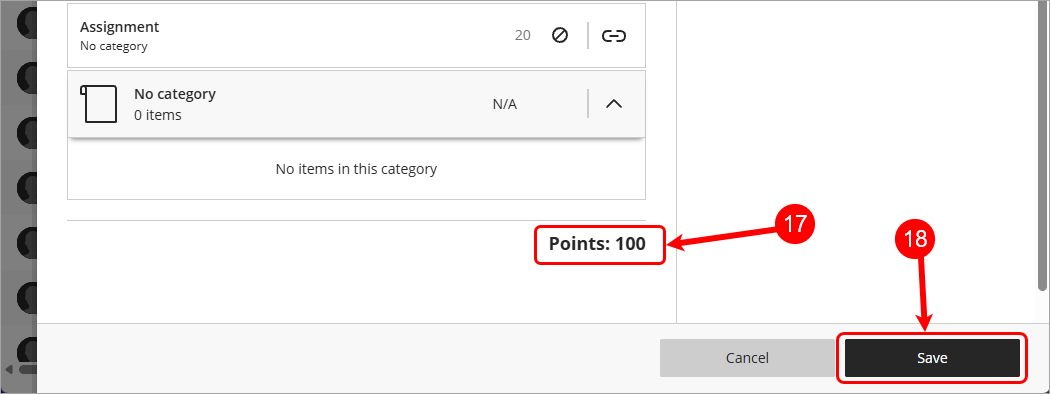
- Click on the Close (X) button.
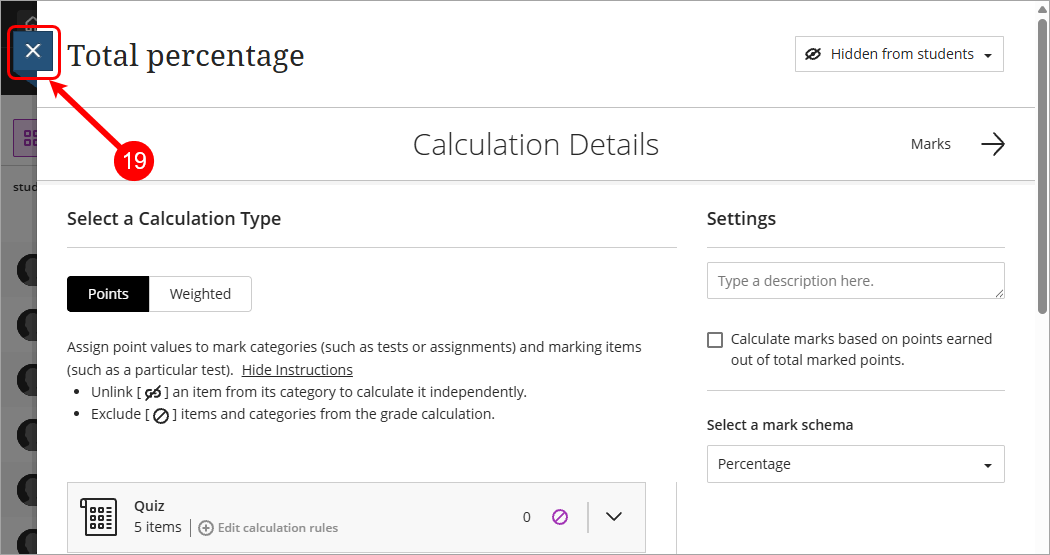
- The Total percentage assessment details panel will be displayed with the max points.
Note: The total points for the column will equal 100.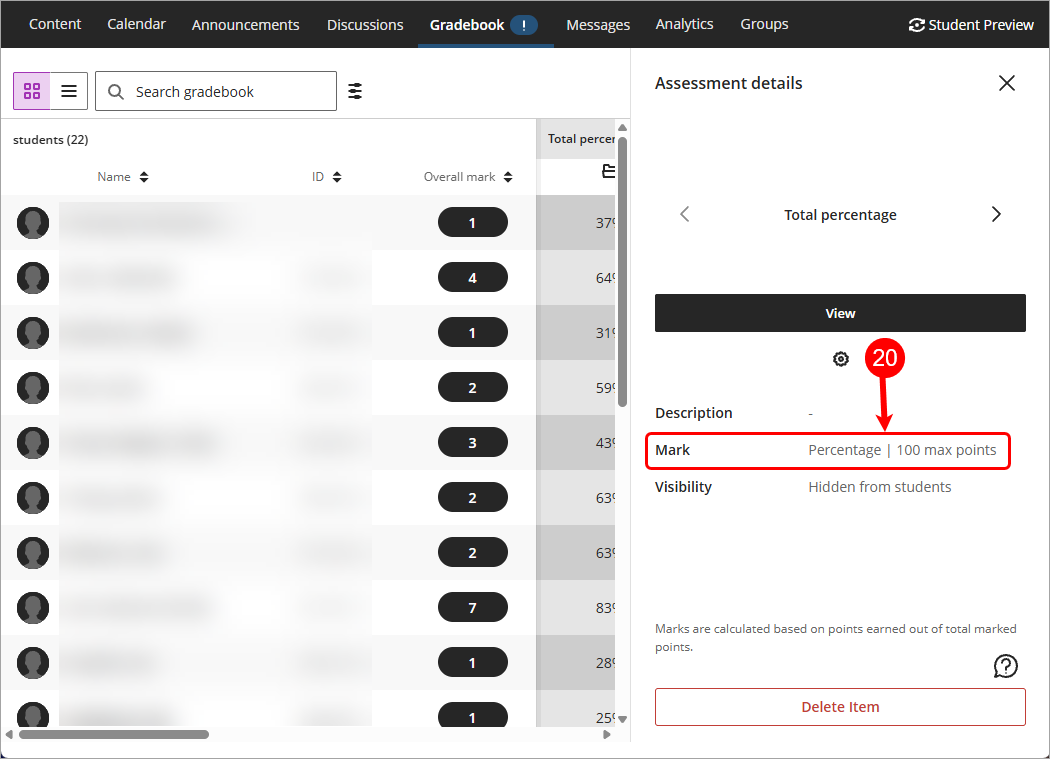
Create a Total percentage column
- Select Gradebook from the navigation bar.
Tip: The default view is Grid view, if you are in List view, please click on the Grid view (4 squares) button. - Decide where you want to place the column, click on the Add new gradebook column (+) button.
Note: eLearning recommends the Total Percentage column is placed as the first column next to the Overall mark column.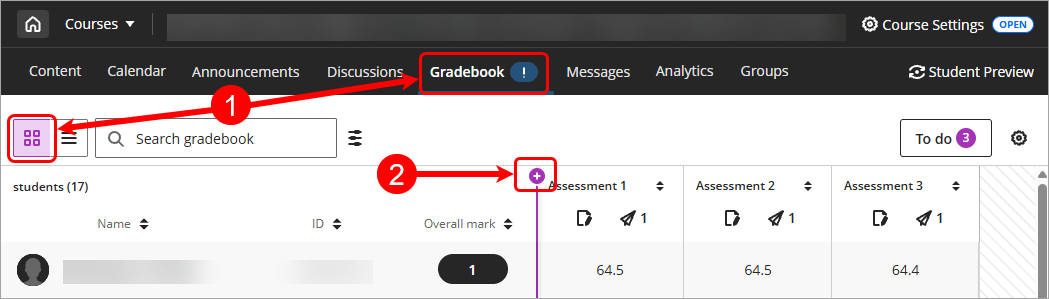
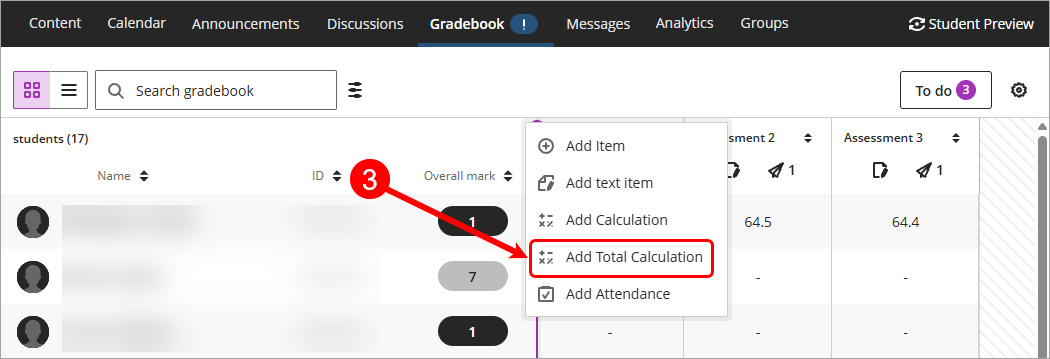
- Select Add Total Calculation from the drop-down list.
- Click on the New Total Calculation Title and enter a meaningful title. e.g Total percentage.
- Uncheck the Calculate marks based on points earned out of total marked points checkbox.
Warning: this setting is unchecked so that all required assessments are included in the grade calculation and assumes that if a task does not have a mark recorded it is treated as though the student has received a mark of zero (0) for that task. - Select Percentage from the Select a mark schema drop-down box.
Note: In rare cases, such as some EDUC courses, you may need to select points instead of percentage. - Click on the Save button.
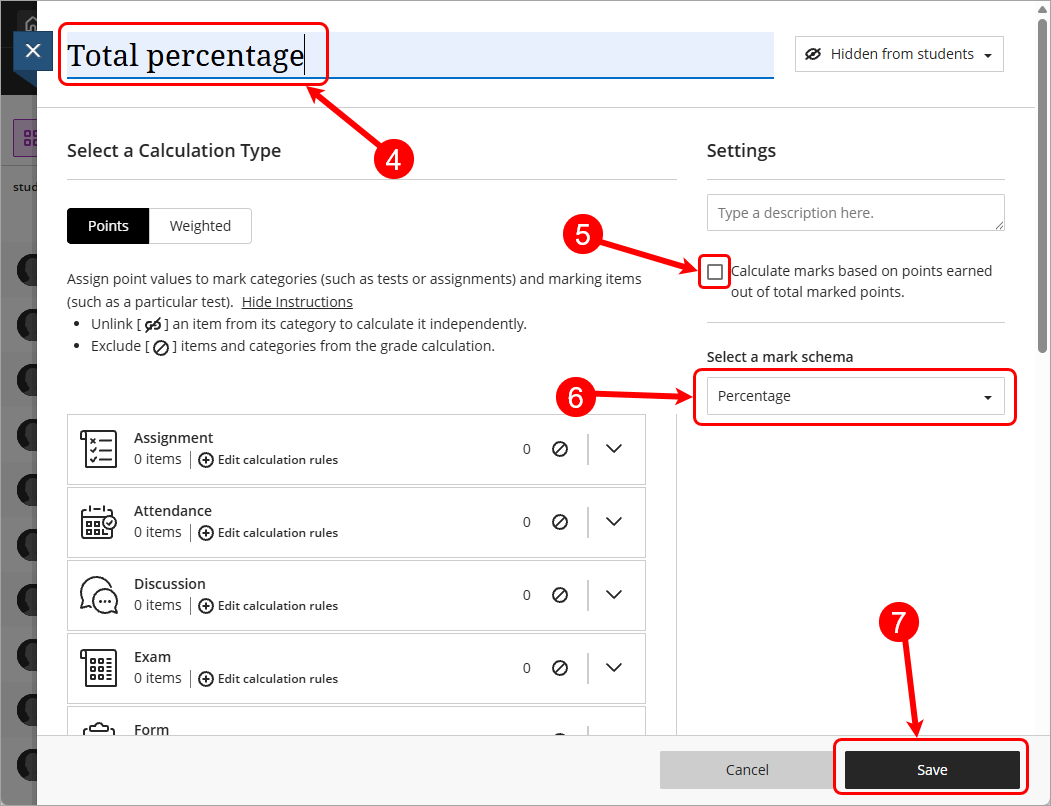
- Complete the Total percentage setup, refer to the Setup a weighted total percentage column or Setup a points total percentage column sections above.
- Accommodations (extra time) (Ultra)
- Add or edit exceptions (extensions) (Ultra)
- Control the release of results (Ultra)
- Create a Gradebook Mark Schema (1-7 grades) (Ultra)
- Create a Gradebook Mark Schema (Pass/Fail) (Ultra)
- Create a Gradebook category (Ultra)
- Create a Gradebook column (Ultra)
- Create a Gradebook text column (Ultra)
- Delete a Gradebook column (Ultra)
- Download / Upload spreadsheets in Gradebook (Ultra)
- Enter Gradebook marks only (Ultra)
- Enter marks using a rubric (Ultra)
- Enter marks, feedback and attach documents (Ultra)
- Gradebook Average column (Ultra)
- Gradebook Minimum / Maximum column (Ultra)
- Gradebook filters (Ultra)
- Gradebook settings (Ultra)
- Grades Security (Ultra)
- Hurdles in Gradebook (Ultra)
- Identifying hurdles using filters (Ultra)
- Identifying hurdles with a hurdle marking schema (Ultra)
- MCQ Direct Upload to Gradebook (Ultra)
- Mark categories (Ultra)
- Mark history report (Ultra)
- Overall Gradebook Mark (Ultra)
- Record a reason for a mark change (Ultra)
- Rubric management and setup (Ultra)
- Search Gradebook (Ultra)
- Send Reminder (Ultra)
- Top 7 Finalising Grades Tips (Ultra)
- Total Gradebook X of Y column (Ultra)
- Total Gradebook calculation column (Ultra)
- Total Percentage Gradebook column (Ultra)
- Upload Grades to SI-net directly (Ultra)
- Upload Grades to SI-net via SI-net merge tool (Ultra)