Transfer marks from ePortfolio to Gradebook (Ultra)
Why would I transfer marks from ePortfolio to Gradebook?
Due to the way in which the ePortfolio integrates with Learn.UQ it may become necessary to manually transfer results from ePortfolio to Gradebook.
If ePortfolio marks are to be held back from students then you will need to do a manual transfer of marks into Gradebook due to marks being auto posted when sending them directly back from the ePortfolio.
1. Create a column in Gradebook for the ePortfolio results
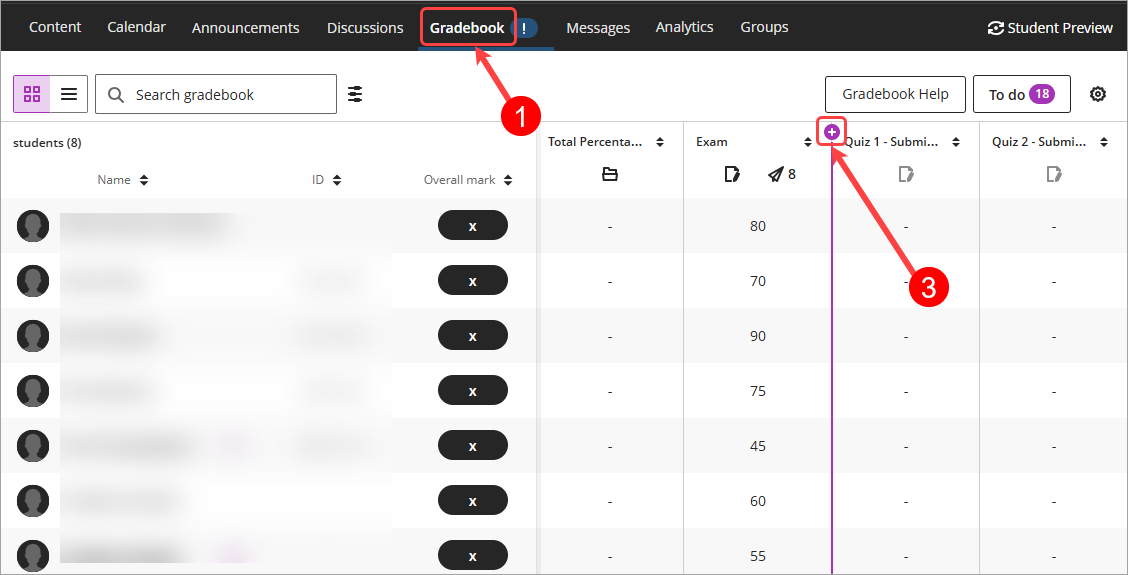
- Access your Learn.UQ course's Gradebook.
Tip: The default view is Grid view, if you are in List view, please click on the Grid view (4 squares) button. - Decide where you want to place the column.
- Click on the Add new gradebook column (+) button.
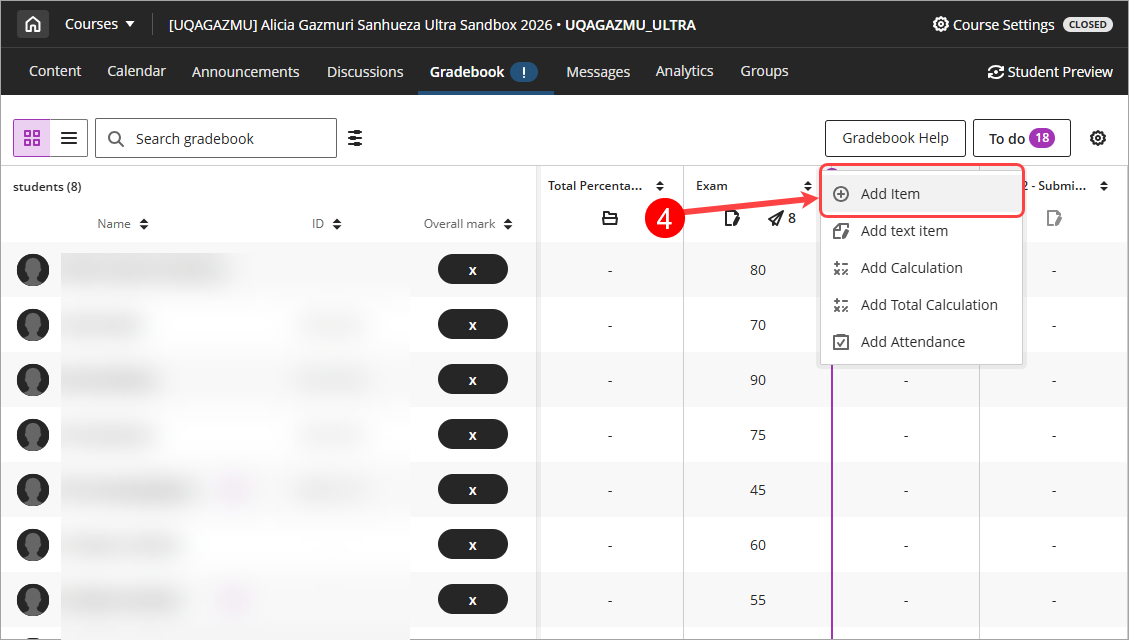
- Select Add Item from the drop-down list.
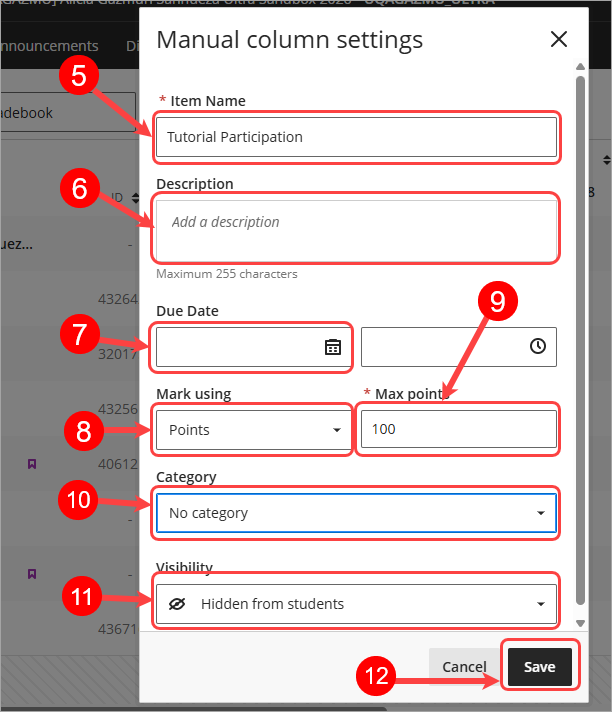
- Click on the New Item Title and enter a meaningful title. e.g Tutorial participation.
- Click on the Description textbox, enter a description (optional).
- Remove the Due date by highlighting the date and pressing delete on keyboard.
Tip: This will stop students from receiving unecessary due date reminders for this column. - Select Points from the Mark using drop-down box.
- Click on the Maximum points textbox and enter desired points.
Tip: Set the maximum points to match what your task is marked out of in the ePortfolio. - Select a Category from the Mark category drop-down list.
Tip: Unless a Best X of Y column is needed, we recommend using No category. - Set column visibility from the visibility drop-down list.
Tip: Making the column visible to students will allow them to see the result straight away. - Click on the Save button.
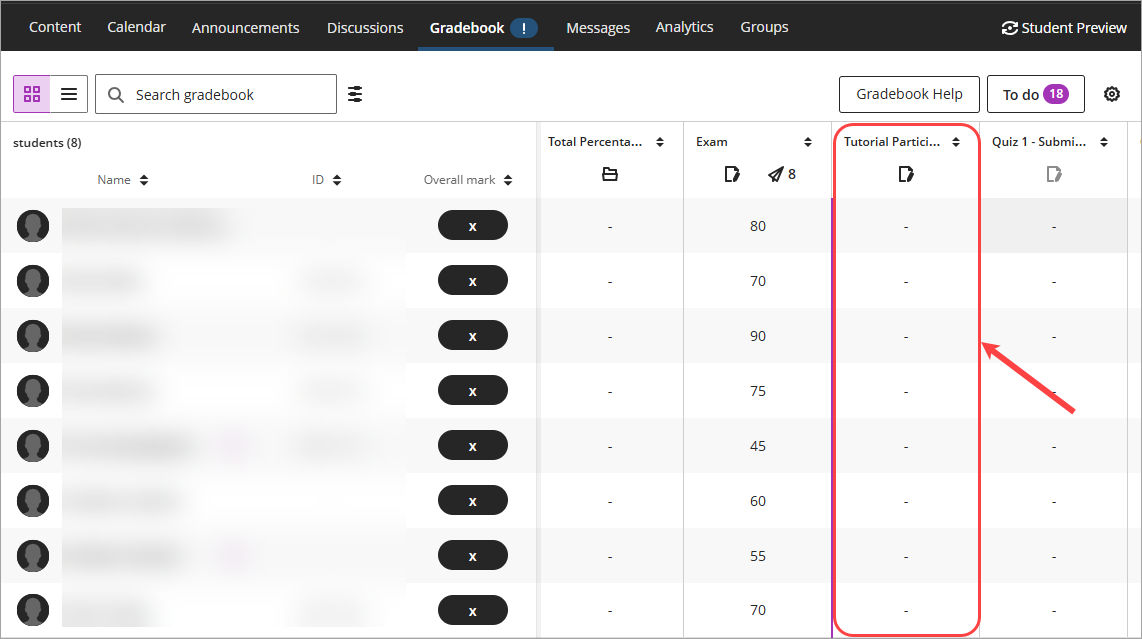
- Column will be created in desired location.