
Create a Gradescope Exam/Quiz assignment for in-class tasks
This guide will walk you through the process of setting up a Gradescope Exam/Quiz assignment for marking in-class tasks.
4. Create a Gradescope link
Tip: It is recommended that all Gradescope assignment links are added within an appropriate Assessment folder in the Content area. Best practice is to create a folder for all required assessment information. To avoid student confusion, the folder should be given exactly the same name as the assignment title in the Course Profile. For further information on creating folders, refer to the Create a Folder guide.
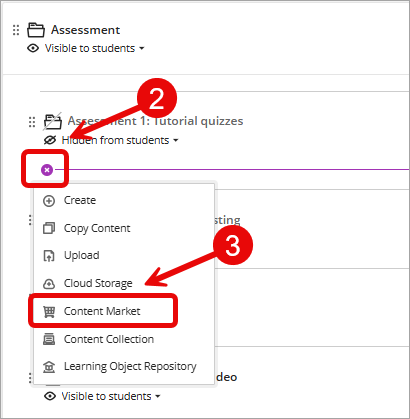
- Navigate to the required assessment folder.
- Click on the Add new content (+) sign.
- Select Content Market from the drop-down list.
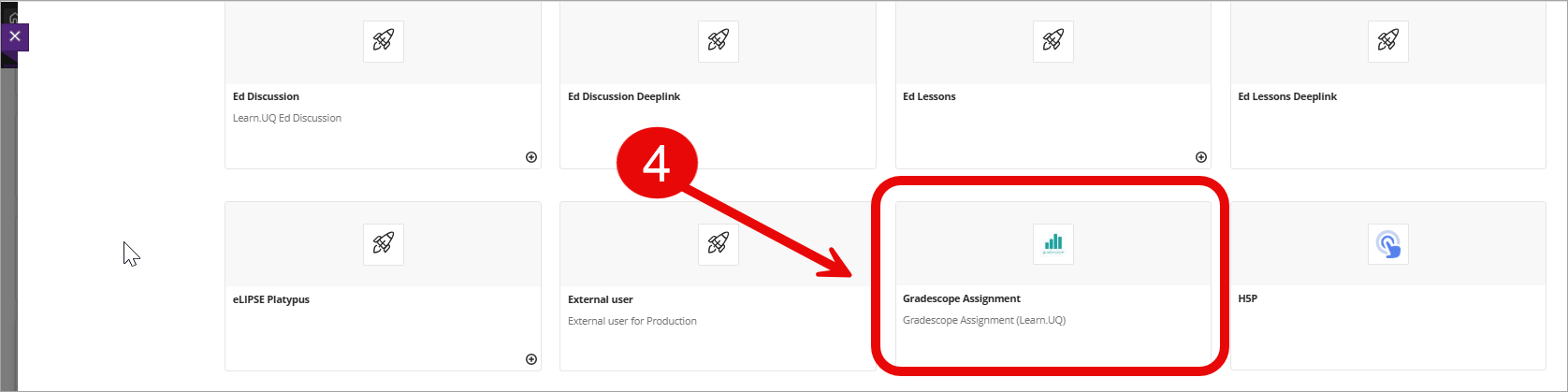
- Select Gradescope Assignment from the content market.
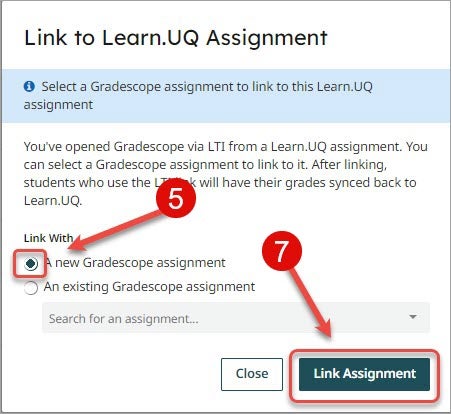
- Select the A new Gradescope assignment radio button. OR
- If you have previsously copied an assignment select An existing Gradescope assignment and select the required assignment from the drop-down list.
- Click on the Link Assignment button.
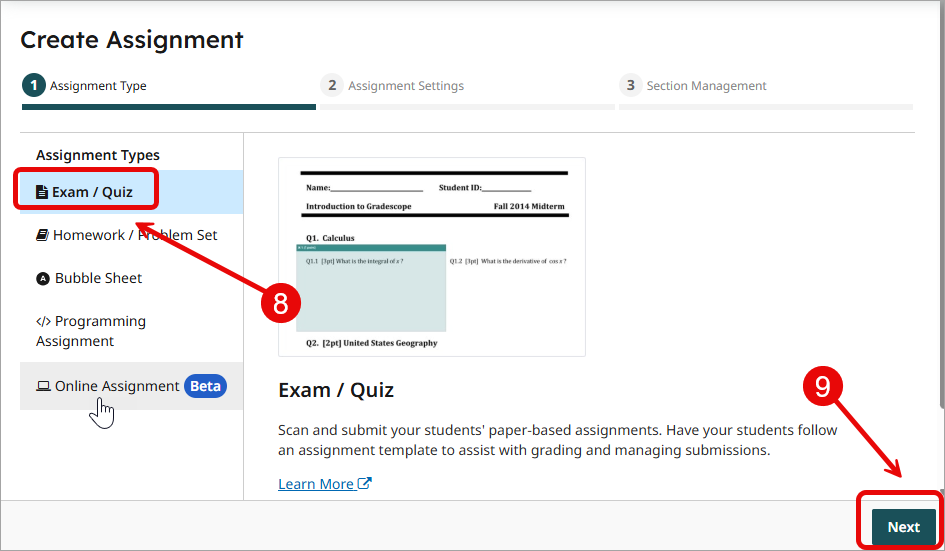
- Select Exam / Quiz from the Assignment Type tab.
- Click on the Next button.
- Enter the title of the assignment in the Assignment Name field.
Tip: The title of the assignment should be the same as in the Course Profile. Include the course code, semester and year in the title so the assignments can be easily searched for and copied for future use. - Click on the Select PDF button and select your in-class task answer template file.
- Uncheck Enable anonymous grading radio button for the setting Submission Anonymization.
- Select the Instructor radio button for the setting Who will Upload Submissions?.
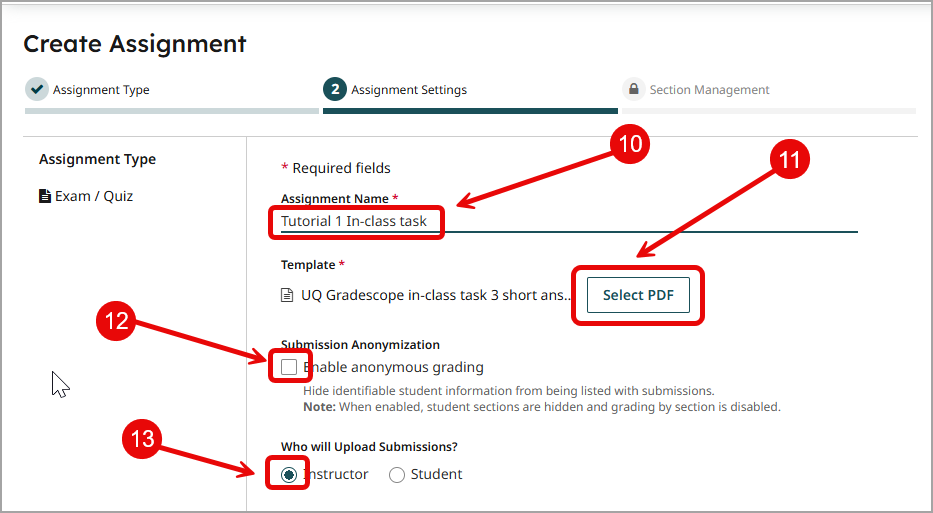
- Select the Before student submission radio button for the setting Create your Rubric.
- Select the Only instructors can edit rubrics radio button for the setting Rubric Permissions.
- Click on the Create Assignment button.
- A Success! message will be displayed.
- Close the browser tab.
- Close Content Market.