
Access Gradescope (Ultra)
Gradescope can be accessed by staff via Learn.UQ (Blackboard) or via the Gradescope website.
Access via Learn.UQ (Blackboard)
Acess Gradescope via Learn.UQ (Blackboard) ) by adding a link in the correct assessment folder.
- Click on the Add new content (+) sign.
- Select Content Market from the drop-down list.
- From the Content Market, select Gradescope Assignment.
- The first time, link the Learn.uq course with A new Gradescope course. Click on the Link button.
- Link to A new Gradescope assignment. Click on the Link Assignment button.
- Choose your assignment type. Click on the Next button.
Refer to Creating, Editing, and Deleting an Assignment by Turnitin GradeScope to complete the Assignment creation. - Click on the Create Assignment button. A Success! window will appear. Close this window.
In your Learn.uq course, click on the link you created to access Gradescope.
Access via SSO (Single sign on)
To Access Gradescope using UQ SSO (Single sign on)
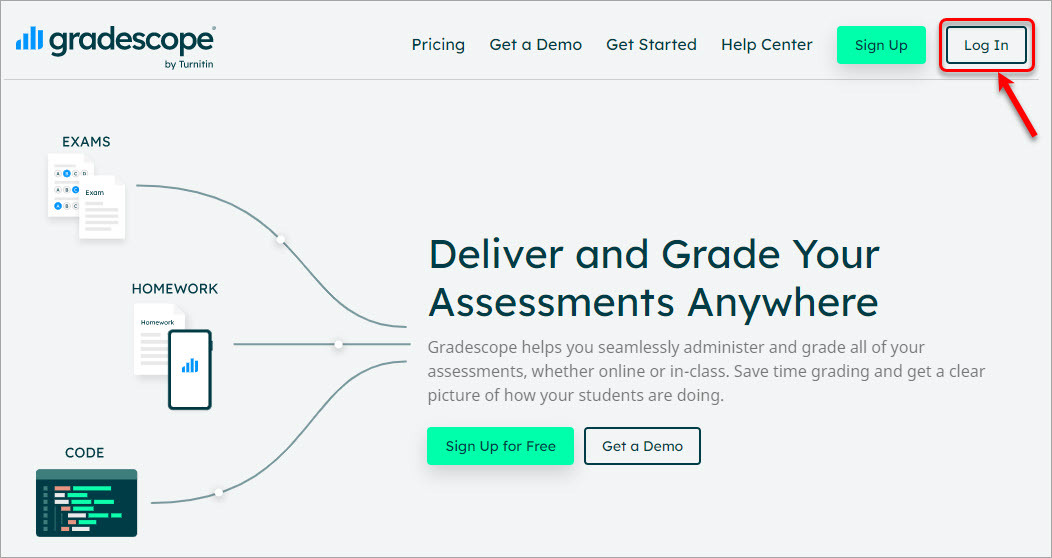
Access the Gradescope website
Click on the Log in button.
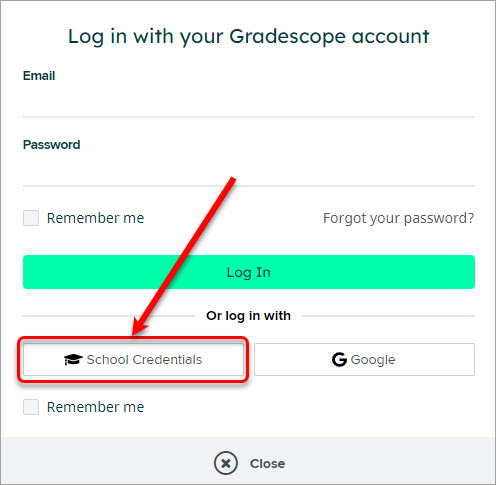
Click on the School Credentials button.
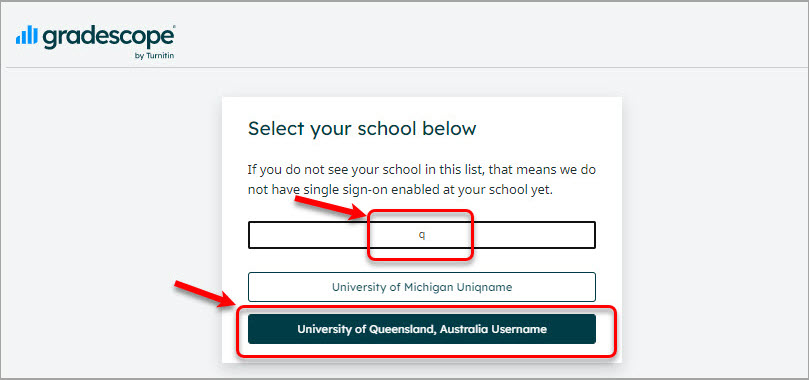
Select University of Queensland, Australia Username from the drop-down list.
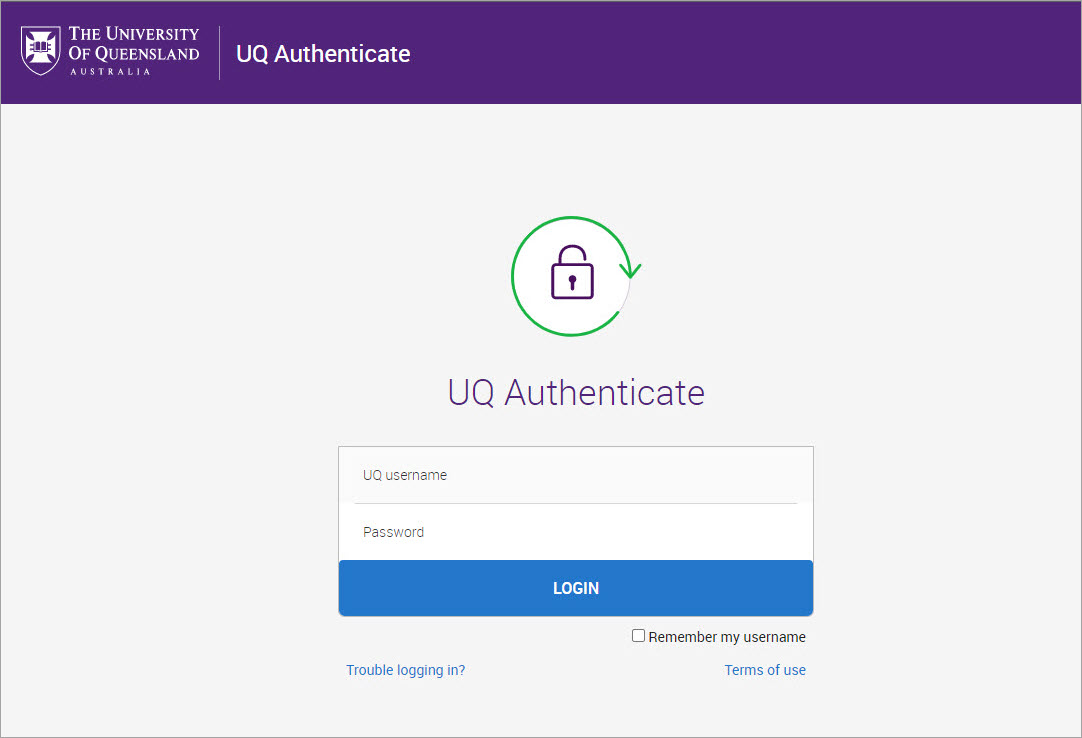
If prompted, sign in with your UQ login and password.
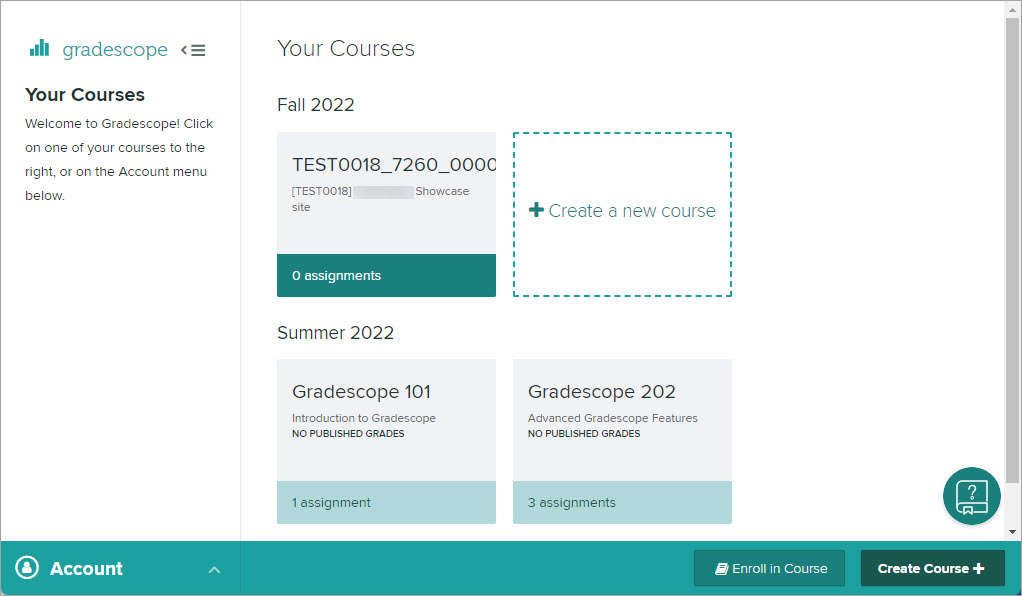
- Select an existing course or choose to create a new course.
- Assignment settings overview by Turnitin GradeScope, including
- Access Gradescope (Ultra)
- Access and view the Similarity Report and AI Writing Indicator (Ultra)
- Accidental release of Classic Turnitin marks (Ultra)
- Accidental release of Gradescope results (Ultra)
- Accidental release of Turnitin marks (Ultra)
- Check if a document has used referencing software (Ultra)
- Classic Turnitin - Control the Release of Results (Ultra)
- Convert a Standard points rubric to a Weighted range rubric
- Create Turnitin rubrics - SOE
- Create a Gradescope Bubble Sheet Assignment (Ultra)
- Create a Turnitin assignment (Ultra)
- Create a Turnitin standard rubric (Ultra)
- Create a Weighted range rubric (based on a UQ Institutional rubric)
- Edit a Turnitin assignment (Ultra)
- Enabling third party cookies (Ultra)
- Gradescope Roster Sync (Ultra)
- Gradescope exam answer booklet formatting (Ultra)
- Gradescope in-class tasks
- Gradescope tips (Ultra)
- Mark Classic Turnitin assignments by group (Ultra)
- Mark Turnitin submissions by groups
- Mark by group in Gradescope (Ultra)
- Marks / Rubrics / Grading form Overview (Ultra)
- Providing feedback in Turnitin overview (Ultra)
- Publish and Post student Gradescope assignment results (Ultra)
- Record marks and view in Gradebook
- Restore a Deleted Turnitin Assignment (Ultra)
- Submit a sample Turnitin assignment using Student Preview tool (Ultra)
- Turnitin - Control the release of results (Ultra)
- Turnitin Paper Request Treatments (Ultra)
- View and sort late Turnitin assignment submissions (Ultra)