Create a Turnitin assignment (Ultra)
This guide will walk you through the process of setting up a Turnitin Assignment for the submission of text-based assignments (e.g., PDF, Word, and PowerPoint files).
Known issue: A known issue has been identified in which students may receive an Overdue Assessment notification from the Blackboard course after the due date, despite having successfully submitted their assessment to Turnitin. The current workaround, should this issue occur, is to remove the due date from the Turnitin link. Instructions for removing the due date can be found in Step 7 of this guide.
Warning: Old Turnitin submission links should always be deleted and replaced to ensure results transfer correctly to Gradebook.
Note: Turnitin does not have functionality to mark non-submission assignments and it is recommended you use a Blackboard Assignments for this use case. Alternatively, you can use a Turnitin assignment and uploaded a document on the students behalf to allow non-submission marking.
6. Submission and Report Settings
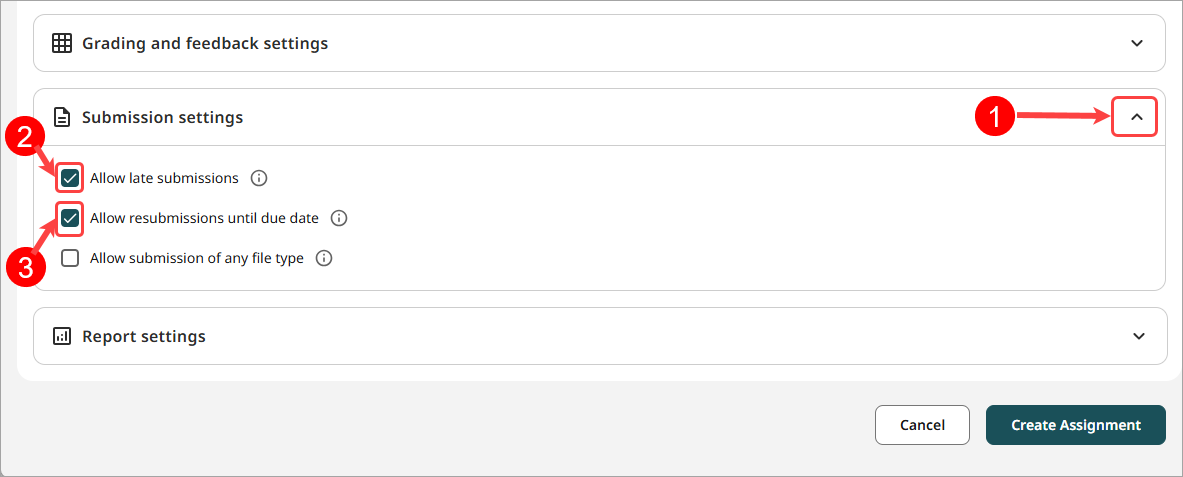
- Click on the Submission settings.
- Check the Allow late submissions checkbox.
- Check the Allow resubmissions until due date checkbox.
- Click on the Report Settings.
- Select the Allow students to view Similarity Reports checkbox.
Note: To comply with UQ Assessment policy & procedure (45) that previous two setting are required. - Select the At time submission radio button.
- Check the General Turnitin repository button
- Check the General Turnitin repository checkbox.
- Check the Website content checkbox.
- Check the Periodicals, journals and publications checkbox.
- Uncheck Exclude bibiographic materials checkbox.
- Uncheck Exclude quoted materials checkbox.
- Uncheck Exclude small matches checkbox.
Note: The report settings can be changed when viewing the Similiary report. Refer to the Managing filters and exclusions in the Similarity Report guide by Turnitin.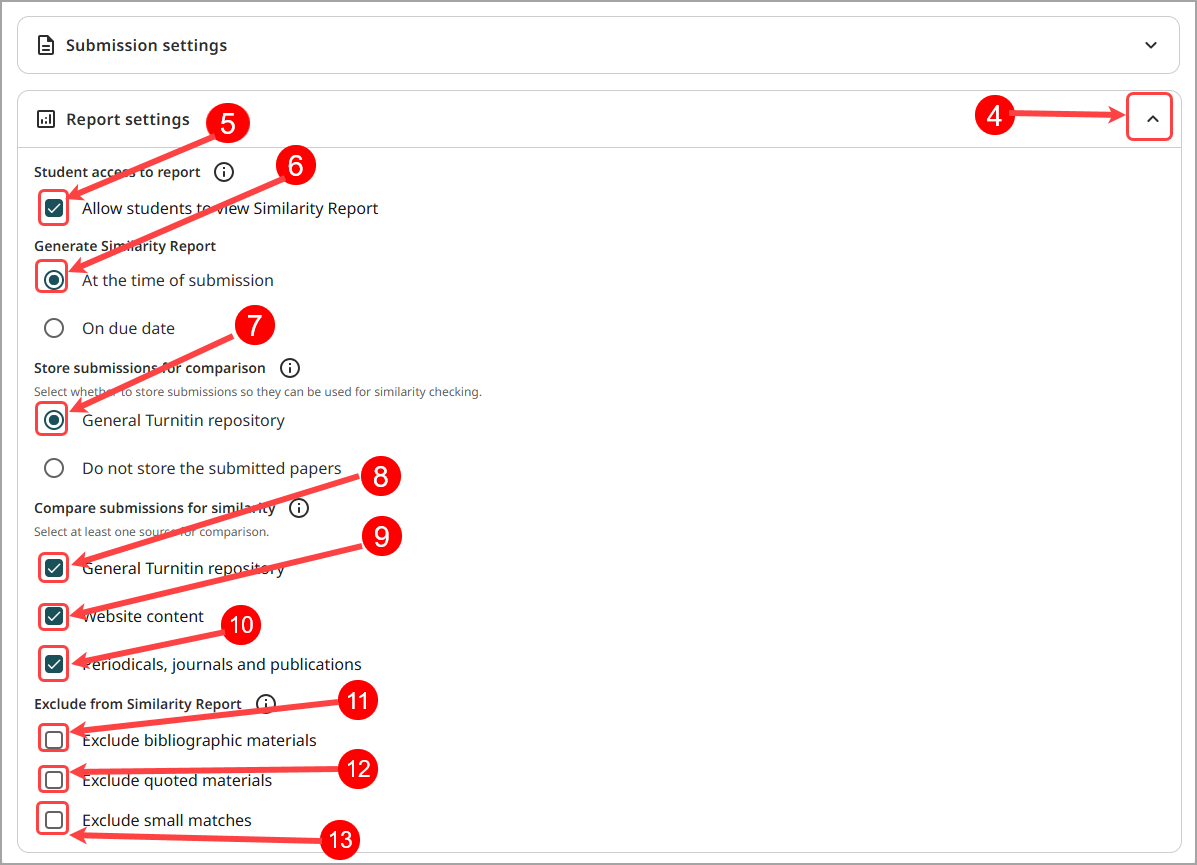
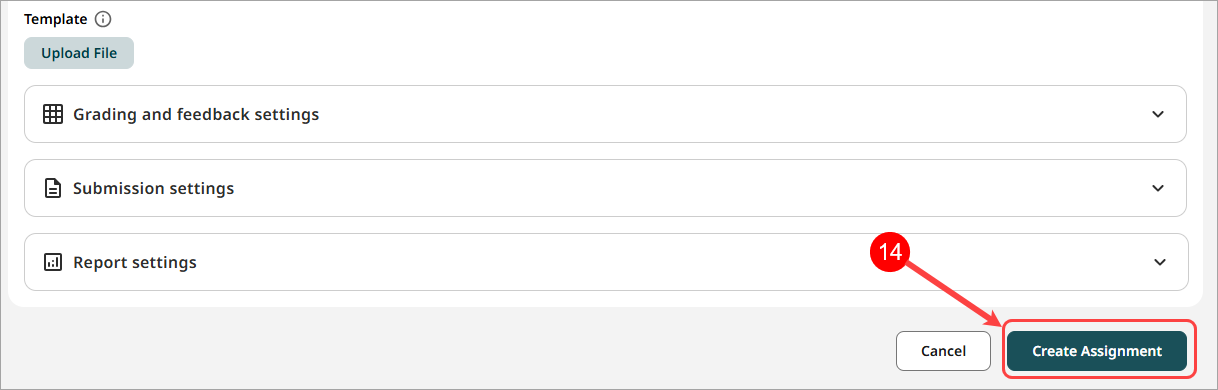
- Click on Create Assignment.