Adding a voice summary comment in New Turnitin (temporary workaround)
The option to record a summary voice comment is currently unavailable in the new Turnitin Feedback studio; however, it is on the vendor's Roadmap. Until this feature is available, instructors can use Echo360 to create and share voice comments with students.
To create a voice summary comment:
- Log in to your Echo360 profile by following the steps in the Access your Echo360 account guide.
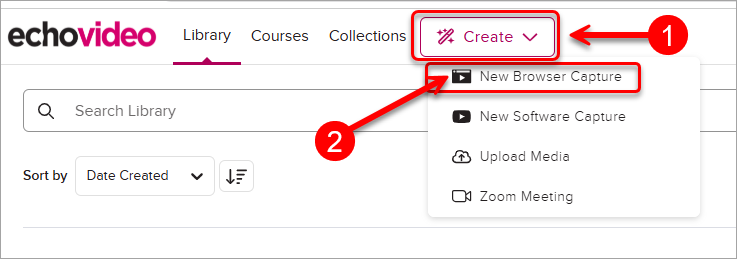
- Click on Create button, select New Browser Capture from the dropdown.
- In the pop-up, ensure you allow Echo360 to use your microphone. Add title and select a microphone (if more than one is available).
Note: it is recommended not to use Camera and Add Screen options for faster processing and downloading.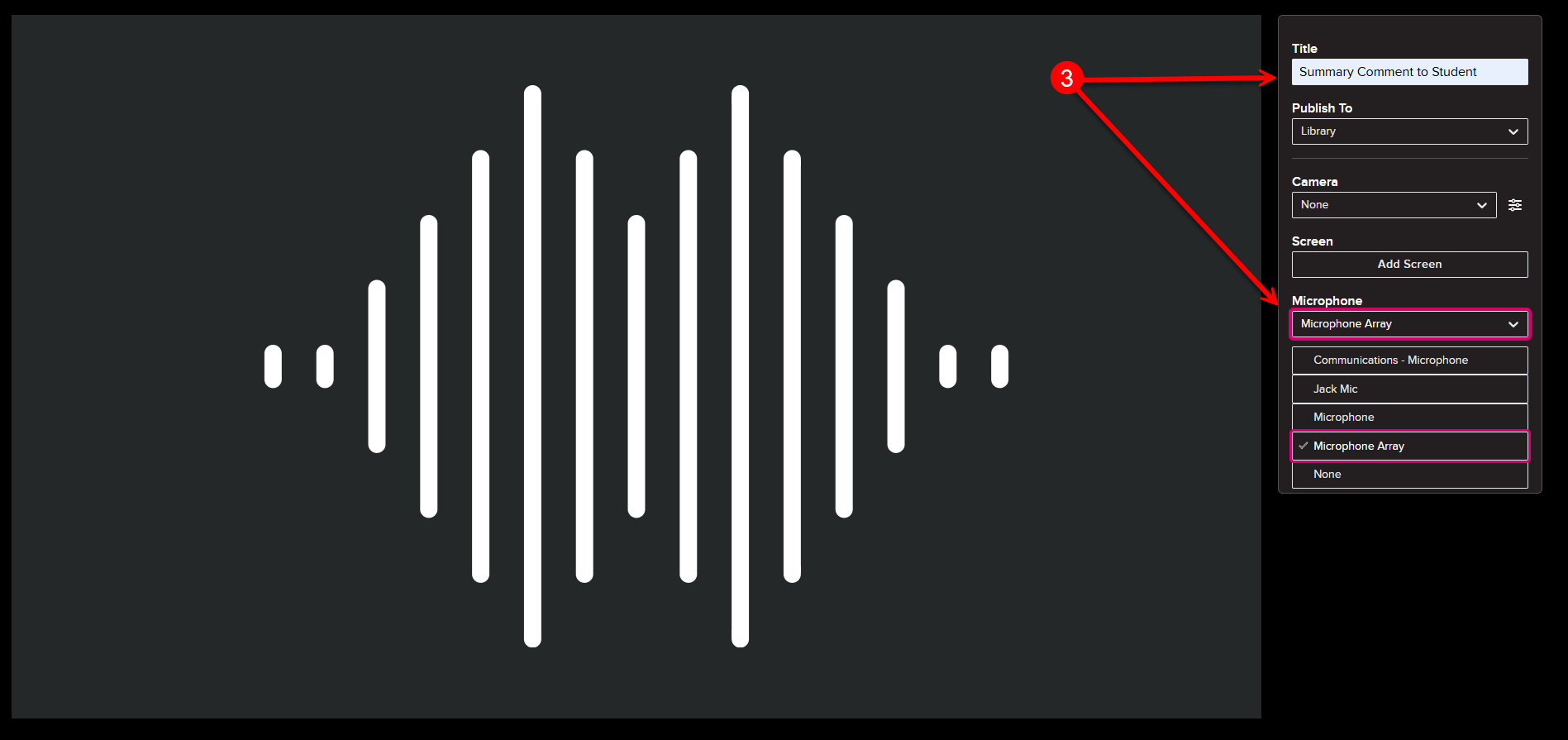
- Click on the Rec button to start recording and begin to capture your comment.
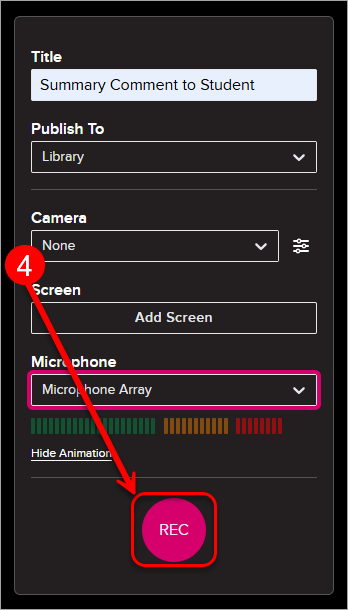
- Click on the Stop button to stop your recording.
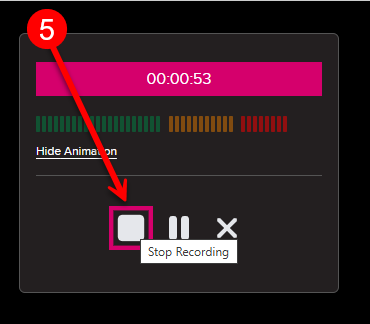
- Once finished, close Browser Capture tab and return to your EchoVideo profile. Locate the recording in the Library tab and click on three dots icon.
Note: Library page might need to be refreshed for the recording to appear.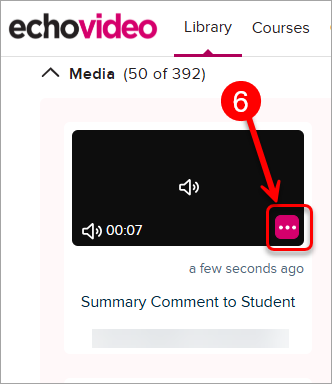
- Select Share from the menu.
Note: Share option is available even if the recordings is still in Processing.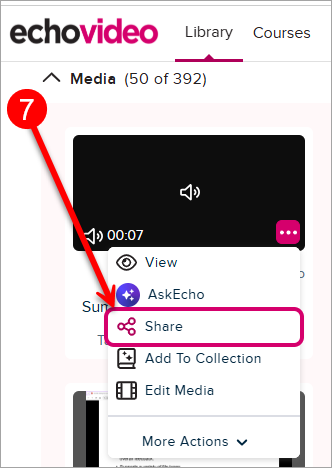
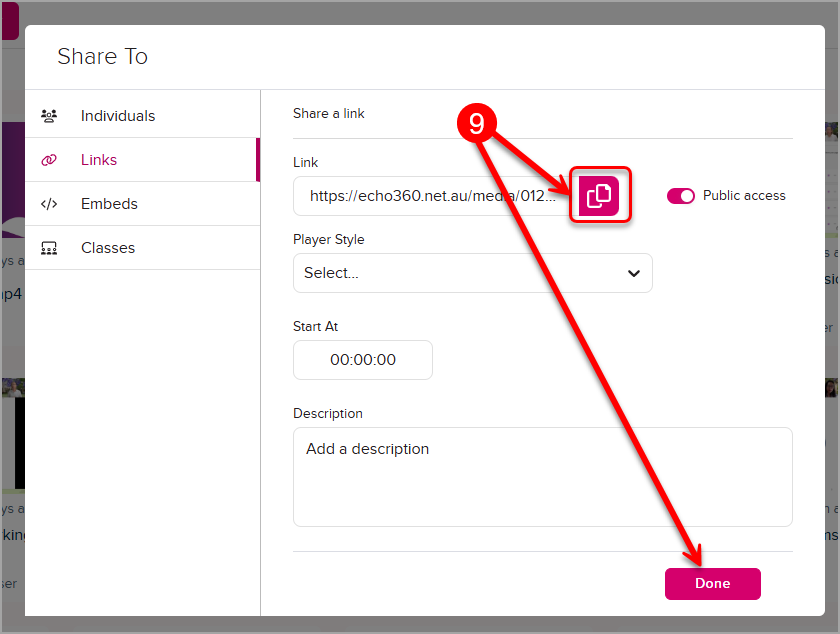
- In the pop-up window navigate to Links tab and click on Create Link.
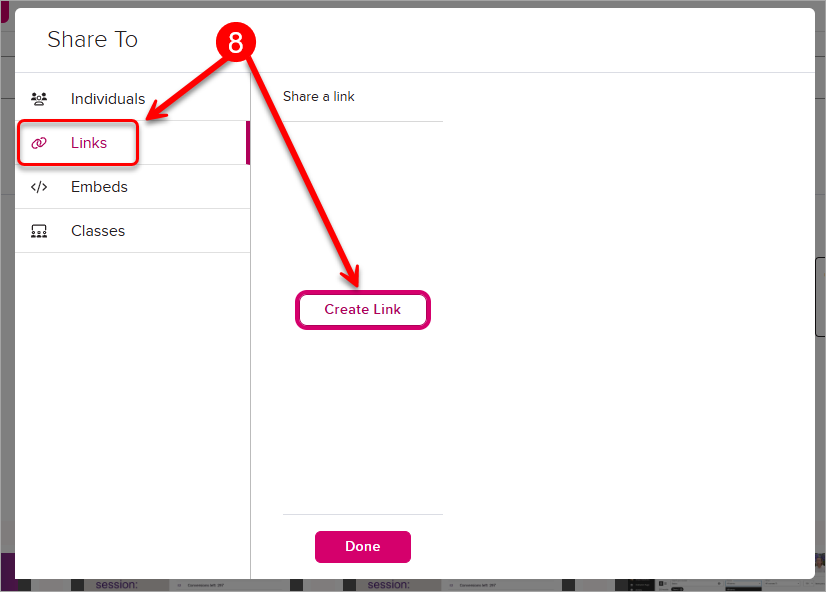
- Ensure the Public Access toggle is on so students can view it without login issues, then click on Copy and Done button.
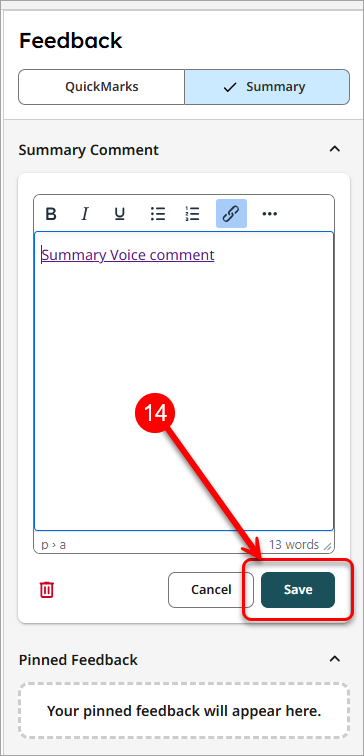
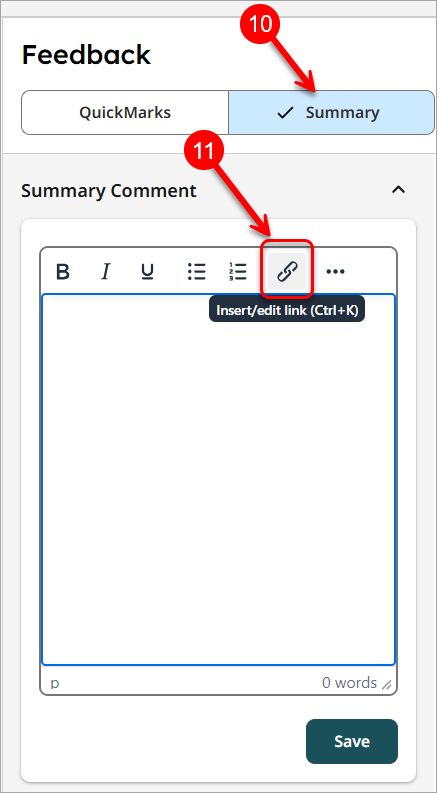
- Open the student's submission in Turnitin Feedback Studio and select the Summary tab in the side panel.
- In the Summary Comment box, click on Link icon (Insert/edit link).
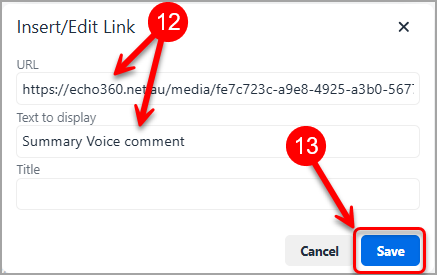
- Paste the link you copied from Echo360 into URL box and add preferred text (i.e. Summary voice comment) to Text to display box.
- Click on Save button to save the link details.
- Click on Save button an the bottom of Summary Comment box.