
Gradescope exam answer booklet formatting (Ultra)
When your exam includes questions that require lengthy handwritten answers, consider using the Gradescope answer booklet with QR Codes to streamline scanning and marking. For central exams, you can request separate printing of the answer booklets and the question paper by following the formatting instructions provided below. Both the question paper and Gradescope answer booklets will be printed on A4 paper, and stapled in the top left corner.
Note: if students require large print for exams (i.e. A3) the A3 can be scanned, reduced to A4 and uploaded successfully for marking.
Additionally, you can incorporate the Gradescope bubble sheet for Multiple Choice Questions into your exam.
Questions booklet
- Download the exam coversheet from the Exams Portal.
- Ensure that the ‘Instructions to Students’ section on the coversheet is clear and accurate. If any changes are needed, contact the Examinations team.
Sample instructions:
Answer Questions 1 – 3 in the Gradescope answer booklet provided. Write answers in the space provided for each question. If you need additional space, use the extra pages at the end of the answer booklet, clearly indicating the question number you are answering.
Answer Multiple Choice Questions 4 - 20 in the Gradescope Bubble Sheet provided.
OR
Answer Questions 16-20 in the Gradescope answer booklet provided. ONLY use the space provided for each question. Work outside the designated space will NOT be marked.
- Add your exam questions to the downloaded coversheet.
- Save and label the completed question paper as a PDF file.
- Upload the finalised question paper (PDF) to the Exams Portal by the due date.
Answer booklet
- Download the template and update the following details on the booklet coversheet.
- School Name
- Exam Code and Title
- Footer – page numbering and course code
- Format and clearly label the designated answer areas (e.g. Question 1 (a), Question 1 (b) etc.).
- If you would like to provide extra space for students to write their answers, keep the additional pages at the end of the booklet with clear instructions. For example: “If you run out of space for any question, continue your answer on the additional pages. Please STATE CLEARLY WHAT QUESTION(S) YOU ARE ANSWERING.”
- Generate QR Codes for each answer booklet. Ensure you create enough booklets by adding an extra 20 copies to the total number of students enrolled in the course.
- Email the files of answer booklets labelled with QR codes to exams.internal@uq.edu.au for central printing.
Tip: If you have not requested QR codes to be turned on for your course refer to the QR Codes section below
QR codes
This feature allows you to generate a PDF file containing labelled copies of your exam paper. You can download and distribute the labelled printouts to give each student a copy of the exam with a unique label on each page.
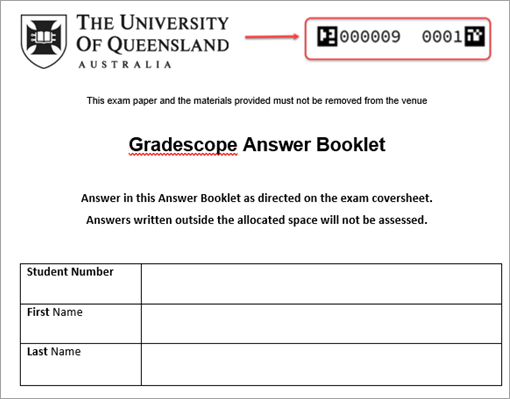
Students will then complete their work on the labelled booklet, and when you scan their submission, Gradescope will use the labels to automatically group the pages of each student’s submission, regardless of the order they were scanned or uploaded.
Warning: If your assignment has multiple pages, and especially if it is printed double-sided, ensure that removing the staple to scan will not damage the labeled printout QR code as this will interfere with the automatic sorting of your papers. If you encounter an issue with the QR codes due to this you can use Adobe Acrobat to crop off the barcode before uploading, for further information refer to the Crop PDF pages in Adobe Acrobat guide by Adobe.
To add this feature to your courses, please log a ticket to eLearning support.
Note: If you are using QR codes feature for a large cohort or a significant number of questions, Gradescope will split the answer booklet into batches of approximately 700 pages.
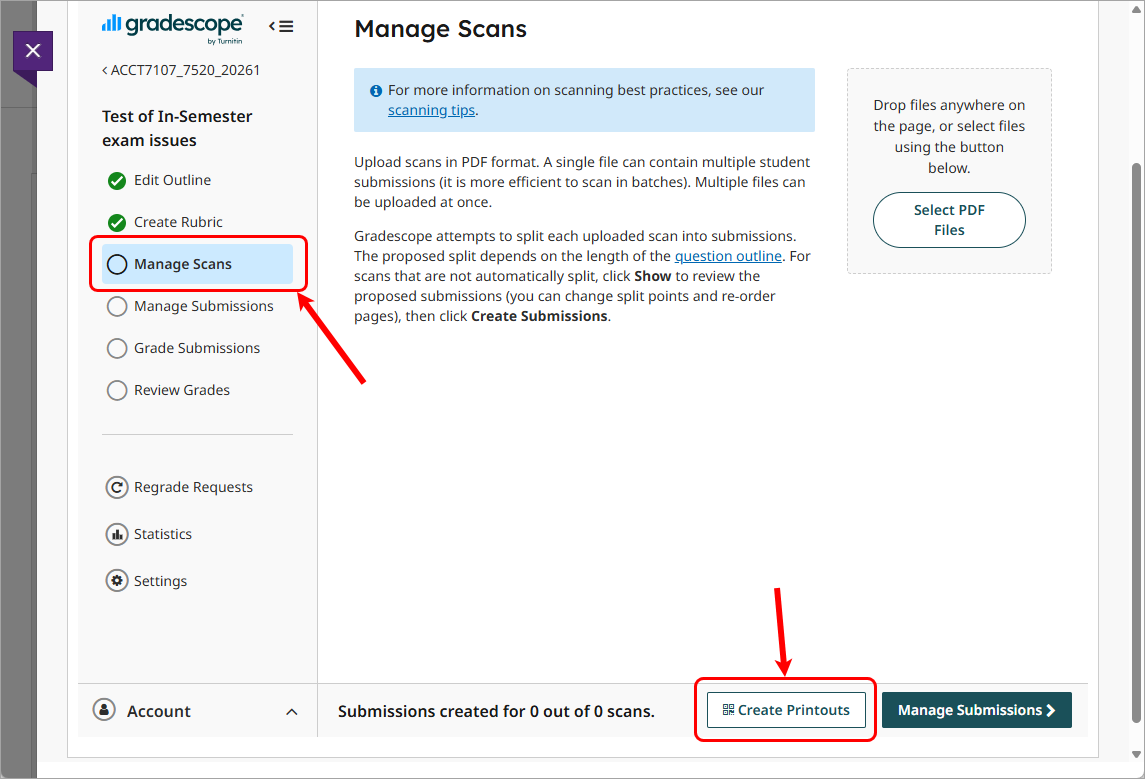
Once activated in your course the Create Printouts button will be available on the Manage Scans page.
Printing
Central examination
- Question Paper: Upload the question paper with the exam coversheet to the Exam Portal for central printing.
- Answer Booklets: Email the PDF file(s) with printing instructions to exams.internal@uq.edu.au for central printing. Printing options are
- Single-sided
- Double-sided: the answer booklet must have an even number of pages, including the answer booklet coversheet
- Black and white
- Colour
School-based examination
Most commercial multifunction printing machines offer the option to automatically staple the printed output at specified intervals, such as every 10 or 20 pages. This setting is typically found under "finishing options". UQ Print can provide this type of printing service.
- Access Gradescope (Ultra)
- Access and view the Similarity Report and AI Writing Indicator (Ultra)
- Accidental release of Classic Turnitin marks (Ultra)
- Accidental release of Gradescope results (Ultra)
- Accidental release of Turnitin marks (Ultra)
- Check if a document has used referencing software (Ultra)
- Classic Turnitin - Control the Release of Results (Ultra)
- Convert a Standard points rubric to a Weighted range rubric
- Create Turnitin rubrics - SOE
- Create a Gradescope Bubble Sheet Assignment (Ultra)
- Create a Turnitin assignment (Ultra)
- Create a Turnitin standard rubric (Ultra)
- Create a Weighted range rubric (based on a UQ Institutional rubric)
- Edit a Turnitin assignment (Ultra)
- Enabling third party cookies (Ultra)
- Gradescope Roster Sync (Ultra)
- Gradescope exam answer booklet formatting (Ultra)
- Gradescope in-class tasks
- Gradescope tips (Ultra)
- Mark Classic Turnitin assignments by group (Ultra)
- Mark Turnitin submissions by groups
- Mark by group in Gradescope (Ultra)
- Marks / Rubrics / Grading form Overview (Ultra)
- Providing feedback in Turnitin overview (Ultra)
- Publish and Post student Gradescope assignment results (Ultra)
- Record marks and view in Gradebook
- Restore a Deleted Turnitin Assignment (Ultra)
- Submit a sample Turnitin assignment using Student Preview tool (Ultra)
- Turnitin - Control the release of results (Ultra)
- Turnitin Paper Request Treatments (Ultra)
- View and sort late Turnitin assignment submissions (Ultra)