Gradescope Roster Sync (Ultra)
Why would I perform a Gradescope Roster Sync?
A Gradescope roster sync will need to be performed for Gradescope assessments that are uploaded directly by staff. This will ensure that the class list is pulled through from your Blackboard course site.
Roster sync
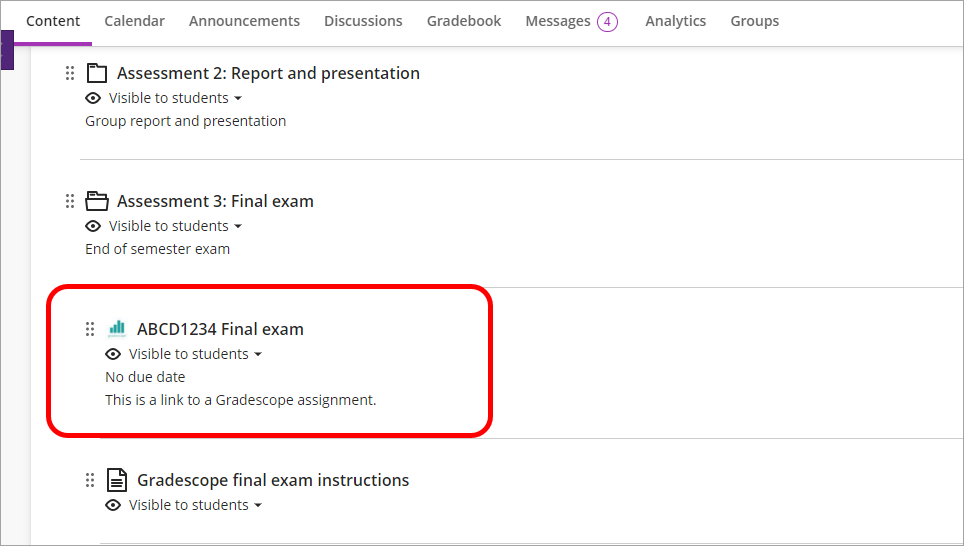
- Click on the Gradescope assignment link.

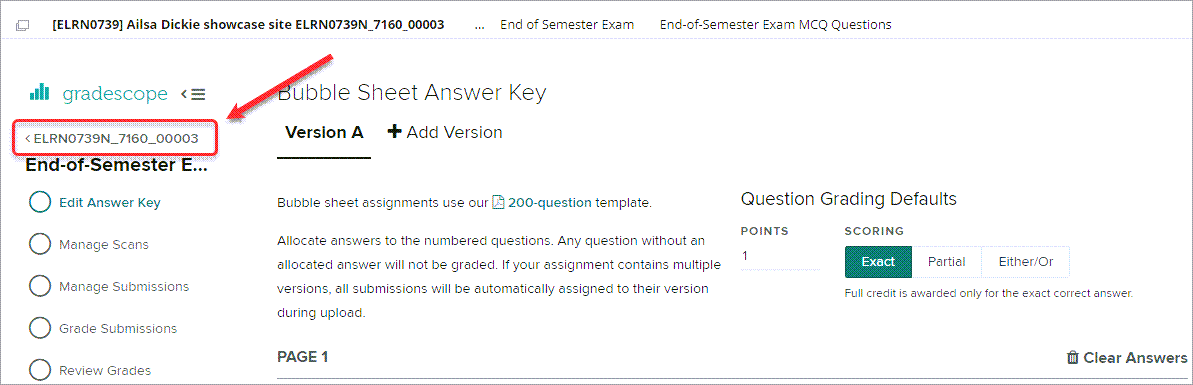
- Click on the course link in Gradescope.

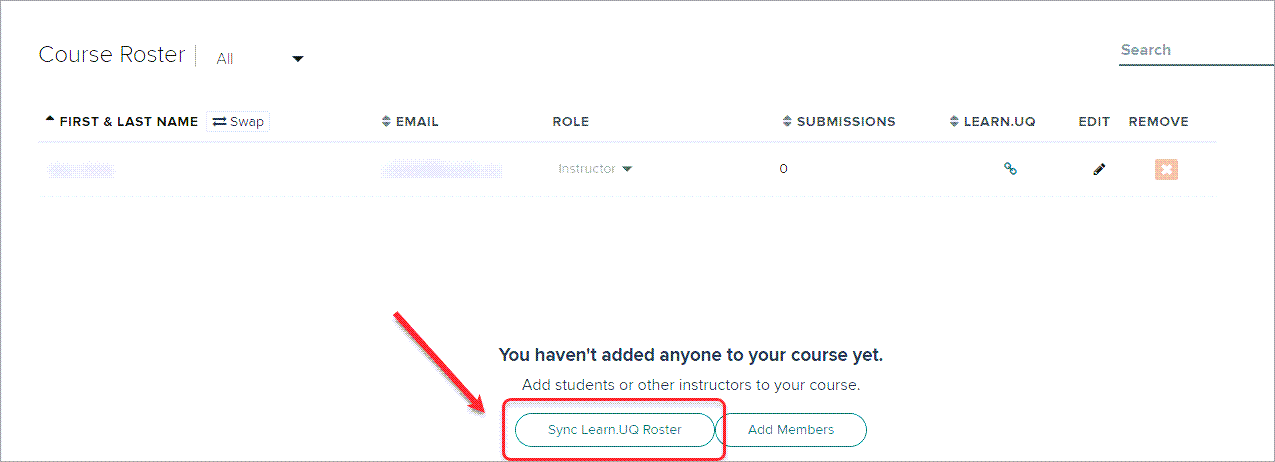
- Select Roster from the menu.

- Click on the Sync Learn.UQ Roster button.

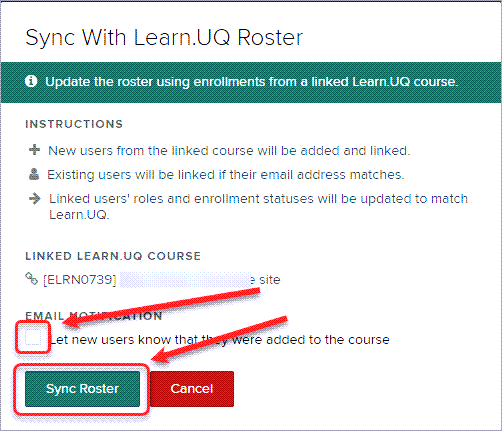
- Uncheck the Let new users know that they were added to the course checkbox.
- Click on the Sync Roster button.

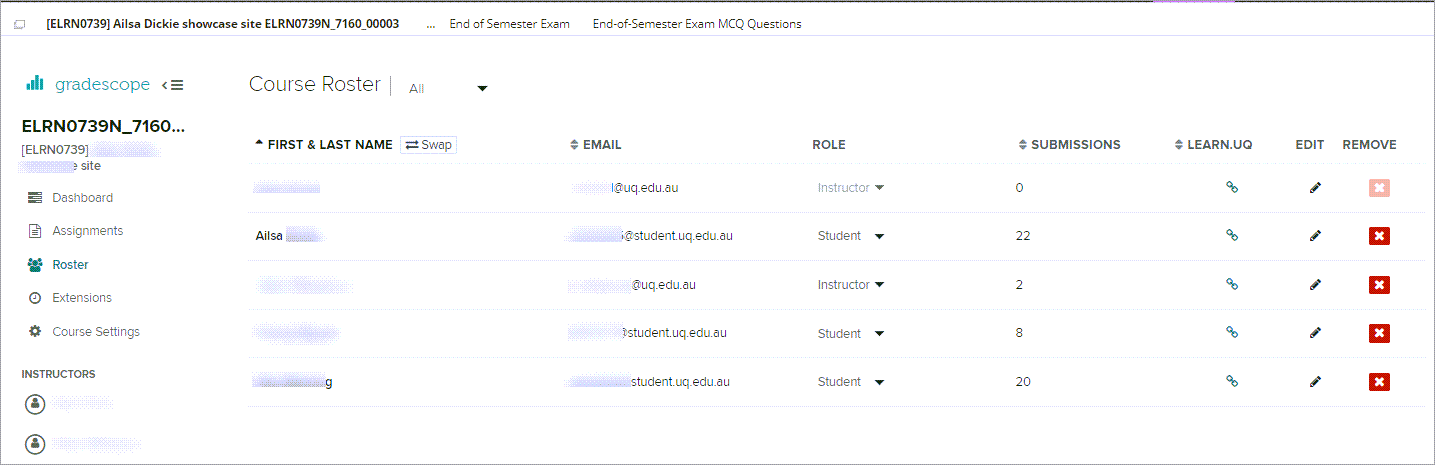
- The course enrolments will be displayed.

- Access and Navigate Classic Turnitin Assignments (Ultra)
- Access and view the Classic Turnitin Similarity Report (Ultra)
- Access and view the Similarity Report and AI Writing Indicator (Ultra)
- Accidental release of Classic Turnitin marks (Ultra)
- Accidental release of Turnitin marks (Ultra)
- Change a Turnitin qualitative rubric to a grading rubric (Ultra)
- Check if a document has used referencing software (Ultra)
- Classic Turnitin - Control the Release of Results (Ultra)
- Combine QuickMark Sets (Ultra)
- Convert a Standard points rubric to a Weighted range rubric
- Create Turnitin rubrics - SOE
- Create a Classic Turnitin assignment (Ultra)
- Create a Classic Turnitin standard rubric (Ultra)
- Create a PeerMark Assignment (Ultra)
- Create a Turnitin assignment (Ultra)
- Create a Turnitin standard rubric (Ultra)
- Create a Weighted range rubric (based on a UQ Institutional rubric)
- Create a non-text based Turnitin assignment (Ultra)
- Create and grade a non-submission Turnitin assignment
- Download Marked Turnitin Assignments (Ultra)
- Download Turnitin submitted Assignments (Ultra)
- Edit a Turnitin assignment (Ultra)
- Export, Import or Duplicate a rubric/form
- Gradescope Roster Sync (Ultra)
- Importing/Exporting QuickMark sets (Ultra)
- Mark Classic Turnitin assignments by group (Ultra)
- Mark Non File Submission Assignments (Ultra)
- Mark Non-Text Based Assignments (Ultra)
- Mark Turnitin assignments by group (Ultra)
- Marks / Rubrics / Grading form Classic Turnitin Overview (Ultra)
- Marks / Rubrics / Grading form Overview (Ultra)
- Overview of Turnitin Peer Mark (Ultra)
- Providing feedback in Classic Turnitin overview (Ultra)
- Providing feedback in Turnitin overview (Ultra)
- Record Classic Turnitin marks and view in Gradebook (Ultra)
- Record marks and view in Gradebook
- Restore a Deleted Classic Turnitin Assignment (Ultra)
- Restore a Deleted Turnitin Assignment (Ultra)
- Submit a sample Turnitin assignment using Student Preview tool (Ultra)
- Turnitin - Control the release of results (Ultra)
- Turnitin - Email non-submitters (Ultra)
- Turnitin Paper Request Treatments (Ultra)
- View and sort late Classic Turnitin assignment submissions (Ultra)
- View and sort late Turnitin assignment submissions (Ultra)