Bulk download submitted assignments (Ultra)
Note: Bulk download of submitted assignments is currently only available for Individual submissions.
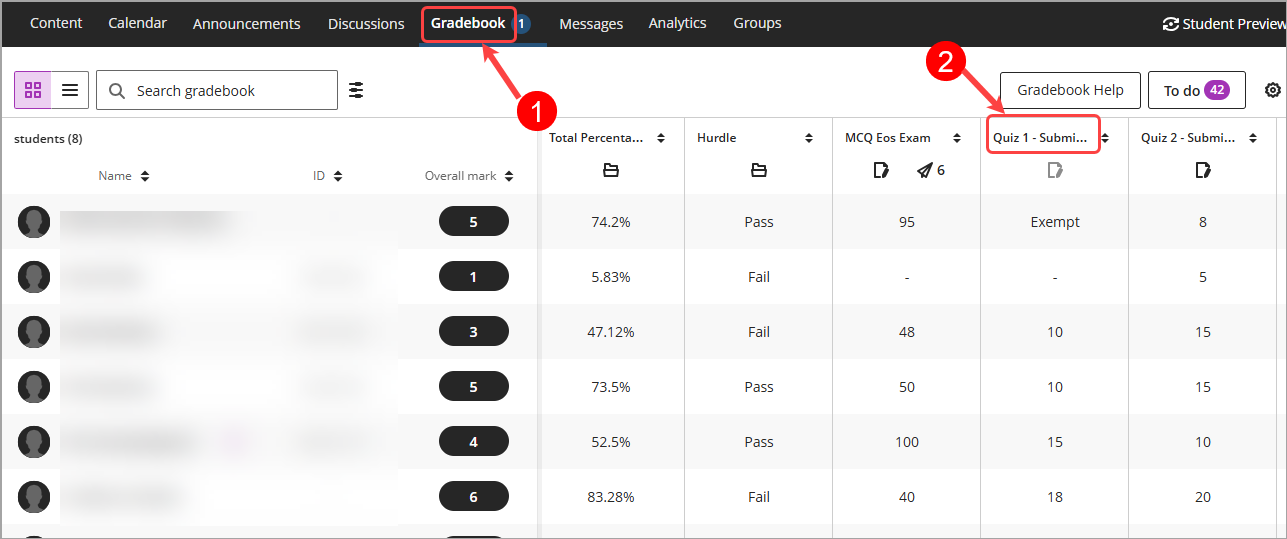
- Select Gradebook from the navigation bar.
Tip: The default view is Grid view, if you are in List view, please click on the Grid view (4 squares) button. - Click on the column header button to view the Assessment details panel.
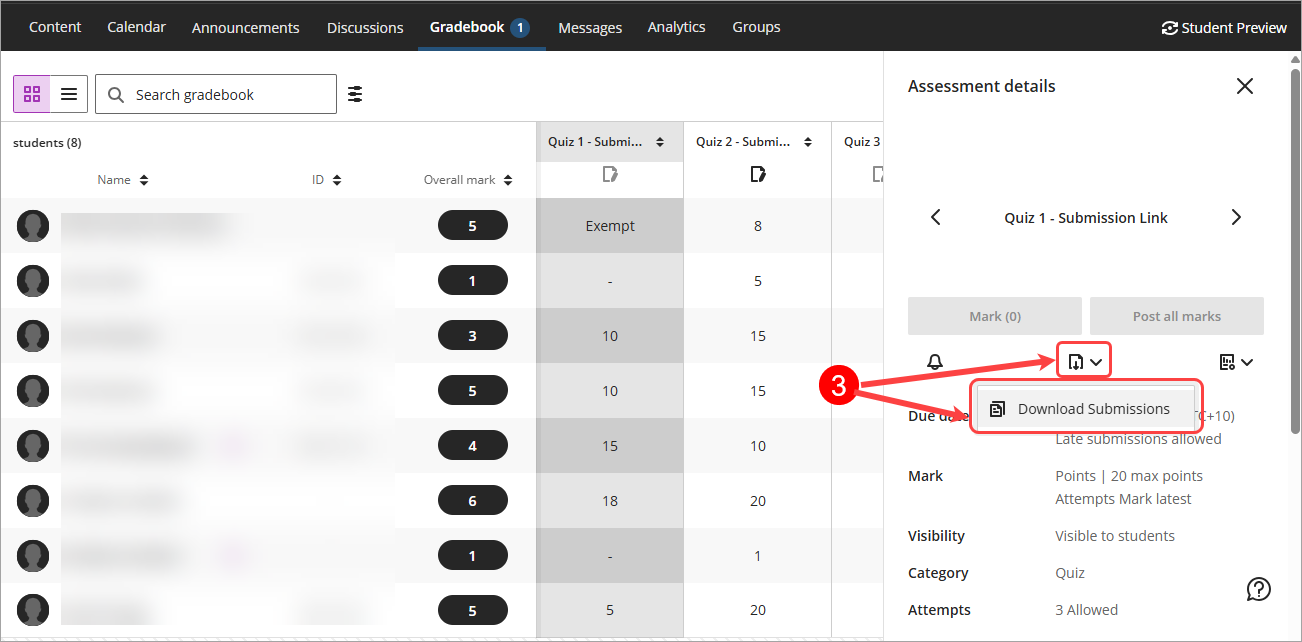
- Click on the Download Submissions icon and select Download Submissions from the drop-down list.
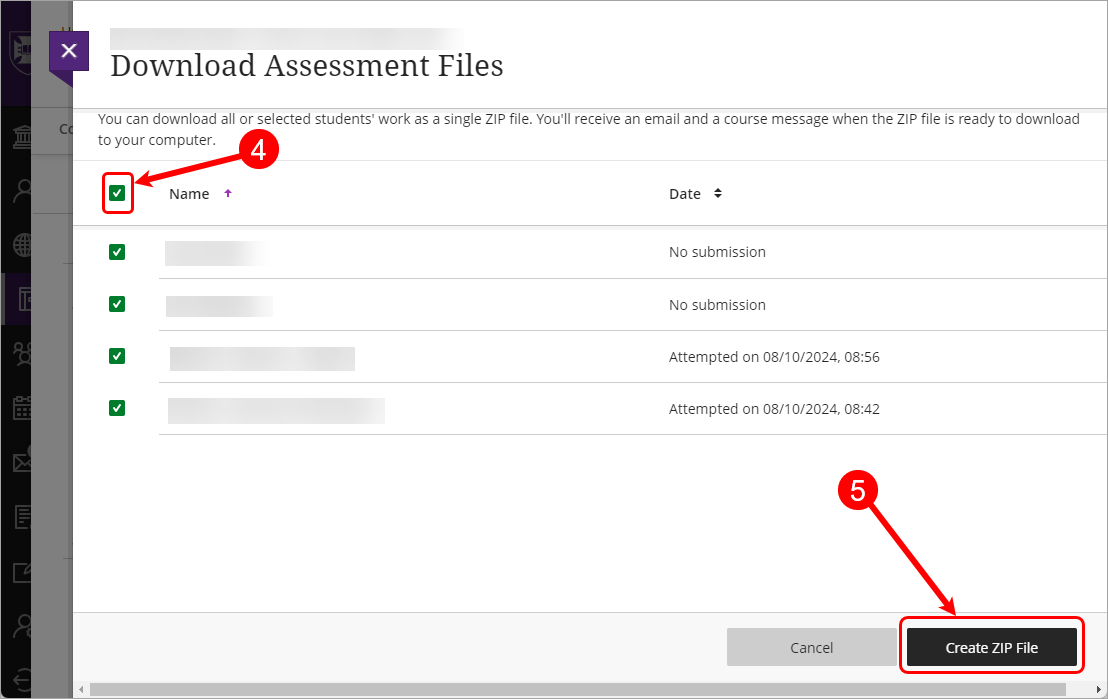
- Check the Select all items checkbox or alternatively select the checkboxes for individual students.
- Click on the Create ZIP File button.
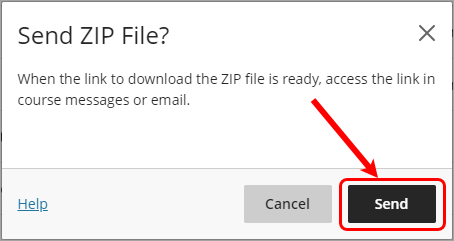
- Click on the Send button.
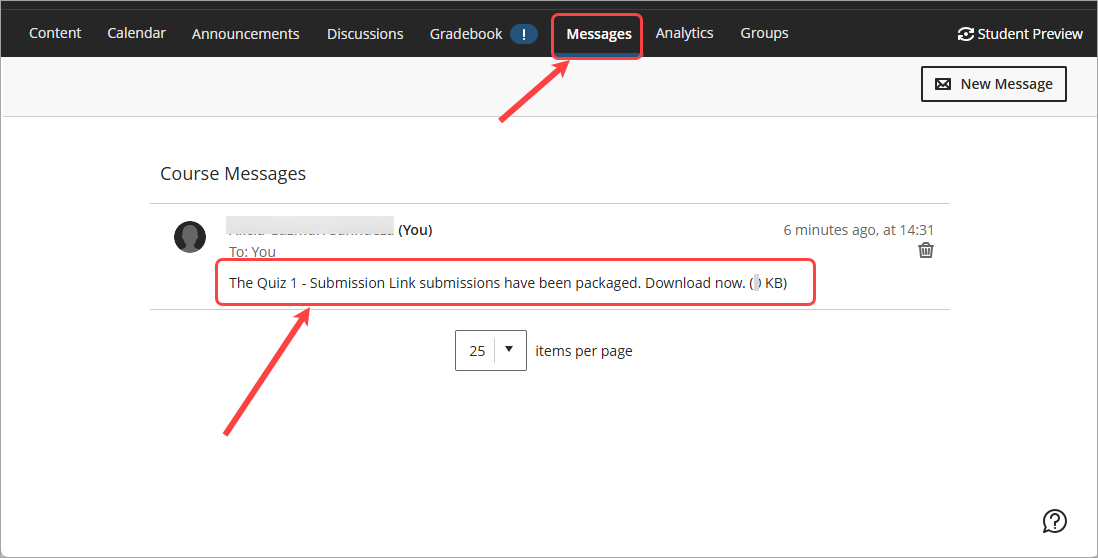
- Click on Course Messages from the navigation bar.
- Click on the message title to access the link.
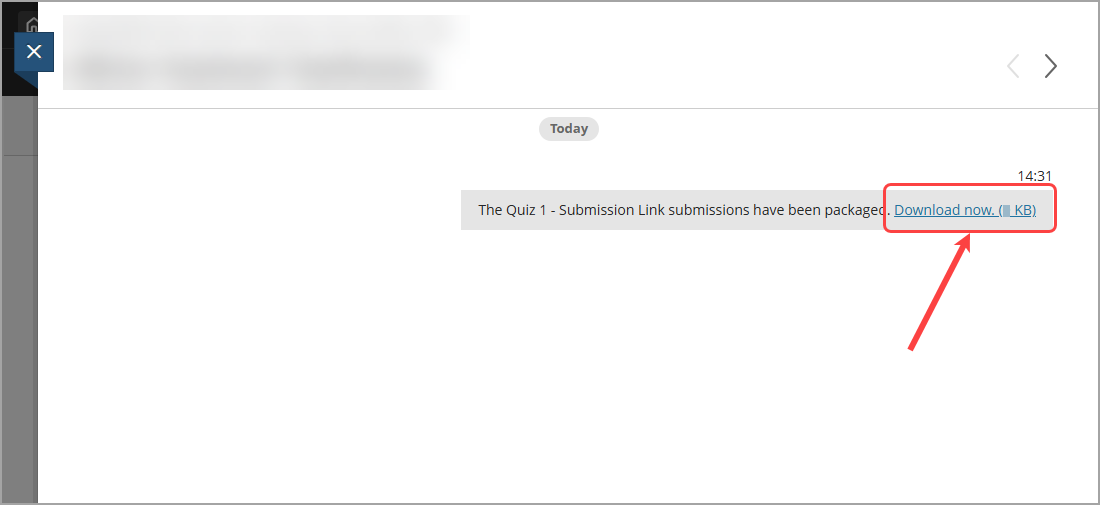
- Click on Download now link to commence the download of the assignment ZIP file.
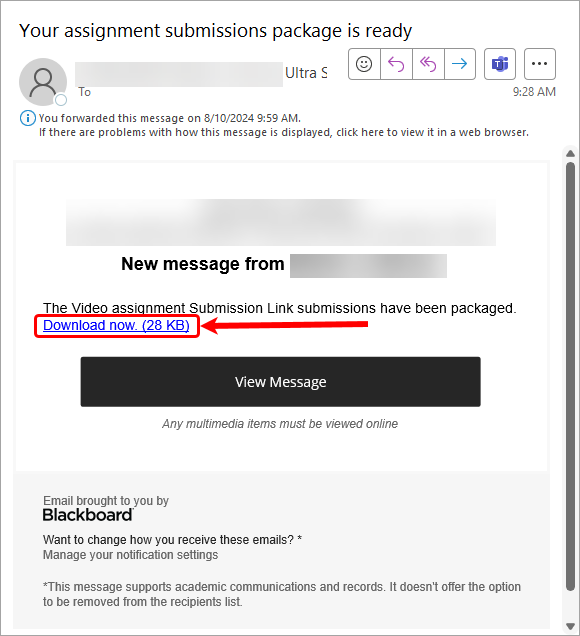
- Alternatively, you will receive an email with the subject line "Your assignment submissions package is ready". Click on the Download now link to commence the download of the assignments ZIP file.