
Improve PDF accessibility in Learn.UQ courses
The following accessibility issues are often identified with PDF files uploaded to Learn.UQ courses, most of which can be addressed within the course itself using course accessibility tools (Blackboard Ally):
3. The PDF does not have a language set
PDF files need a language set to be accurately interpreted by screen readers.
- Click on the Accessibility Score icon. For more information, refer to the Review accessibility scores and improve accessibility guide.
Note: It usually takes between 15 - 90 seconds for new content to be scanned and an accessibility score to be generated, however it may take longer for larger or more complex content.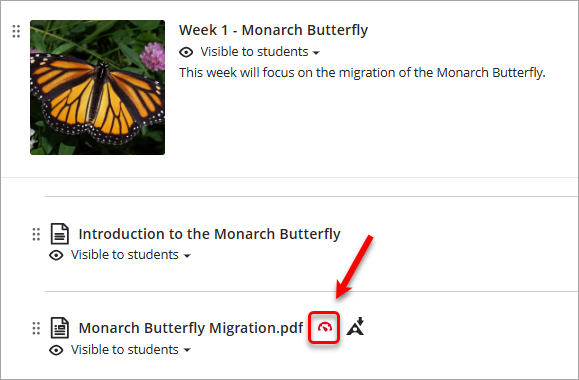
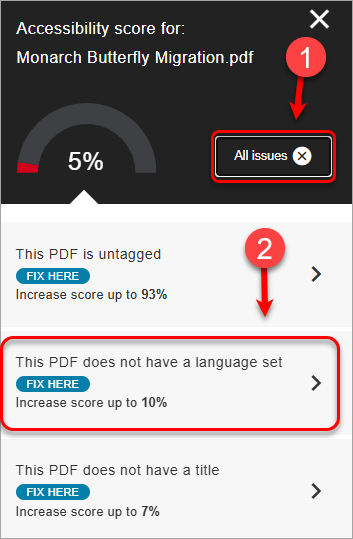
- Click on the All issues button to view the full list of identified accessibility issues.
- Select This PDF does not have a language set.
- Select the correct language (i.e. English) from the Add PDF language dropdown list.
- Click on the Apply Fix button.
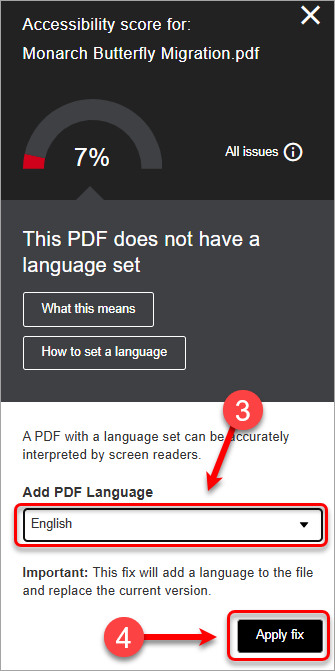
- Your selected language set will then be applied to the PDF file.