Improve PDF accessibility in Learn.UQ courses
The following accessibility issues are often identified with PDF files uploaded to Learn.UQ courses, most of which can be addressed within the course itself using course accessibility tools (Blackboard Ally):
1. The PDF is untagged
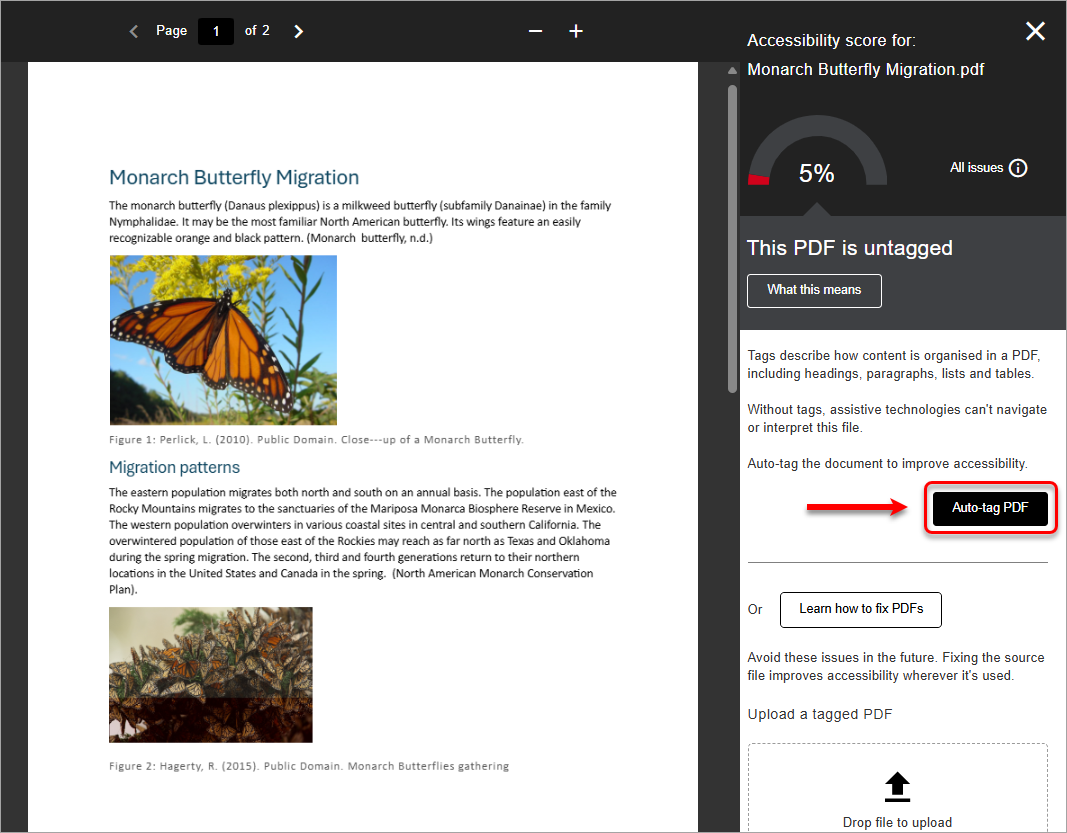
Tags describe how content is organised in a PDF so without them, assistive technologies cannot navigate or interpret PDF files. Using course accessibility tools, you can generate a version of a PDF document with auto-generated tags which you can review and approve to replace the original untagged version.
Note: If you are generating a PDF from LaTeX, you must use TeX Live 2025 or later and enable PDF tagging by including \DocumentMetadata{tagging=on} before \documentclass. You should also specify the document language and accessibility standard (e.g. PDF/UA-2), provide alt text for meaningful images, and identify table headers appropriately. For more information, refer to the Overleaf guide to creating accessible PDFs guide for instructions and examples.docs.overleaf.com/writing-and-editing/creating-accessible-pdfs
- Click on the Accessibility Score icon. For more information, refer to the Review accessibility scores and improve accessibility guide.
Note: It usually takes between 15 - 90 seconds for new content to be scanned and an accessibility score to be generated, however it may take longer for larger or more complex content.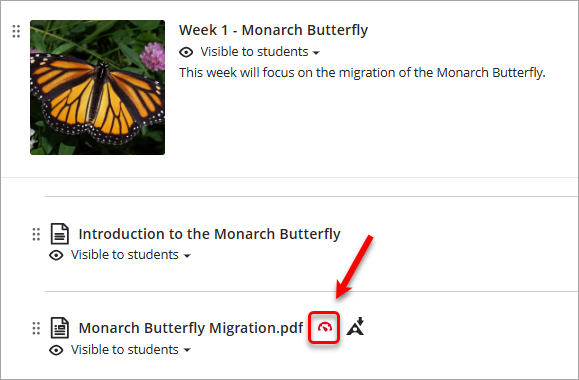
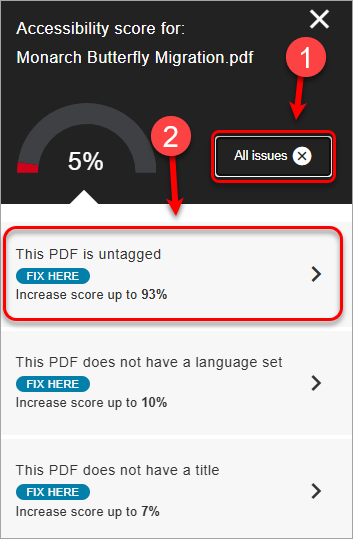
- Click on the All issues button to view the full list of identified accessibility issues.
- Select This PDF is untagged.
- Click on the Auto-tag PDF button.
Note: Alternatively you can upload a tagged version of the PDF if you have this available.
- Click on the Generate tags button to generate a version of the document with auto-generated tags.
Note: Large files may take longer to generate.
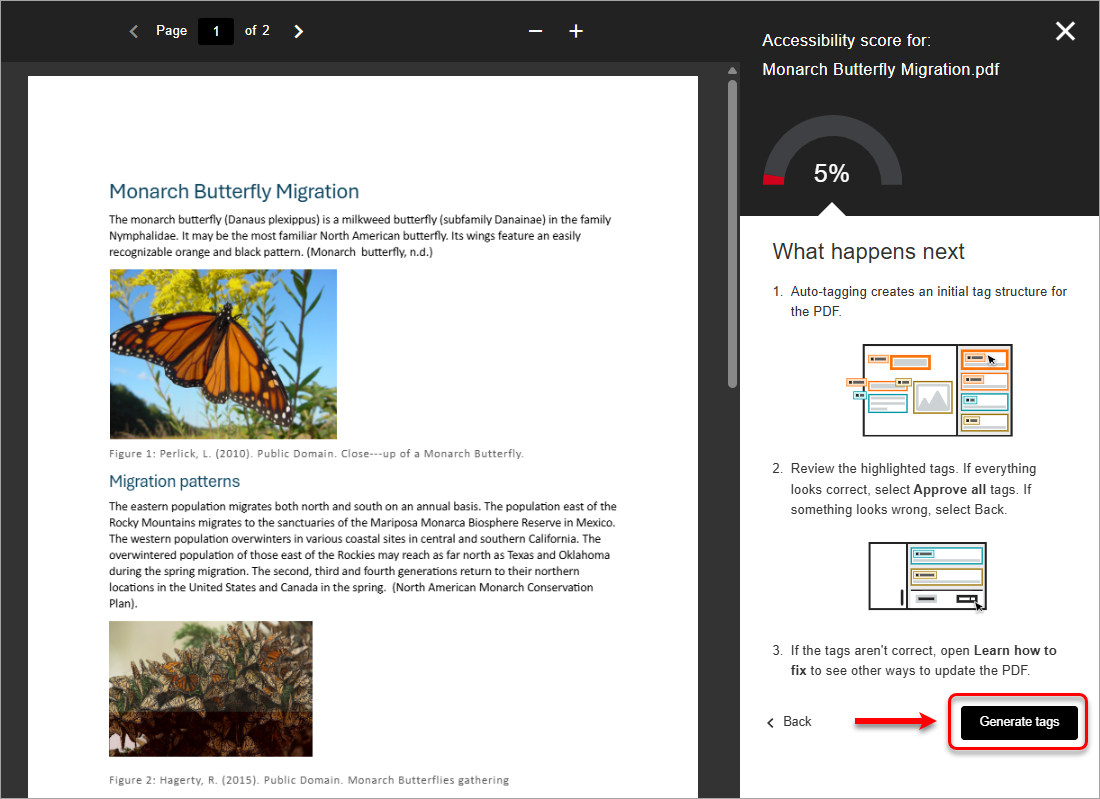
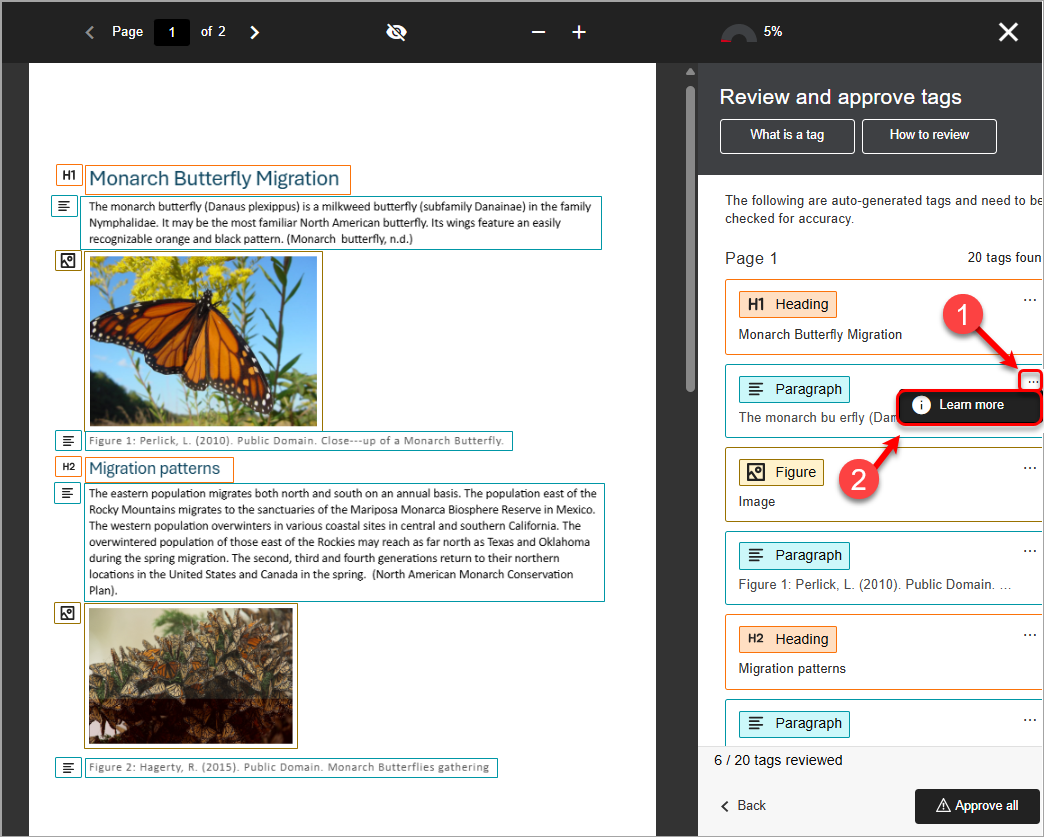
- An auto-tagged version will be generated for you. You will need to check the auto-generated tags for accuracy.
- To view a description of each tag to assist with the review process, click on the three dots and select Learn more.
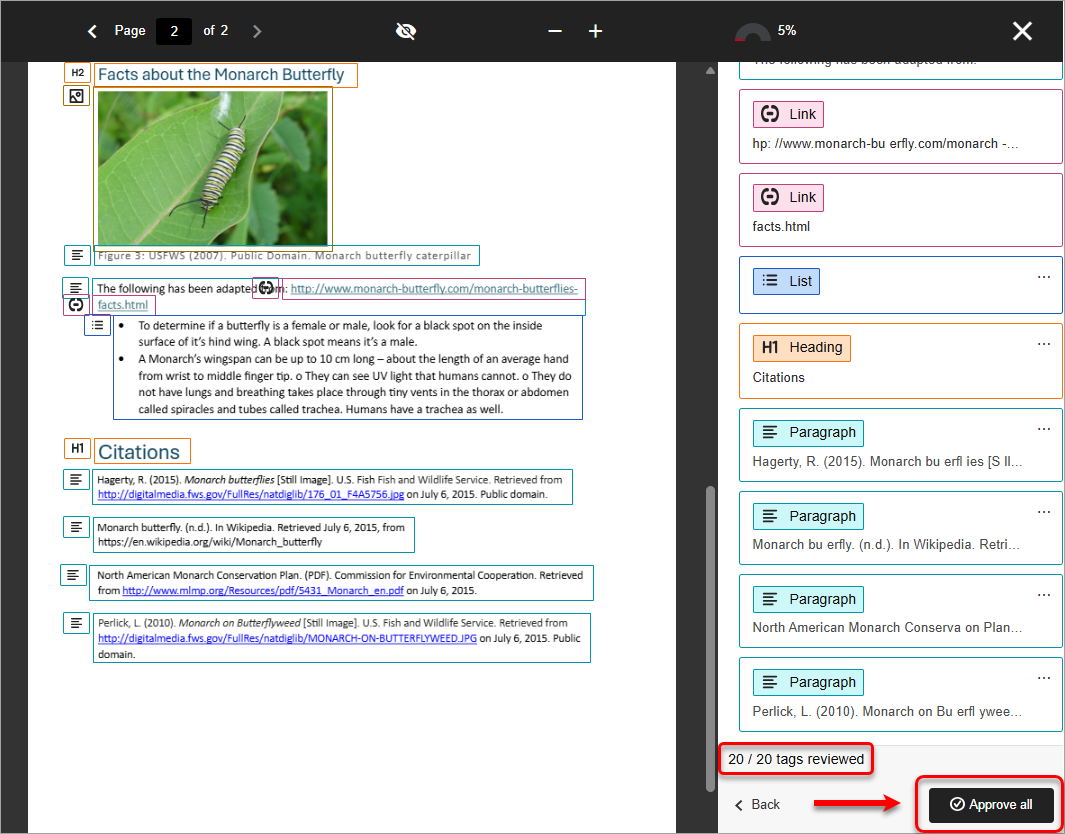
- Once you have reviewed all tags and are confident they are correct, click on the Approve all button.
Note: Individual tag approval is not currently supported. All tags must be approved together. If you encounter an incorrect tag, you will need to determine whether or not to continue with the approval process.
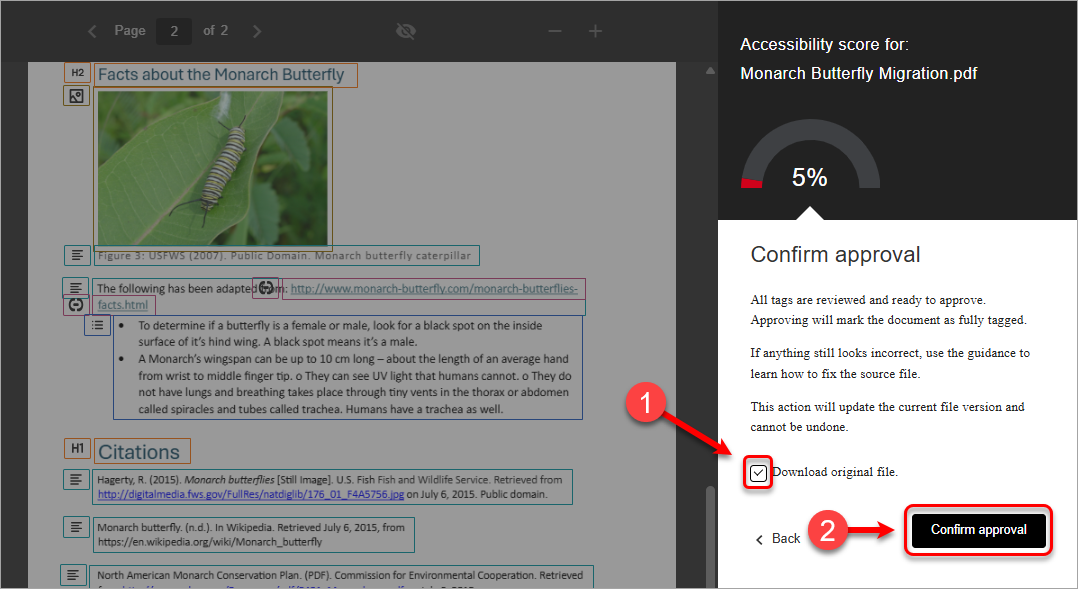
- Optionally check the Download original file checkbox to save a copy of the original untagged PDF on your computer.
- Click on the Confirm approval button to update the current file version.
Warning: This process cannot be undone.
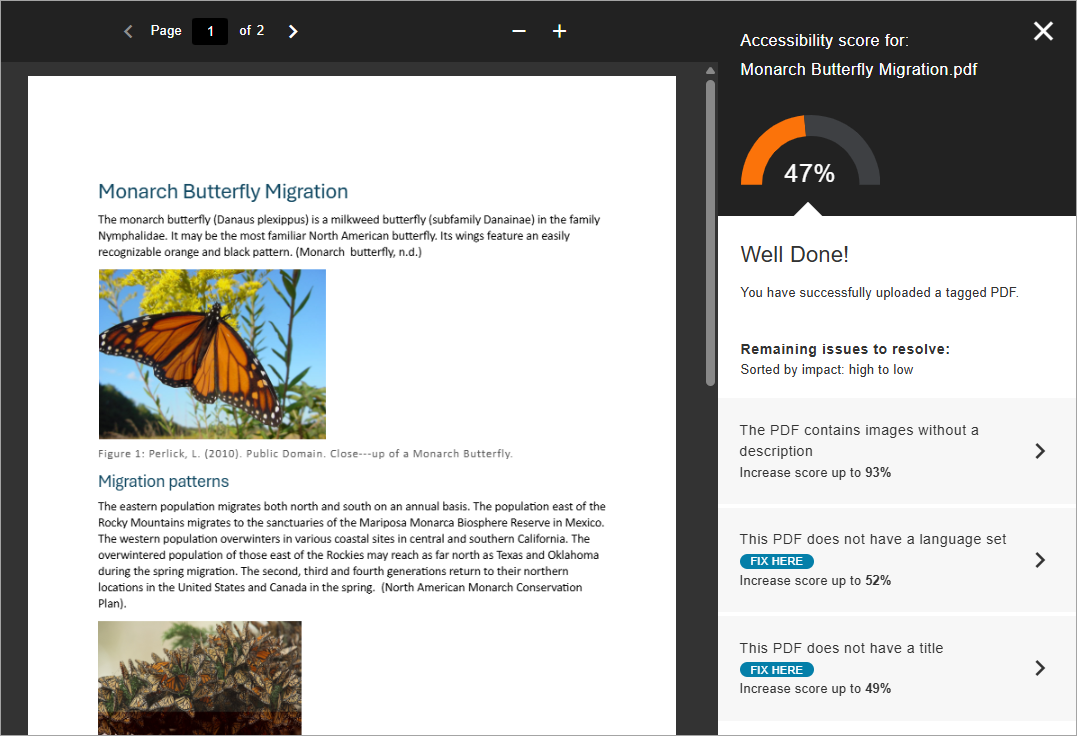
- The tagged version of PDF file will be uploaded to replace the original untagged version and your accessibility score will be recalculated. You will see the accessibility score has significantly improved.
- You should then address any remaining accessibility issues identified with the PDF file.