
Create a Buddycheck Points division peer evaluation (Ultra)
Why would I use a Points division peer evaluation?
A Points division peer evaluation using Buddycheck allows students to rate their peer's performance across a series of questions by dividing a set number of points (default is 100) amongst the group members, providing staff with insights into how individual students have performed within their group.
Once the peer evaluation is completed and the results have been moderated, a coordinator can apply an Adjustment Factor (multiplier) against a group's assessment mark in Gradebook.
Warning: To prevent Buddycheck results from being automatically released when published to the Gradebook, ensure you select the option to create a Gradebook column during the initial setup so that the column can be hidden from students after setup.
9. Complete Gradebook setup
Warning: To prevent Buddycheck results from being automatically released when published to the Gradebook, you will need to make the Buddycheck column Hidden from students.
Note: If you failed to create a Gradebook column during the creation of your Buddycheck assessment, refer to the Create a Gradebook column guide.
- Click on the Close (X) button to exit Buddycheck.

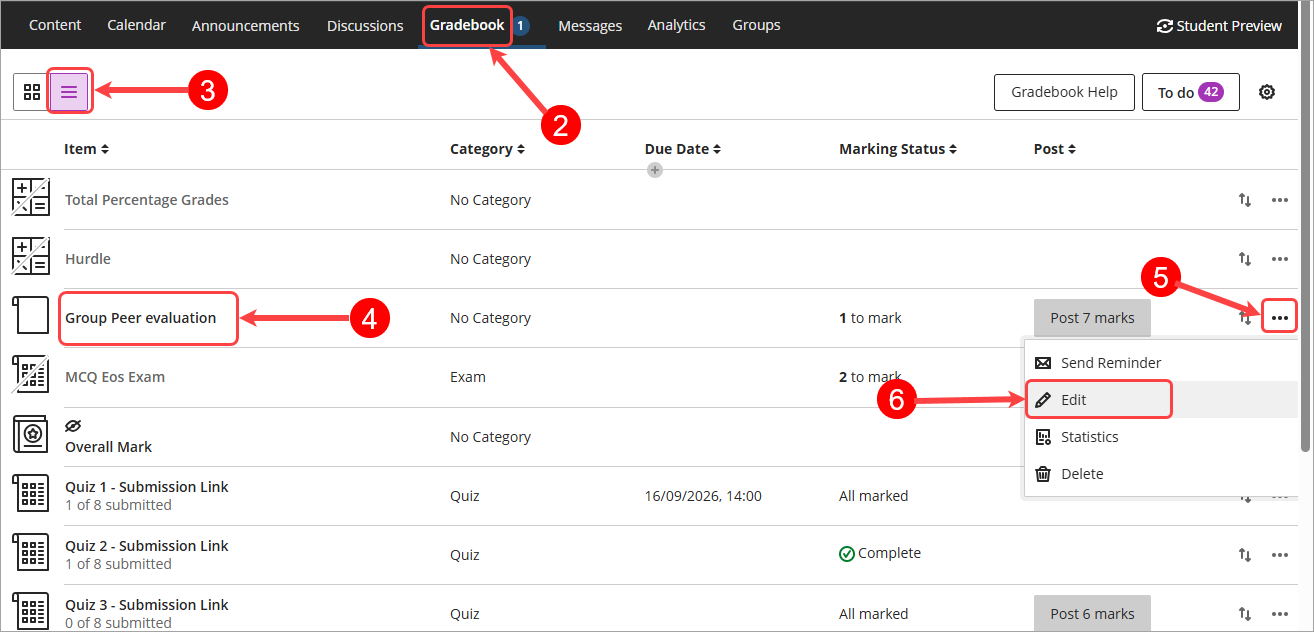
- Select Gradebook from the navigation bar.
- Select the Gradebook List view from the Gradebook navigation bar.
- Locate the created Buddycheck column.
- Click on the Elipsis (3 dots).
- Select Edit from the drop-down menu.
- Select Hidden from students from the Visibility drop-down list.

- Click on the Maximum points textbox, set the required Maximum points.
Tip: If you are using the Adjustment factor then the maximum points should be set to the value of the marked group assessment task e.g. 100. - Select No category from the Mark category drop-down list.
- Click on the Save button.
