Create a Buddycheck Points division peer evaluation (Ultra)
Why would I use a Points division peer evaluation?
A Points division peer evaluation using Buddycheck allows students to rate their peer's performance across a series of questions by dividing a set number of points (default is 100) amongst the group members, providing staff with insights into how individual students have performed within their group.
Once the peer evaluation is completed and the results have been moderated, a coordinator can apply an Adjustment Factor (multiplier) against a group's assessment mark in Gradebook.
Warning: To prevent Buddycheck results from being automatically released when published to the Gradebook, ensure you select the option to create a Gradebook column during the initial setup so that the column can be hidden from students after setup.
3. Create peer evaluation in Buddycheck
- Click on the Buddycheck link.

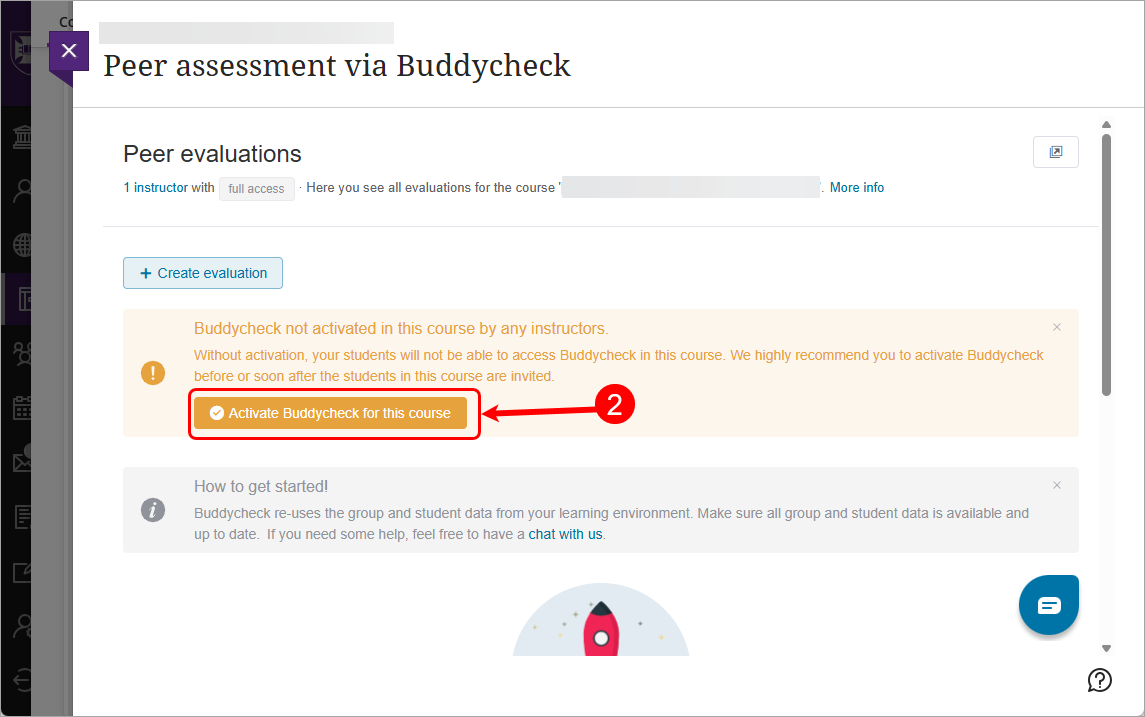
- For first time activation in a course, click on the Activate Buddycheck for this course button.
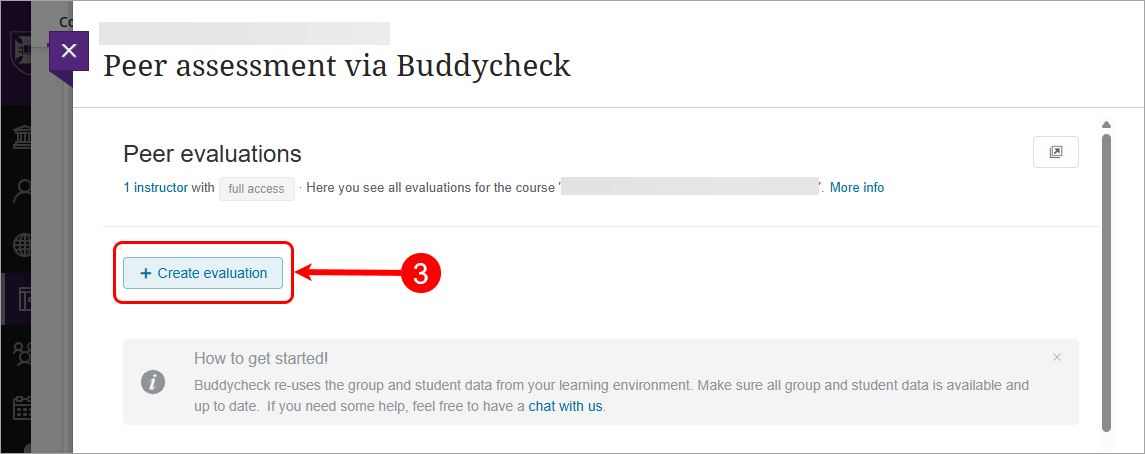
- Click on the + Create evaluation button.
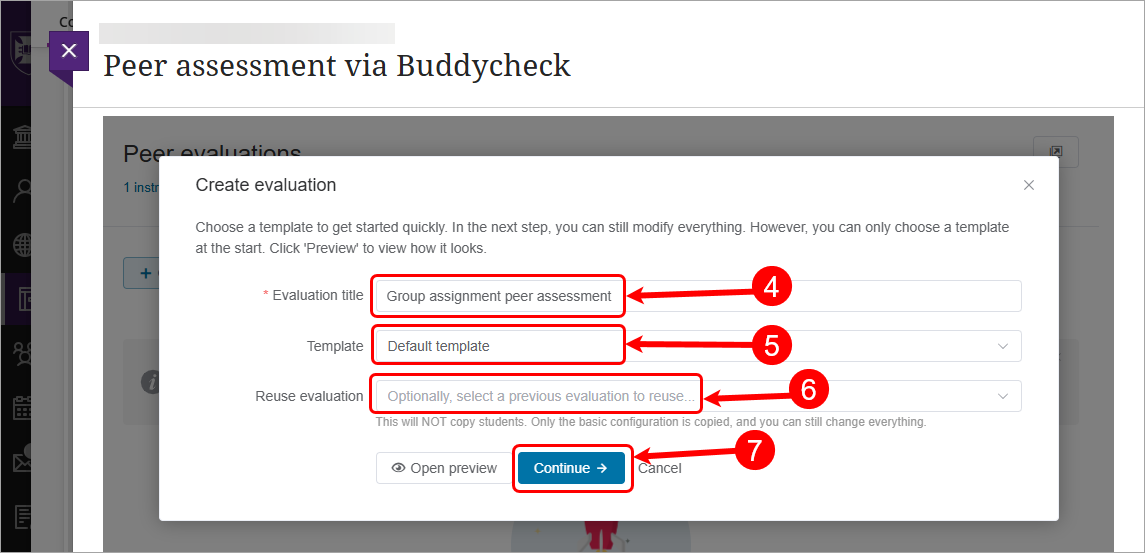
- Click on the Evaluation title textbox, enter the name of the assessment. E.g. Group assignment peer assessment
- The default template will be selected for the template.
- Optionally, select a previous evaluation from the Reuse evaluation drop-down list.
Note: If you have never created a Buddycheck assessment before the reuse evaluation will be empty. - Click on the Continue button.
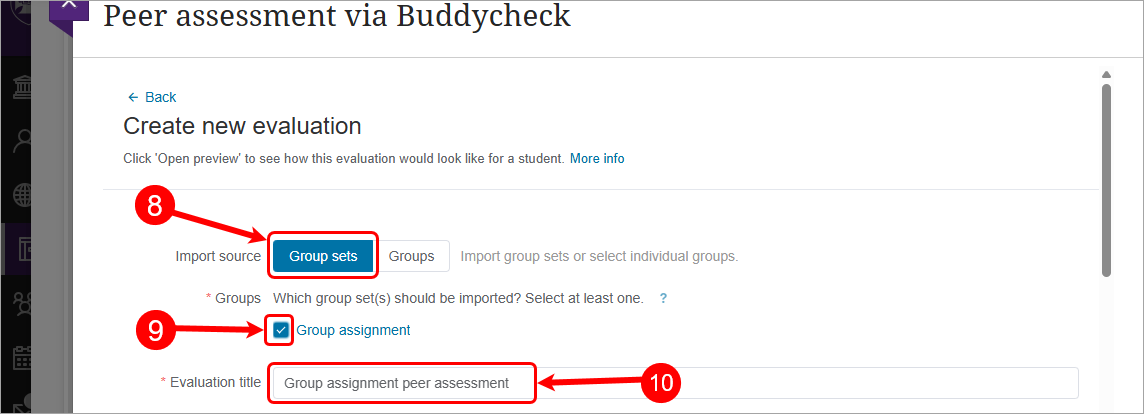
- Select Group sets for the Import source.
Warning: You must use a single group set when setting up groups for use in Ultra assignments and Buddycheck. - Check the [name of your groupset] checkbox. e.g. Group assignment
- The Evaluation title textbox is pre-populated with the name used in Step 4.
- Click on the Start/end date box, enter the date using the Date Selection Calendar and enter the time using the Time Selection Menu.
Recommendation: It is recommended that you open your peer assessment in the week before the group submission is due, allowing students to complete it at the same time they submit their group work.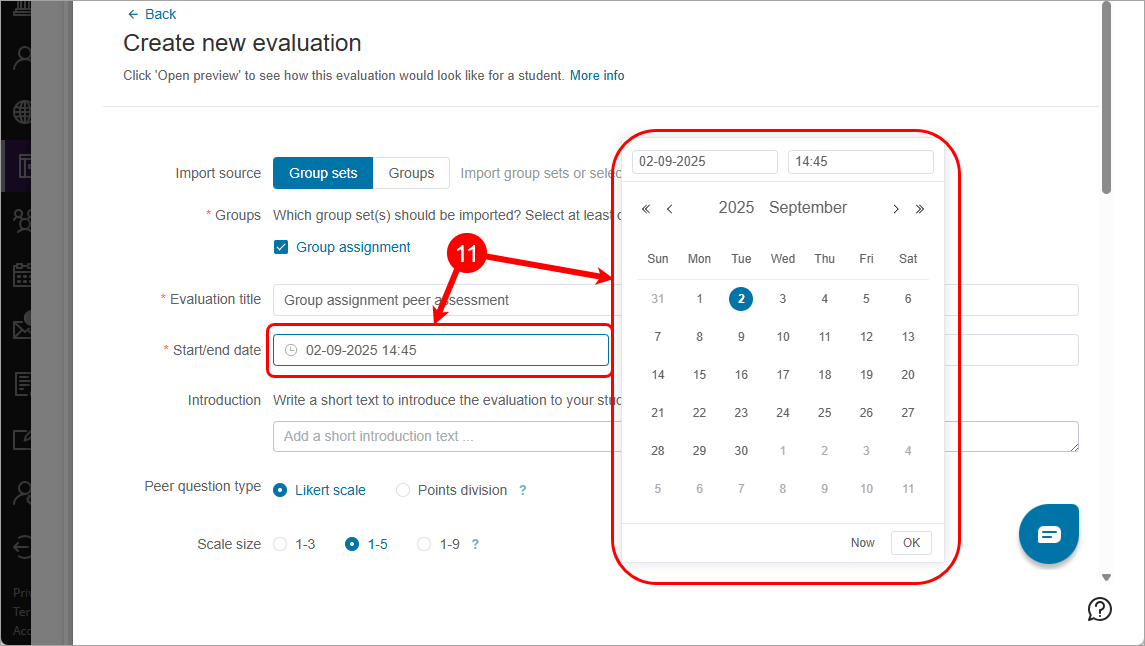
- Click on the Until box, enter the date using the Date Selection Calendar and enter the time using the Time Selection Menu.
Recommendation: It is recommended that you close your peer assessments one week after the group submission is due, allowing students time to complete it after they submit their group work.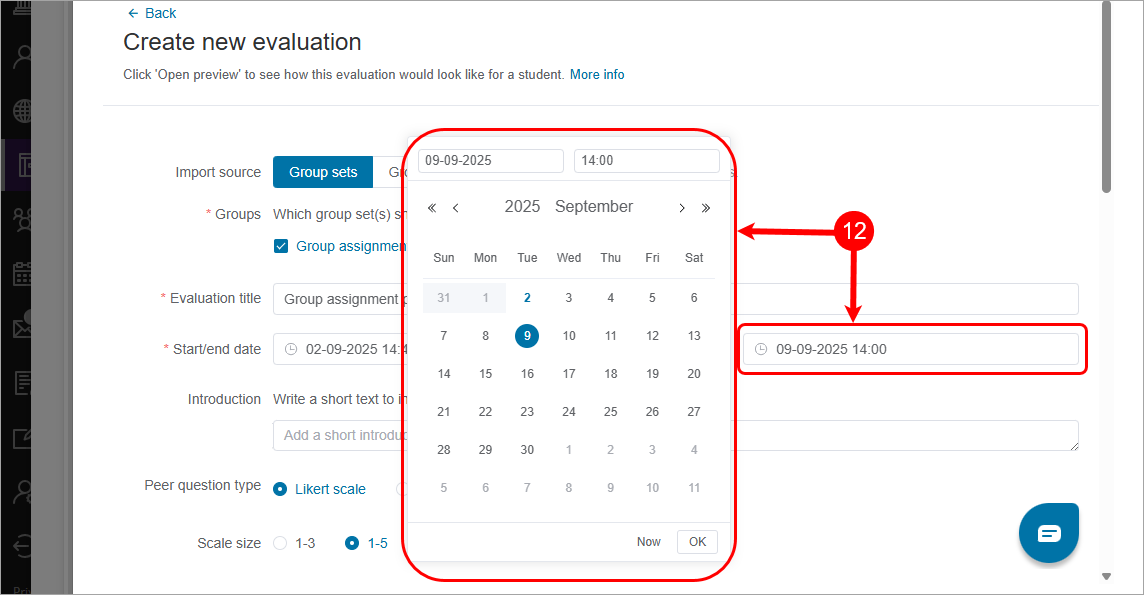
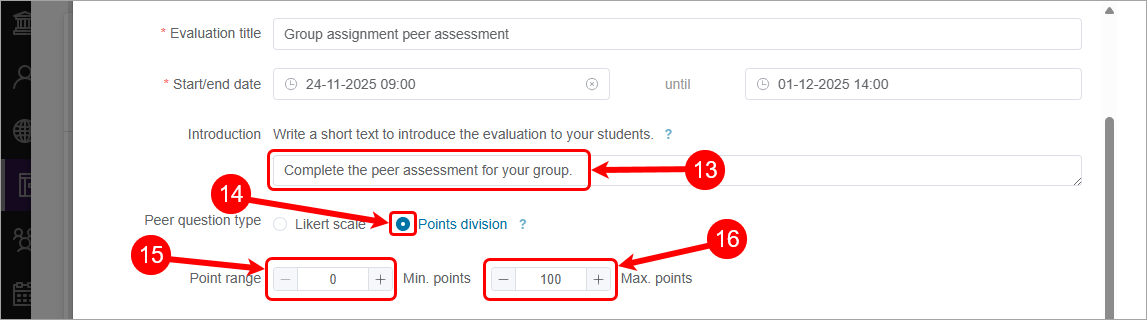
- Click on the Introduction textbox and enter a short description. e.g. Complete the peer assessment for your group.
Recommendation: It is recommended that you add a Document to your assessment folder which outlines your expectations for the peer assessment. - Select the Points division radio button.
- Set the desired Minimum points.
- Set the desired Maximum points.
Recommendation: It is recommended that you use the default Minimum (0 points) and Maximum (100 points) points.