Create a Turnitin assignment (Ultra)
This guide will walk you through the process of setting up a Turnitin Assignment for the submission of text-based assignments (e.g., PDF, Word, and PowerPoint files).
Known issue: A known issue has been identified in which students may receive an Overdue Assessment notification from the Blackboard course after the due date, despite having successfully submitted their assessment to Turnitin. The current workaround, should this issue occur, is to remove the due date from the Turnitin link. Instructions for removing the due date can be found in Step 7 of this guide.
Warning: Old Turnitin submission links should always be deleted and replaced to ensure results transfer correctly to Gradebook.
Note: Turnitin does not have functionality to mark non-submission assignments and it is recommended you use a Blackboard Assignments for this use case. Alternatively, you can use a Turnitin assignment and uploaded a document on the students behalf to allow non-submission marking.
5. Add rubric and create assignment
Tip: Import your rubrics from Classic Turnitin. Refer to the Migrate your rubrics guide by Turnitin.
Create a rubric, refer to the Creating a rubric or grading form for a submission guide by Turnitin OR Duplicate a previously used rubric, refer to the Managing rubrics and grading forms guide by Turnitin.
Tip: Use an informative rubric title and include the semester and year. i.e. Narrative essay S1 2026. This will help you identify which rubric to duplicate next semester when you replace the submission link.
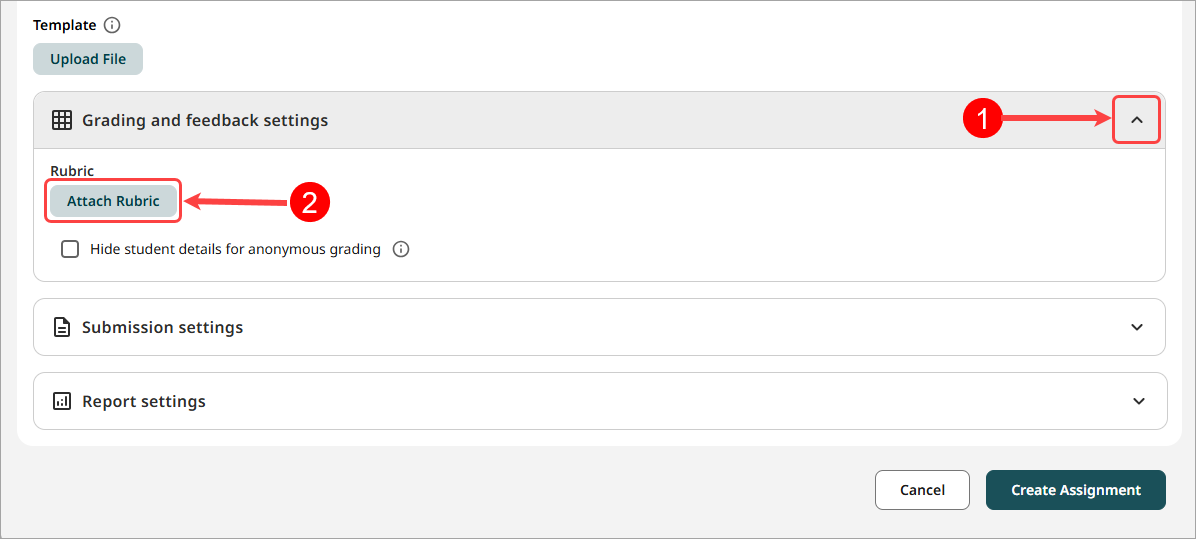
- Click on Grading and feedback settings.
- Click on the Attach Rubric button.
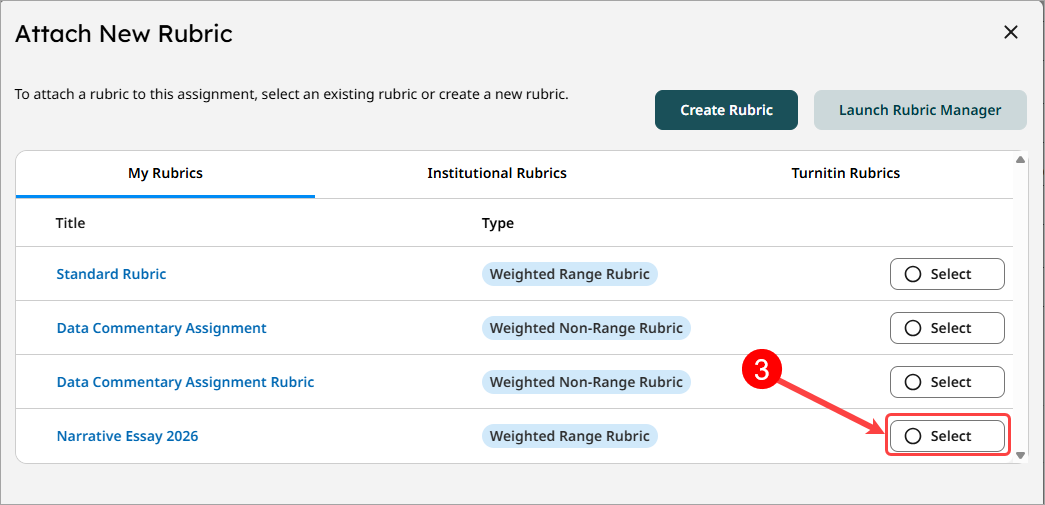
- Select the radio button for the required rubric.
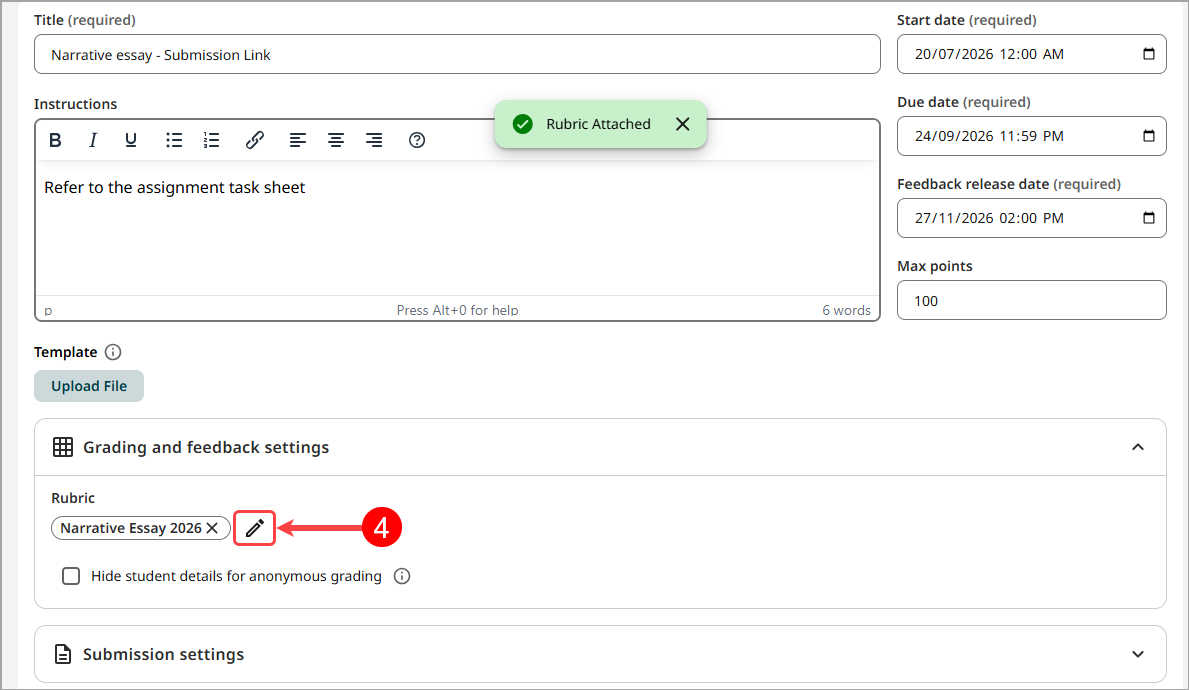
- Click on the pen icon to edit the rubric