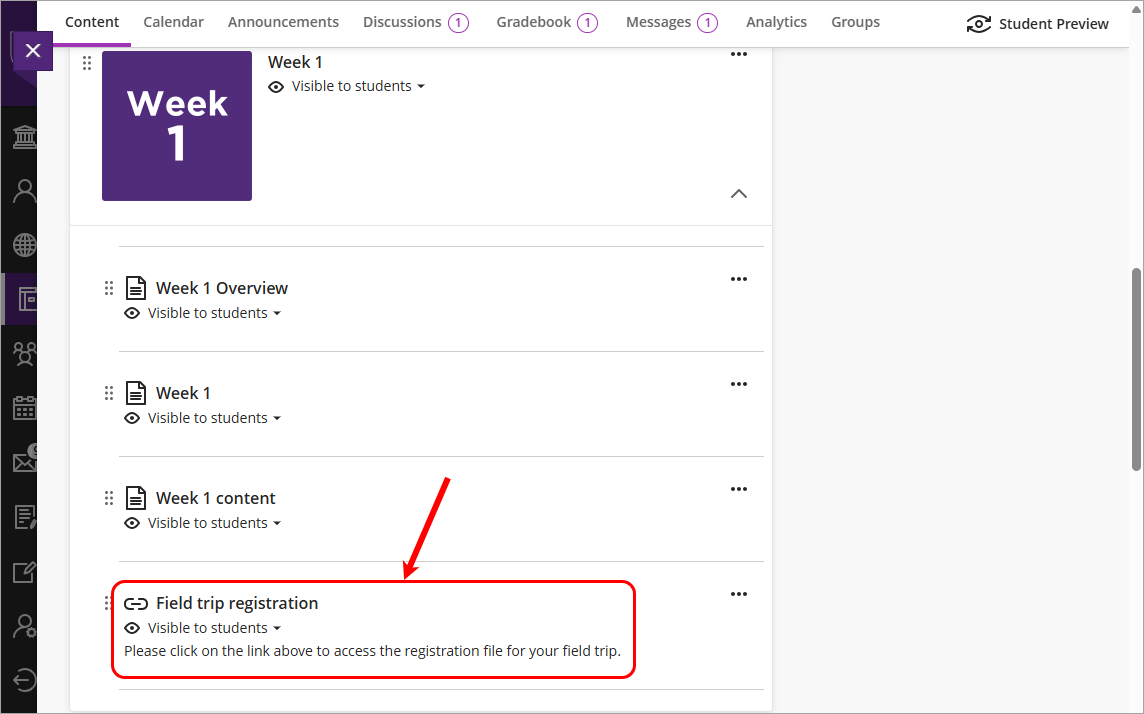
In case you want to create a document for students to collaborate and you do not use MS Teams in your course, you can create a document and save it in your drive/folder, provide access to your student, and then share the file link to your students in your Learn.UQ course.
Note: The access method included in this guide is for a file with general content. If you have highly restricted content such as a research paper, please email the file link directly to the recipients.
Instructions
Create a document and save it in the required folder
Note: You need to save the file before being able to share it with others.
Provide access to your students
- Click on the Share button on the top right of the document.
- Select the Share option.

- Click on the cog button.

- Select the option People in the University of Queensland. Anyone with a Microsoft account with UQ who receives this link will have access to the file (after signing in).

Share file link
- Click on the Share button.
- Select the Copy link option.

A message will be displayed.

- Post the link in your Learn.UQ course. For further information on adding a weblink, refer to the Create a weblink or course link guide. Alternatively, if you want to place the weblink in an Ultra document, refer to the Add a weblink to a document content block guide. If you need to update the information on this document, click on this link to access the document and edit the document from this link.