
Publish an Echo video to a Lecture Recordings Class (Ultra)
If you have an ad hoc recording in your course (e.g. student presentations) that you would like students to see, you can create an individual entry (new class) in the Lecture Recordings for your students.
Instructions
- Access your Learn.UQ course.
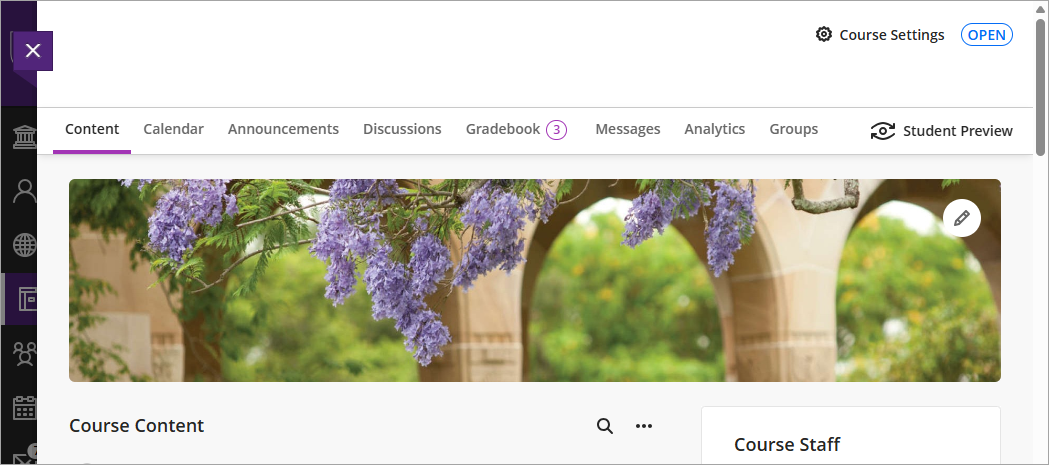
- Scroll down the page and access your Course Resources folder in the course Content area.
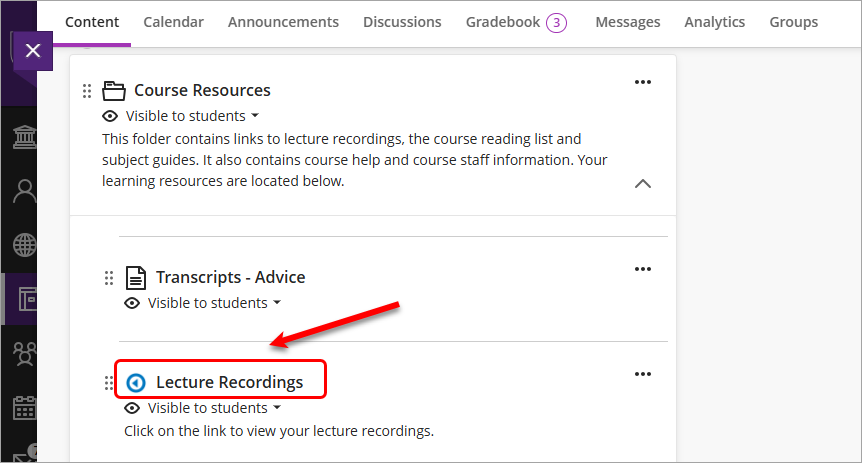
- Click on the Lecture Recordings link. This will launch the LTI link.
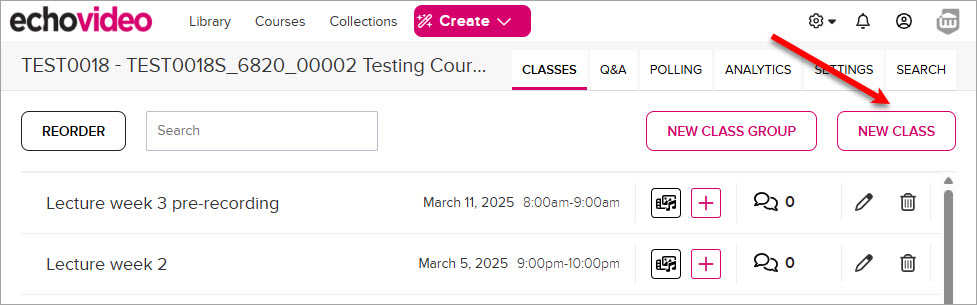
- Click on the NEW CLASS button.
Note: The term "class" refers to an individual lecture recording (e.g. 8 September 2026, 4pm - 6pm).
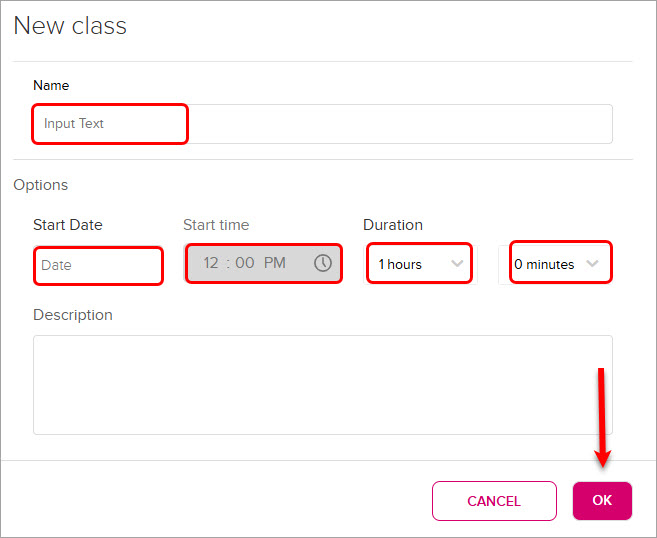
- Enter a title for the class in the Name textbox.
- Select a Start Date, Start time and Duration for the class.
- Click on the OK button.
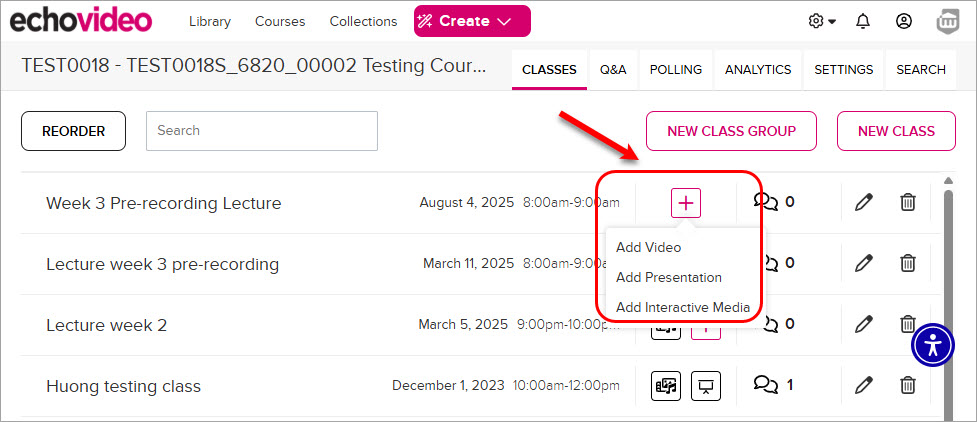
- The class will then appear in the list.
- Click on the + button and select the Add video option from the dropdown.
- Click on the Import from your library button.

- Optionally, you can enter the video title in the search box for a quick search.

- Select the required video and click on the Done button.

- Once the video icon appears, the video has been successfully published to your course's recording list in Echo360.
