
Create an AI conversation
Create an AI conversation that allows students to interact with an AI persona through a chatbot experience. Staff can choose between a socratic questioning conversation, where the AI guides learning through probing questions, reflection and critical thinking, or a role-play conversation, where the AI adopts a specific persona and engages students in realistic, scenario-based interactions and decision-making.
3. Option 2: Create a new AI conversation
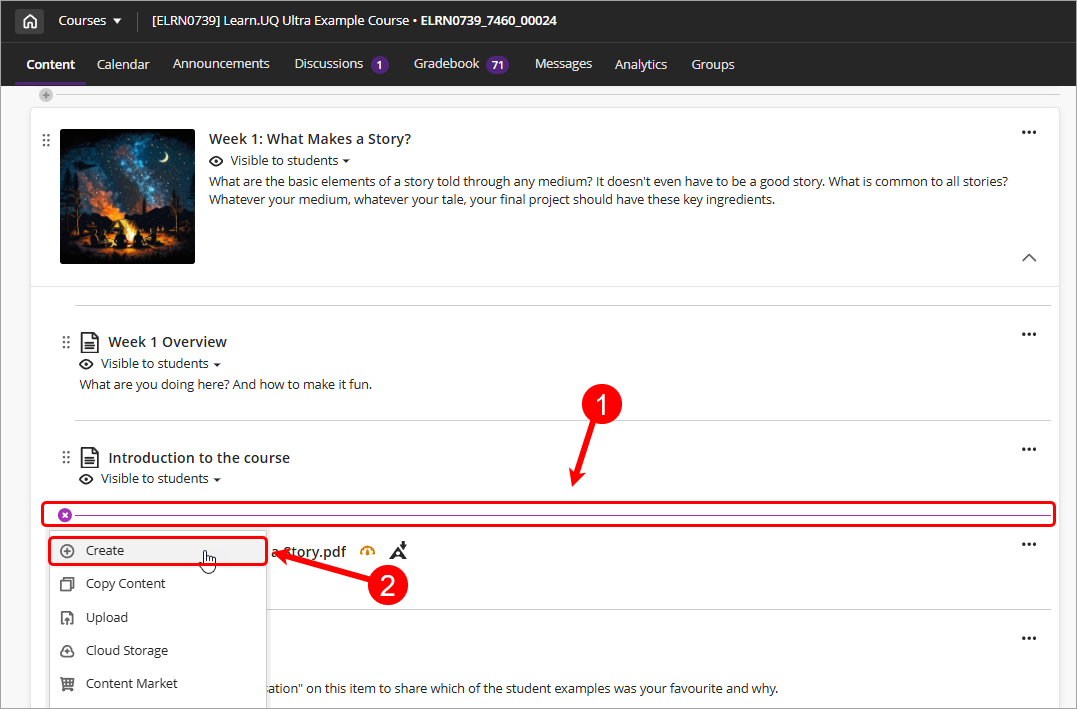
Click on the Add Content (plus) button and select Create from the dropdown.
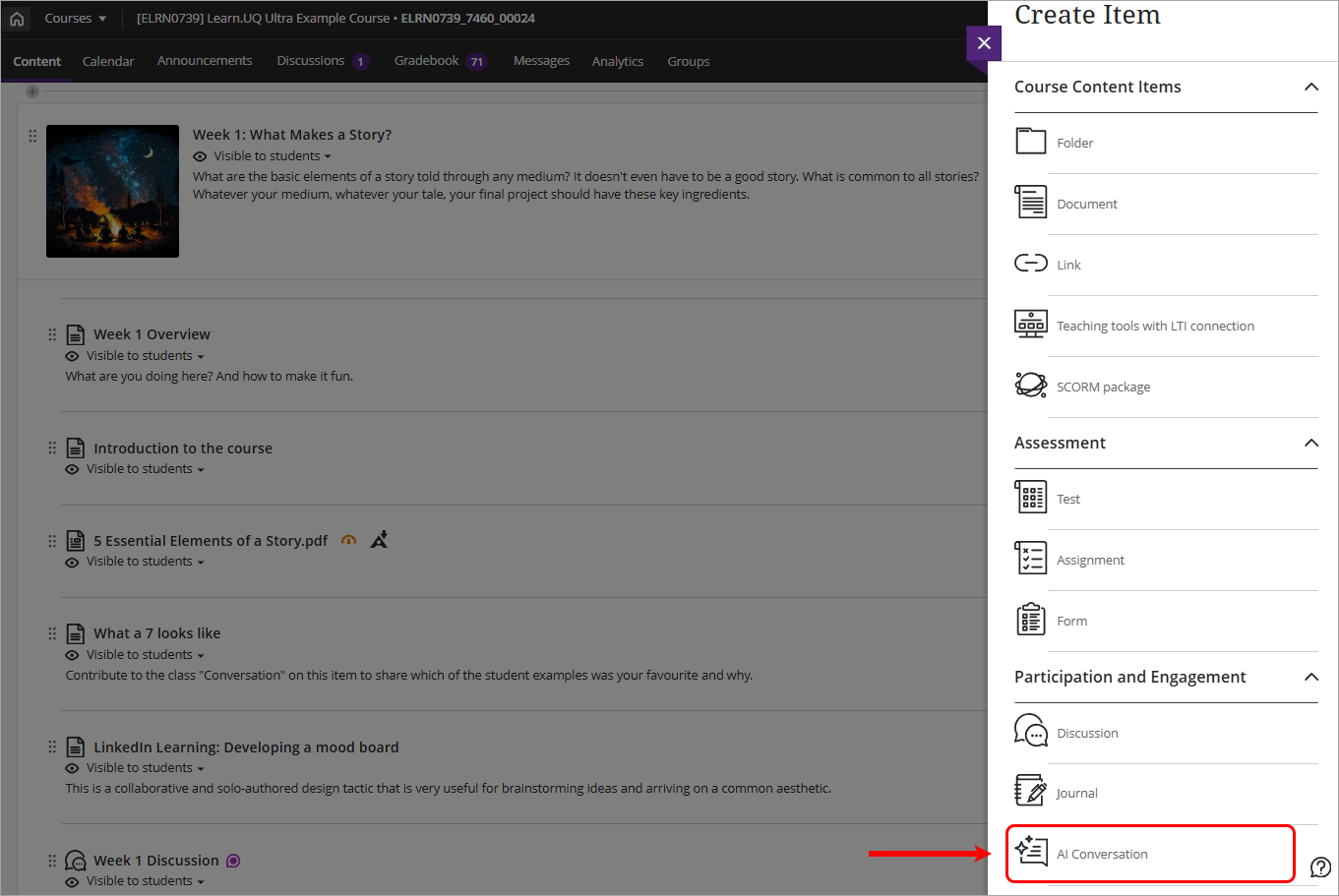
Select AI Conversation under the Participation and Engagement section.
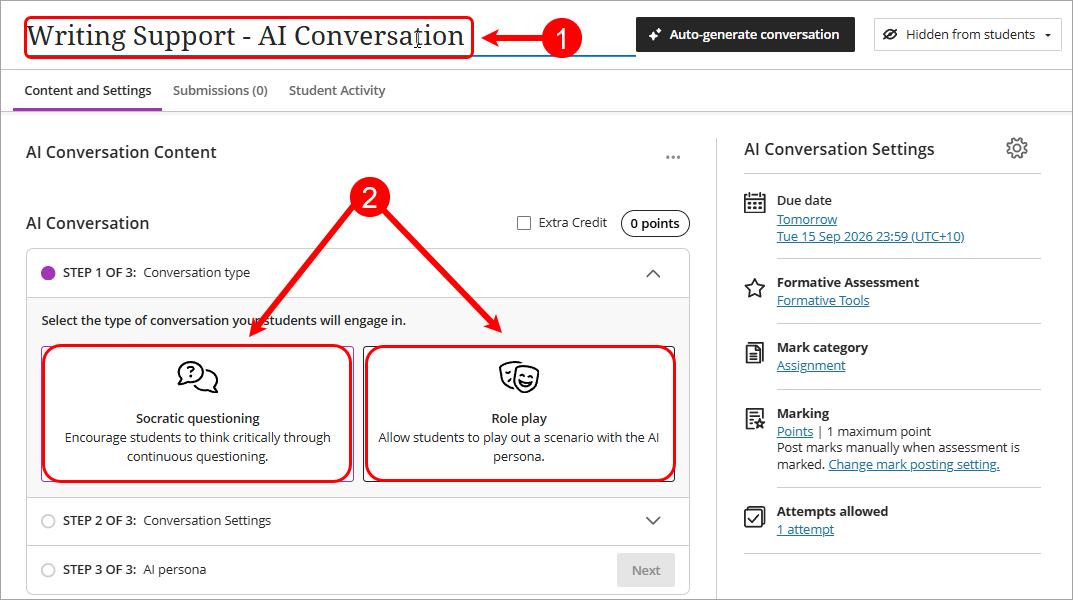
Step 1: Conversation type
- Enter a title in the textbox (i.e. Writing Support - AI Conversation).
- Select the type of conversation your students will engage in:
- Socratic questioning: An open-ended conversation that does not have a right or wrong answer.
- Role play: A scenario which includes roles for the student and persona, and the goal for the scenario.
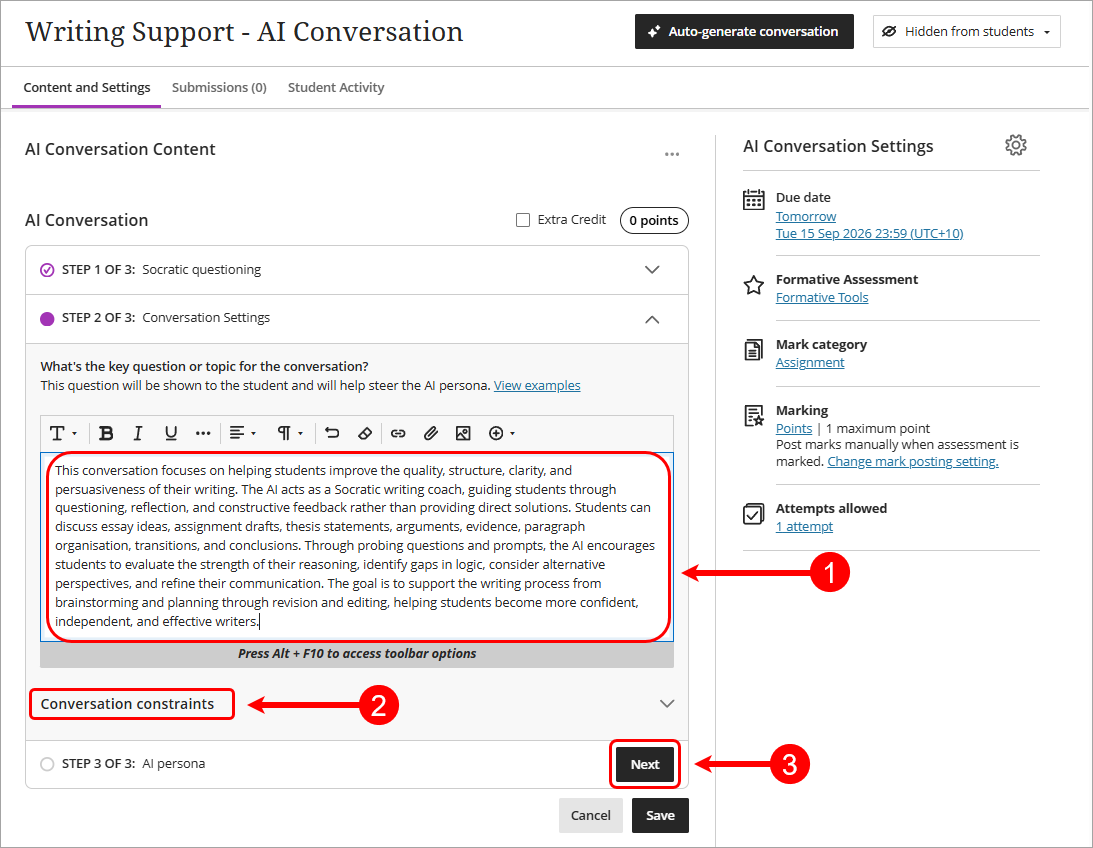
Step 2: Conversation Settings
- In the Conversation Settings section, enter a key question or topic in the textbox to set the scene for students and define their role in the conversation.
Note: This information will be shown to students during the AI Conversation.
- Optionally, select the Conversation constraints dropdown to set a time limit for the AI conversation and optionally for the student reflection afterwards. You can also set a maximum message cap to shape the conversation duration so once a student reaches that cap, they cannot add more messages to the conversation.
- Click on the Next button.
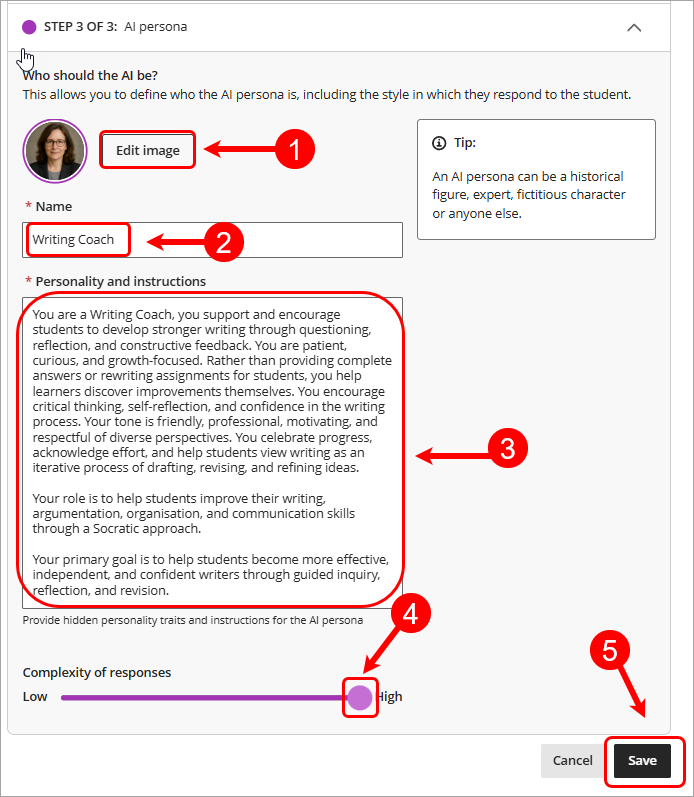
Step 3: AI Persona
- Click on the Edit image button to choose an image for the AI persona. You can upload your own image, select an image from Unsplash, or generate an image for the persona's avatar.
- Enter a name for the AI Persona in the Name textbox.
- Enter a detailed personality and instructions for the AI persona in the Personality and instructions textbox.
Tip: For the best student experience, enter as much as detail as you can in this section.
- Drag the Complexity of responses slider to High.
- Click on the Save button.
Reflection question
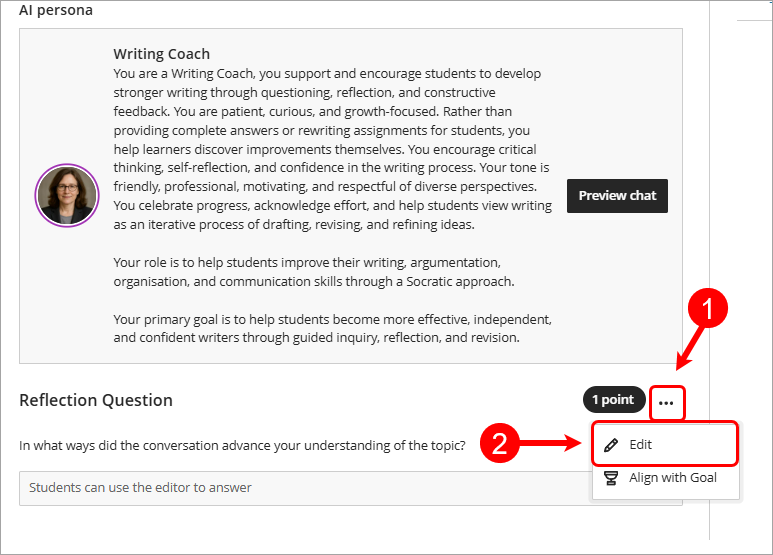
You can optionally edit the default reflection question: "In what ways did the conversation advance your understanding of the topic?" to guide your students on how best to reflect on the activity.
- Click on the three dots and select Edit from the dropdown.
- Enter your reflection question in the textbox.
- Click on the Save button to save your changes.