
Create a Gradescope Bubble Sheet Assignment (Ultra)
This guide provides instructions on how to scan and mark paper bubble sheets using Gradescope.
Note: Use of Gradescope bubble sheets is a UQ centrally supported exam option.
Note: Gradescope will only work with papers using the Gradescope Bubble Sheet template.
Note: Gradescope uses US naming conventions for academic terms and will default to the current North American term time. Requests have been made with the vendor to provide Australian terms but in the meantime, staff and students can simply ignore the term name and refer only to the course name.
9. Transfer results to Grade Centre and Publish
Assessment statistics and students' individual results will be displayed.
- Click on the Post Grades to Learn.UQ to transfer the results to Gradebook.
Warning: The results will be automatically posted in the Gradebook column. If the results are posted before you are ready, refer to the Accidental release of Gradescope results guide.
Note: You will need to repeat this step if the results change. i.e. if you update the Answer Key.
- Optionally, click on the Publish button so students can view their individual results via the assignment link.
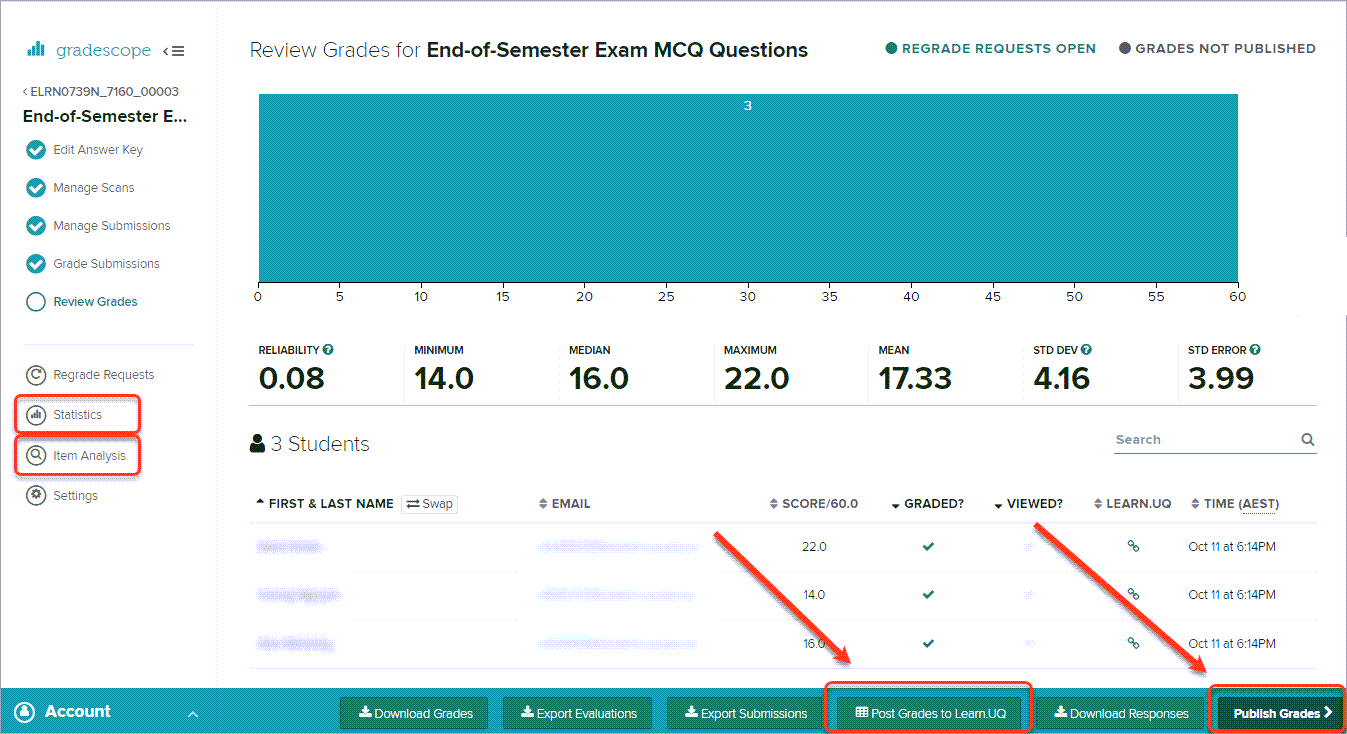
Tip: Click on the Statistics and Item Analysis in the menu to review additional learning analytics for the assessment.