Create a Gradescope Bubble Sheet Assignment (Ultra)
This guide provides instructions on how to scan and mark paper bubble sheets using Gradescope.
Note: Use of Gradescope bubble sheets is a UQ centrally supported exam option.
Note: Gradescope will only work with papers using the Gradescope Bubble Sheet template.
Note: Gradescope uses US naming conventions for academic terms and will default to the current North American term time. Requests have been made with the vendor to provide Australian terms but in the meantime, staff and students can simply ignore the term name and refer only to the course name.
4. Roster Sync
Note: As Gradescope only transfers course enrolments from Blackboard once per hour you may need to manually sync the roster.
- Click on the Gradescope assignment link.

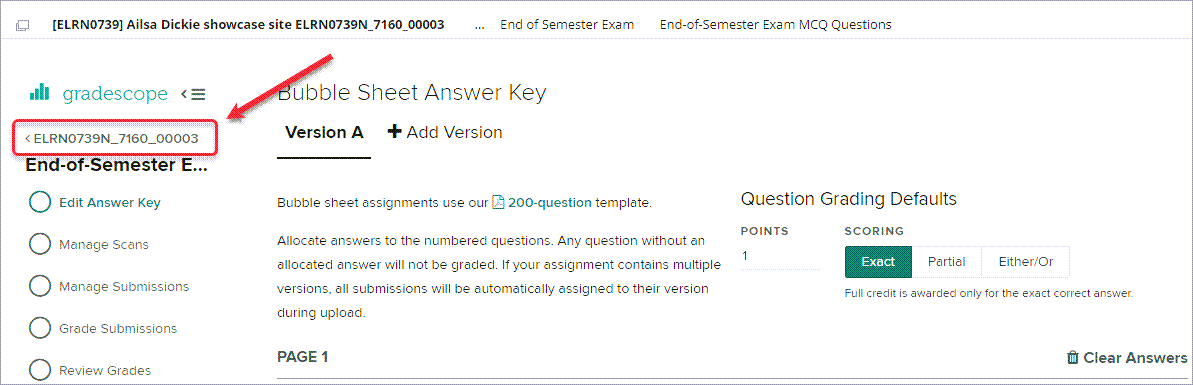
- Click on the course link in Gradescope.
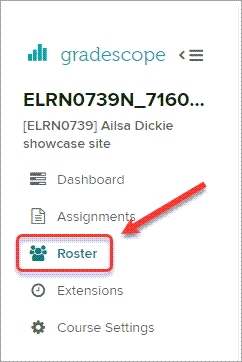
- Select Roster from the menu.
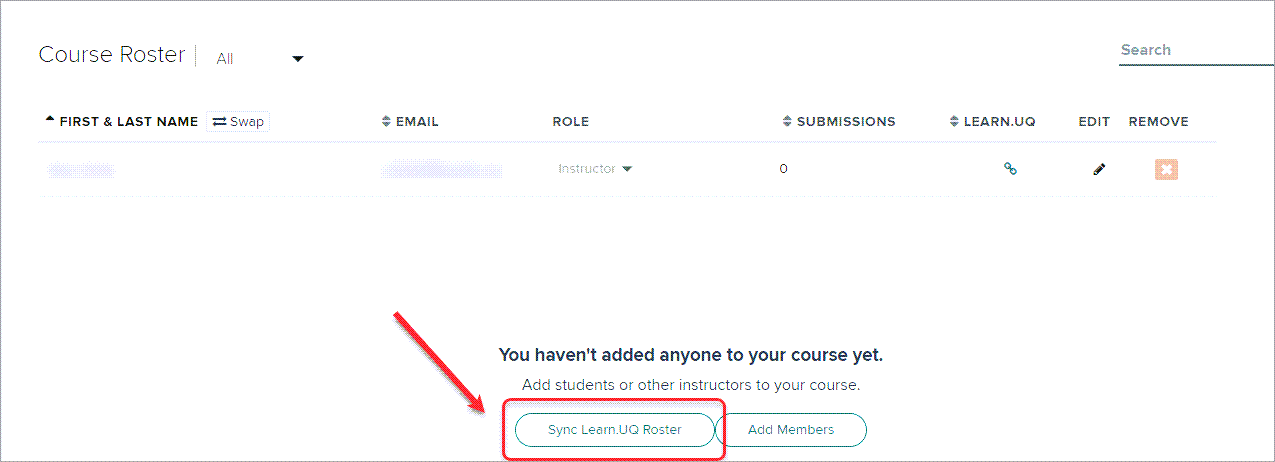
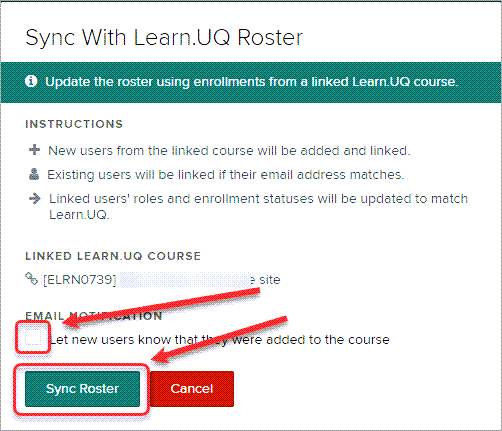
- Click on the Sync Learn.UQ Roster button.
- Uncheck the Let new users know that they were added to the course checkbox.
- Click on the Sync Roster button.
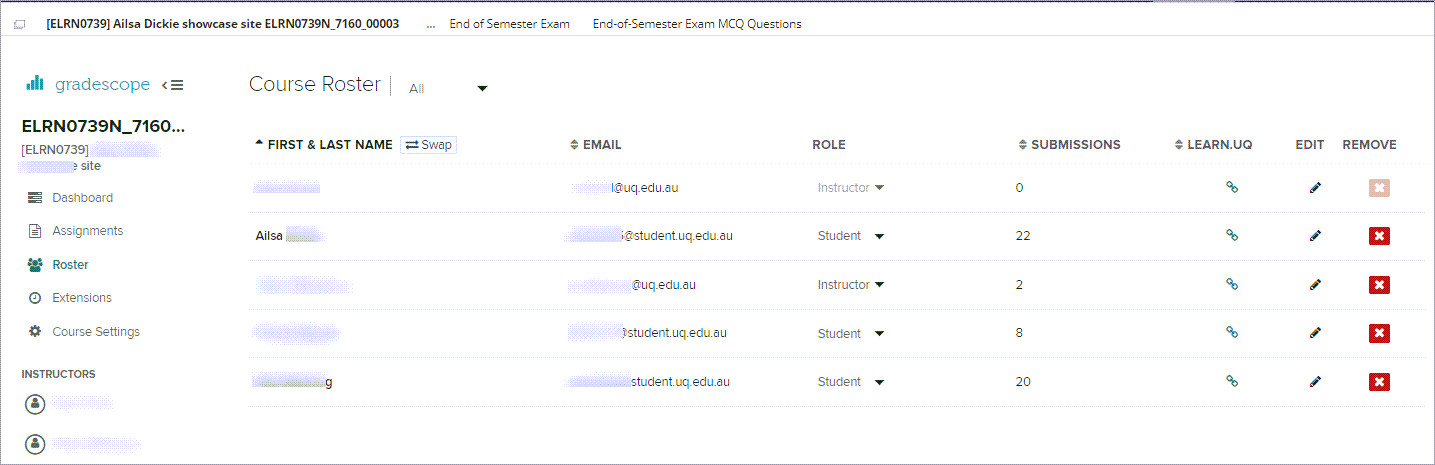
- The course enrolments will be displayed.