
Create a Gradescope Assignment (Homework / Problem Set) (Ultra)
This guide will walk you through the process of setting up a Gradescope Assignment (Homework / Problem Set) for the submission of students' scanned handwritten assessment.
Note: Gradescope uses US naming conventions for academic terms and will default to the current North American term time. Requests have been made with the vendor to provide Australian terms but in the meantime, staff and students can simply ignore the term name and refer only to the course name.
1. Link to Learn.UQ Course (first use in course only)
The first time you use Gradescope in a Learn.UQ course you need to link to it within the tool.
Tip: It is recommended that all Gradescope assignment links are added within an appropriate Assessment folder in the Content area. Best practice is to create a folder for all required assessment information. To avoid student confusion, the folder should be given exactly the same name as the assignment title in the Course Profile. For further information on creating folders, refer to the Create a Folder guide.
Link to Learn.UQ Course
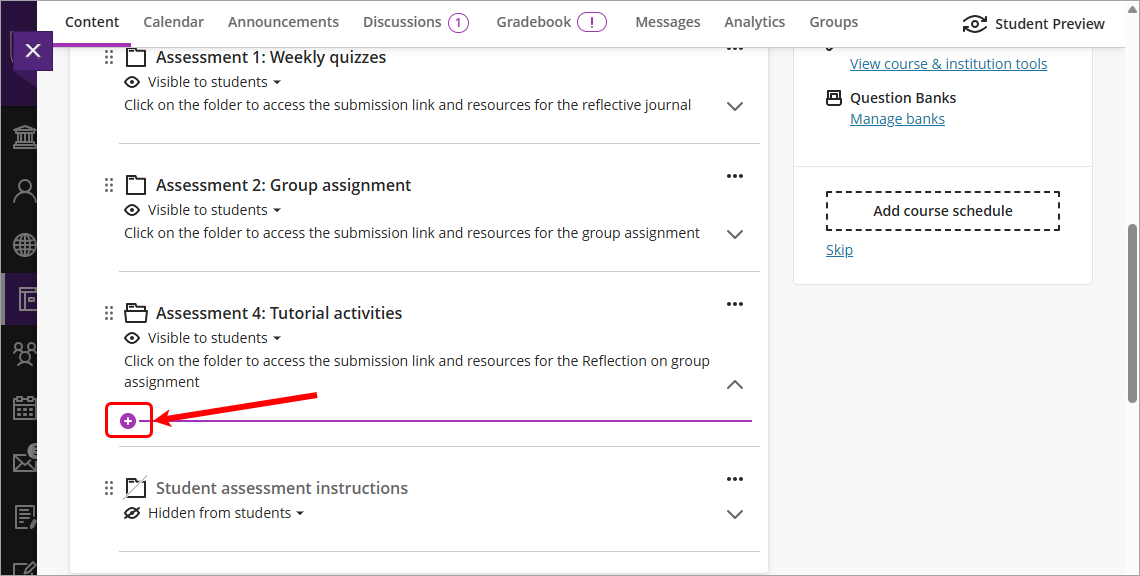
- Navigate to the required assessment folder.
- Click on the Add new content (+) sign.
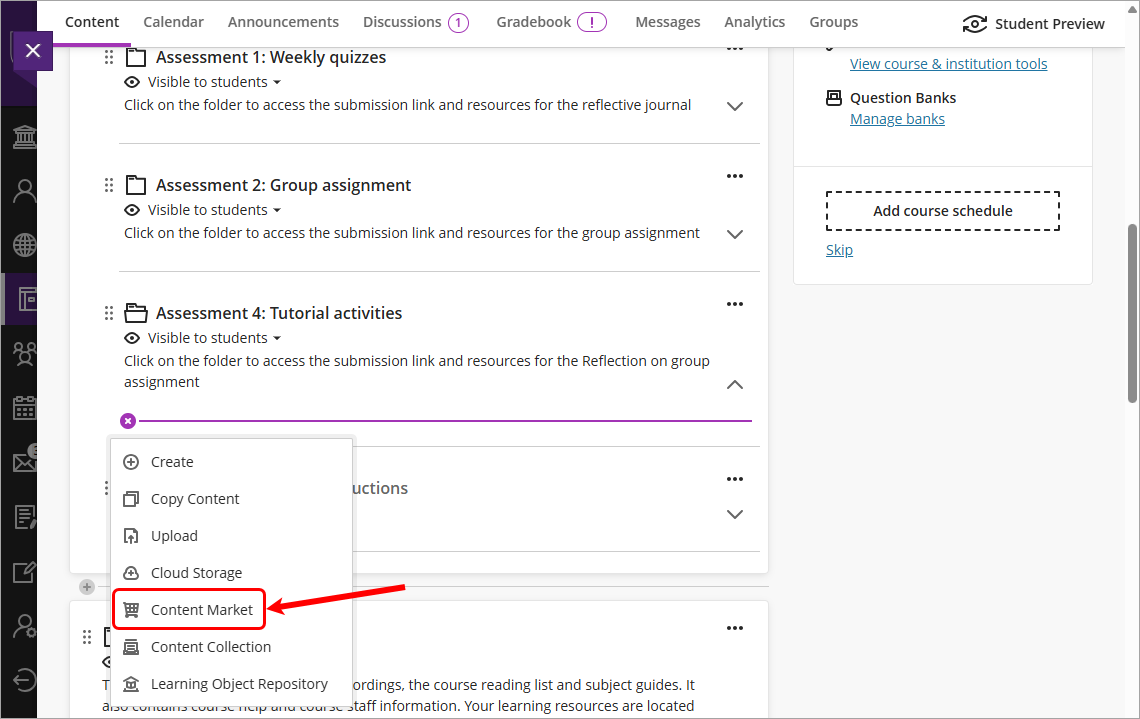
- Select Content Market from the drop-down list.
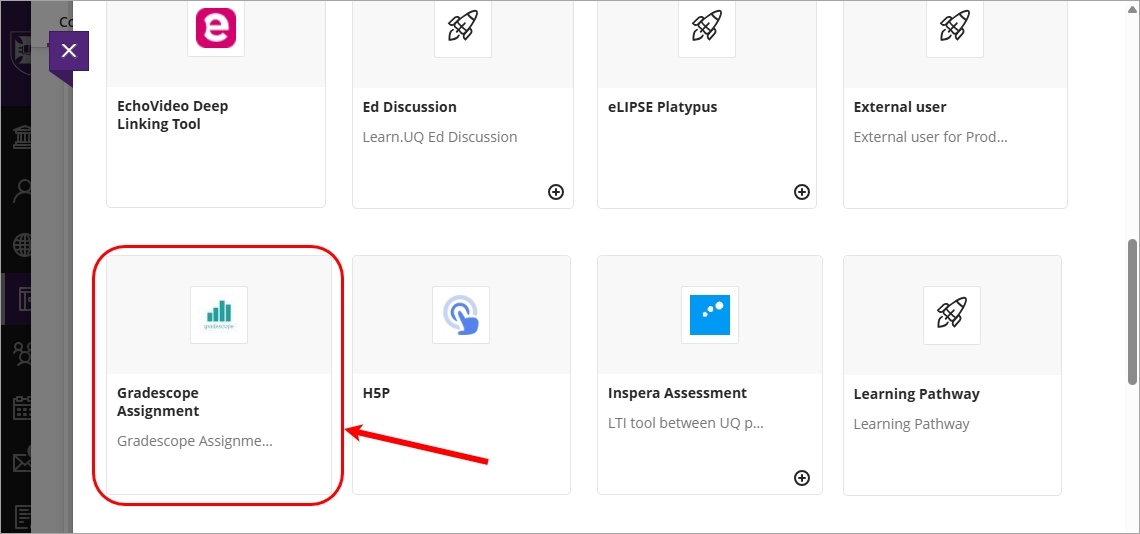
- Select Gradescope Assignment from the content market.
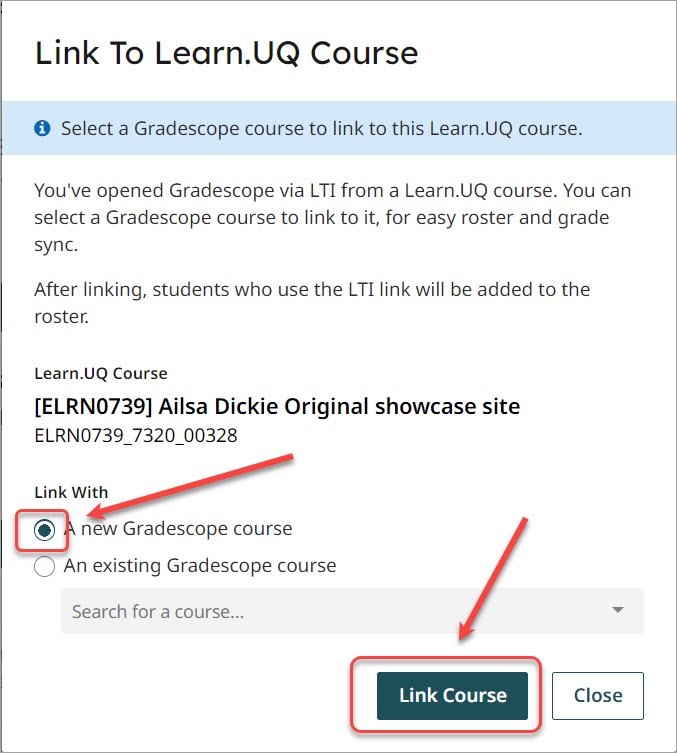
- Select the A new Gradescope course radio button.
- Click on the Link Course button.
- Click on the Close button.
- Proceed to Step 5 in Create an assessment submission link.