
Submit a video assignment with EchoVideo (Ultra Student)
Important: DO NOT delete an EchoVideo file that you have submitted as part of an assignment. This will make the file unavailable for marking by your instructor.
EchoVideo is a video server and is used by staff and students to store videos and audio files. The same system is used to record and publish lecture recordings.
For step-by-step instructions on how to record your video or audio assignment, refer to the Record video or audio through EchoVideo guide.
For information on the recommended video upload settings, refer to the Video Content Recommendations guide.
3. Upload your video
Note: Only complete this step if your video has not already been uploaded to your EchoVideo Library.
- Click on the Upload Media link.

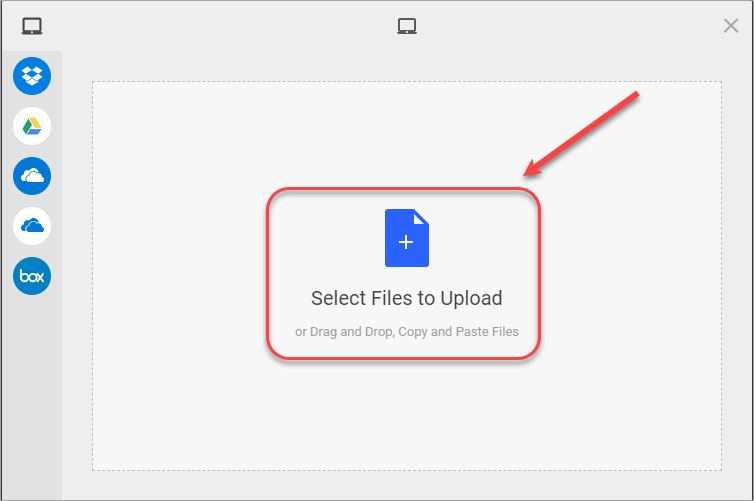
- Click on Select Files to Upload (or use one of the other options).
- Navigate to and select the required video file.
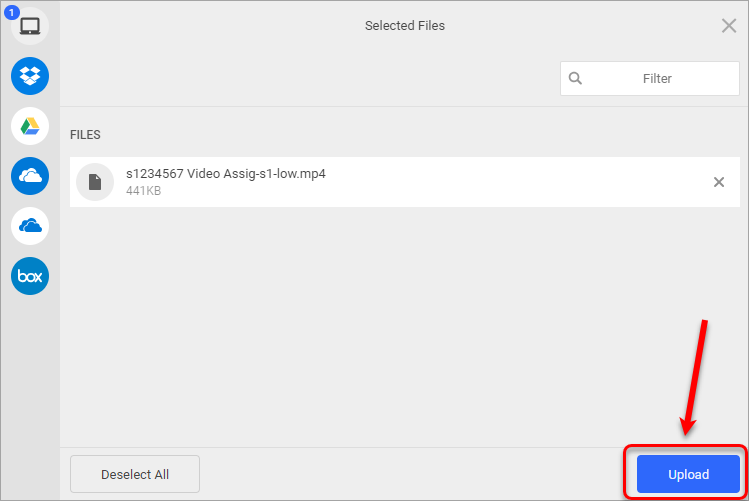
- Click on the Upload button.
Tip: For further information about how long files can take to upload, refer to the Upload speeds guide.
- Click on the Close button.