
Link a H5P Object in a Learn.UQ course (Ultra)
Linking a H5P object in your course will automatically create a Gradebook column and transfer the first attempt for all students as a score to that Gradebook column. You can also view additional information, such as an individual student's submitted answers for each attempt, through Reports in H5P.
Note: When you have your course site copied, you will have to relink your H5P objects (delete and link again as per the steps below). This is done to remove previously submitted responses and apply new settings (e.g. date restrictions and attempt settings) to keep the content and assessments relevant to a particular cohort.
Alternatively, you can embed a H5P object in your Learn.UQ course site which displays the H5P object inline instead of as a web link, however the results cannot be transferred to Gradebook.
3. Edit H5P object LTI settings
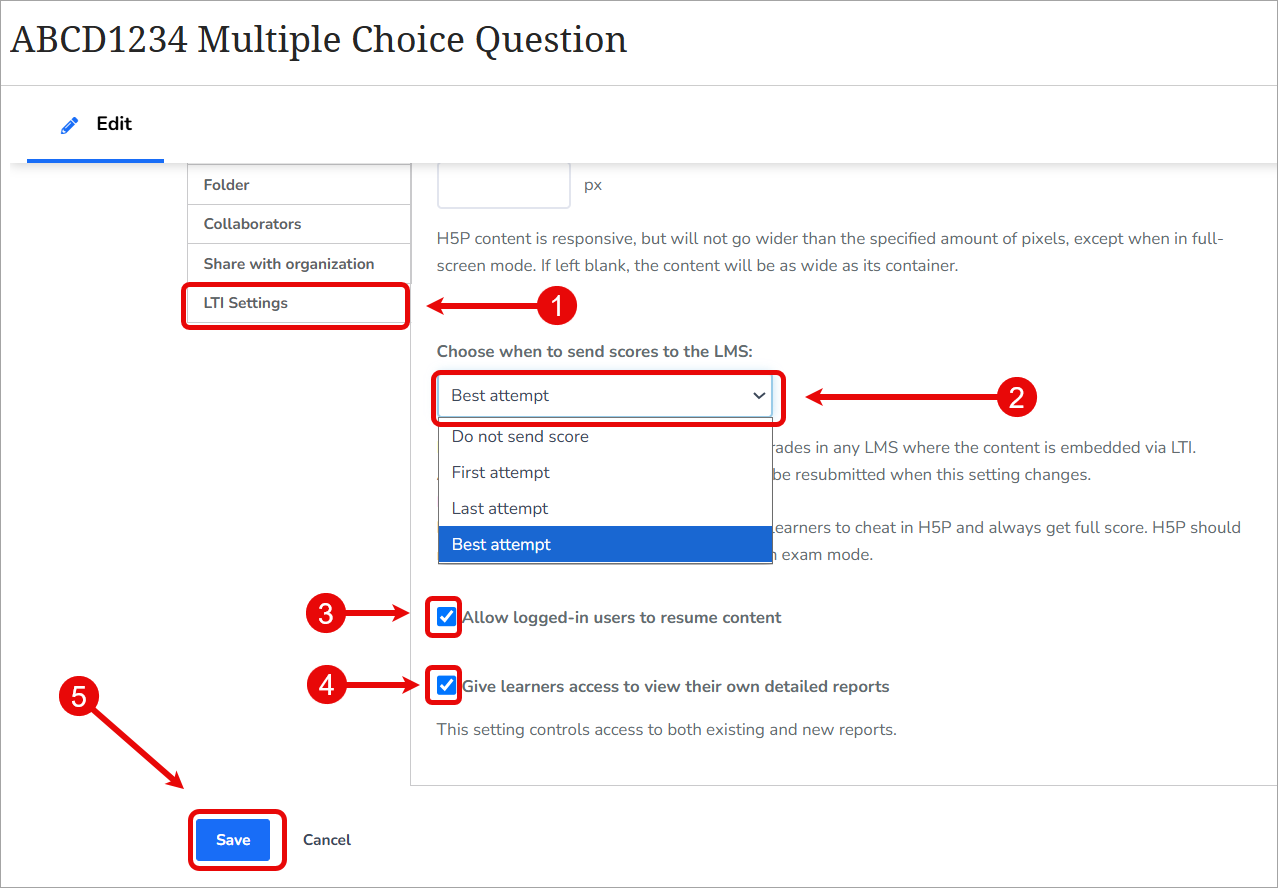
Finally, you will need to edit the linked H5P object and update the LTI settings to determine which scores are sent to Gradebook (first, best or last attempt), as well as determine whether students can resume previous attempts and/or have access to their own detailed reports.
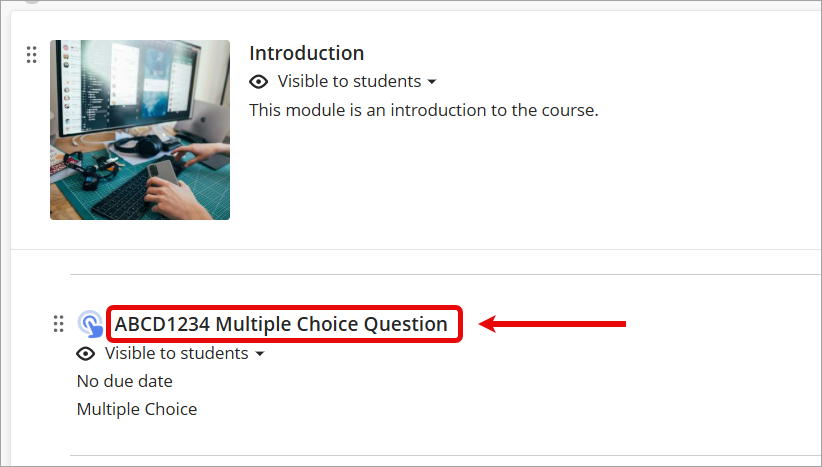
- Click on the title of the H5P object you just linked in your course to open it.
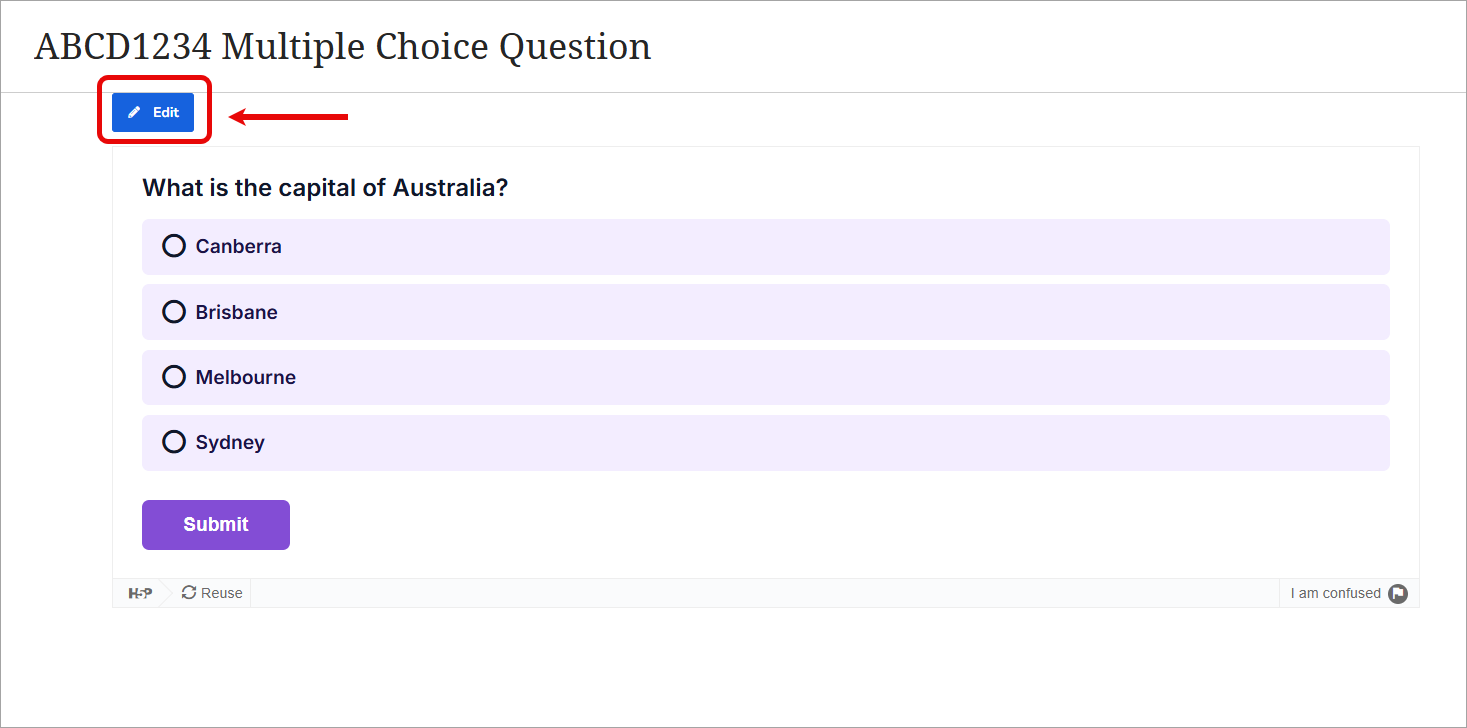
- Click on the Edit button above the H5P object.
- Click on the LTI Settings tab to view the options.
- For Choose when to send scores to the LMS, select one of the following options:
- First attempt
- Last attempt
- Best attempt
- Optionally, check the Allow logged-in users to resume content checkbox.
- Optionally, check the Give learners access to view their own detailed reports.
- Click on the Save button.
Note: Any grades already sent to the Gradebook column prior to the LTI settings being updated will not be resubmitted when this setting changes.