Link a H5P Object in a Learn.UQ course (Ultra)
Linking a H5P object in your course will automatically create a Gradebook column and transfer the first attempt for all students as a score to that Gradebook column. You can also view additional information, such as an individual student's submitted answers for each attempt, through Reports in H5P.
Note: When you have your course site copied, you will have to relink your H5P objects (delete and link again as per the steps below). This is done to remove previously submitted responses and apply new settings (e.g. date restrictions and attempt settings) to keep the content and assessments relevant to a particular cohort.
Alternatively, you can embed a H5P object in your Learn.UQ course site which displays the H5P object inline instead of as a web link, however the results cannot be transferred to Gradebook.
2. Edit the H5P object link settings
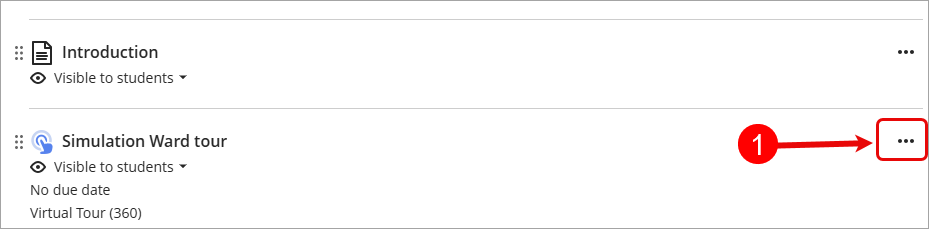
- Click on the ellipsis (3 dots) button to access more options for the H5P object link eg. Stimulation Ward tour.
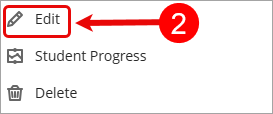
- Click on Edit button.
- Optionally, edit the H5P link title in the Name textbox.
- Optionally, edit the Maximum point value in the Points Possible textbox.
Note: By default, the points possible will be set to 10. We recommend changing this to the maximum number of points students can achieve when completing the H5P object.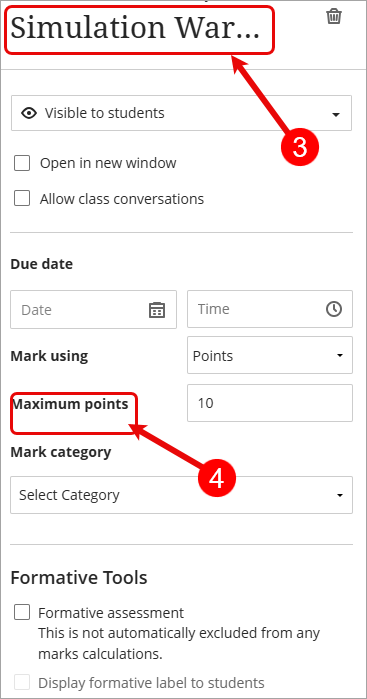
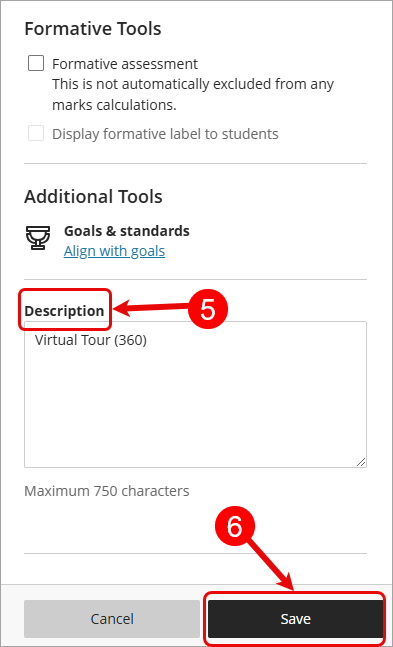
- Optionally, edit the link description in the Text textbox.
- Click on the Save button to save your changes.