
Record live oral and practical assessment (Ultra)
As per the assessment procedure (86), some live oral or practical assessment items may need to be recorded and retained for re-mark purposes.
This guide details the recommendations around recording and storing live oral or practical assessment items which must be kept for at least one year following the release of final grades.
It is recommended that you use Zoom to record live oral or practical assessment items and that recordings are securely stored in Echo360 so they can be accessed if required for moderation, feedback or remark purposes. All Zoom cloud recordings will automatically be available in your private Echo360 library, therefore recordings can be shared to an Echo360 collection for other course staff to access. Echo storage complies with the retention requirements for Assessment (180) and Examinations (132).
5. Add Zoom recording to Echo360 collection
All relevant course staff will need to add their Zoom cloud recordings to the Echo360 collection once they have been given Contributor access.
- Log into https://echo360.net.au.
- Select Collections from the top menu.
- Select the relevant collection.
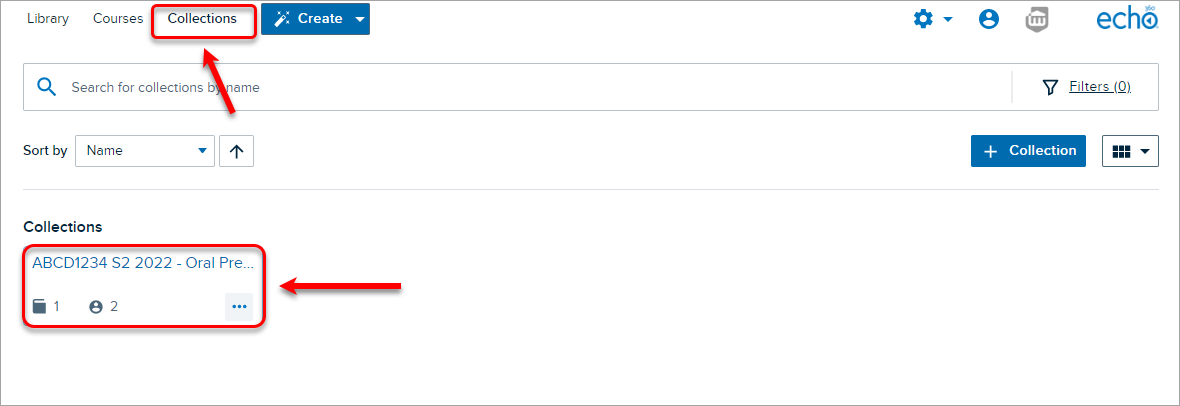
- Click on the + Add Media button.

- Located and select the required video(s).
Note: If you accidently recorded to your computer (instead of recording to the cloud) or didn't use Zoom to record, you can select the Upload New Media tab and upload the file directly to the collection.
- Click on the Done button to add them to the collection.
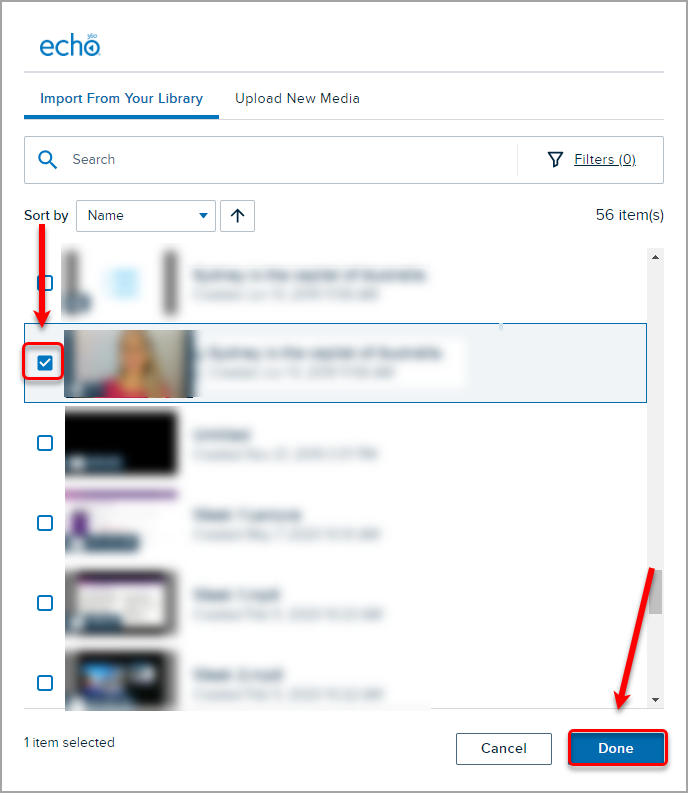
- All staff who have been given access to the collection will then be able to view and download all videos.
