
Course Accessibility Report (Ultra)
What is the Course Accessibility Report?
To drive accessibility improvements at a course level, staff enrolled in the course as an Instructor, Teaching Assistant or Course Builder have access to an interactive Course Accessibility Report to help identify major recurring issues and assist in addressing them moving forward. For more information, refer to the Course Accessibility Report and Accessibility Scores guides by Anthology.
Warning: The Course Accessibility Report is currently flagging embedded Echo360 videos as This item contains links with missing text. Please disregard this and do not proceed with any of the suggested remediation options.
3. Remaining issues
Below the Overview section, you will find Remaining issues where content is grouped by accessibility issue and sorted by priority, which is determined by the number of students impacted, how often the issue occurs, and the accessibility score.
The three priority levels are:
- Severe: These issues are the greatest risk to accessibility and require the most attention (e.g. a scanned PDF is just an image, so a screen reader can’t read any of the text)
- Major: These issues impact accessibility, and while not severe, require attention (e.g. an image without alt text means a screen reader user misses important context, but the rest of the page may still be readable)
- Minor: These issues should be considered for a better accessibility score (e.g. a Word document with headings and alt text already in place)
This section is particularly useful for identifying the main accessibility issues with your course content and determining the priority order in which to address them.
- Select an Issue from the Remaining issues list.
Tip: Address the most severe issues first which will appear at the top of the list.
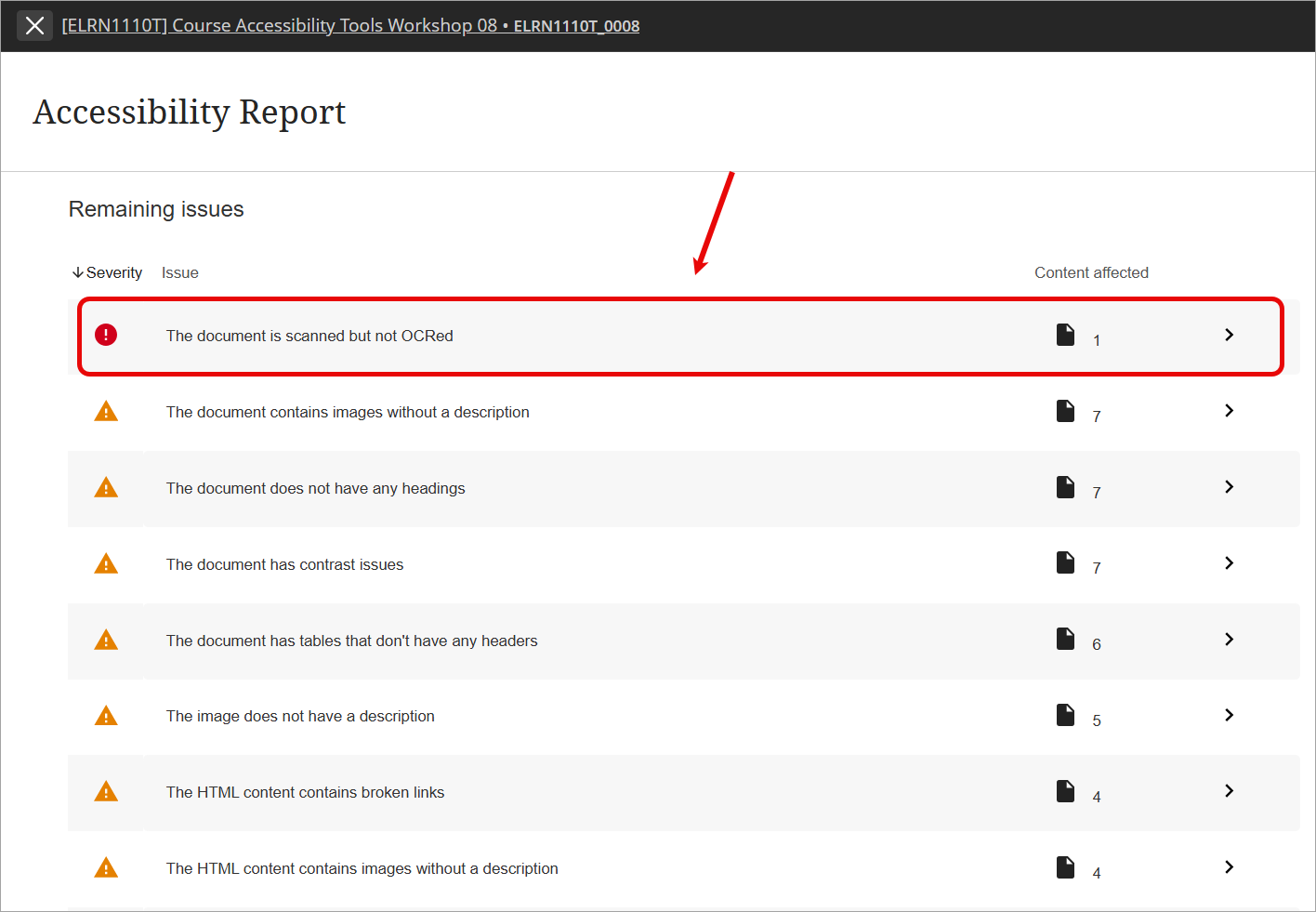
- You will be shown a list of all content items that have been identified with that accessibility issue, sorted from the lowest to highest accessibility score.
- Select a content item from the list.
Tip: Address the content items with the lowest accessibility scores first which will appear at the top of the list.
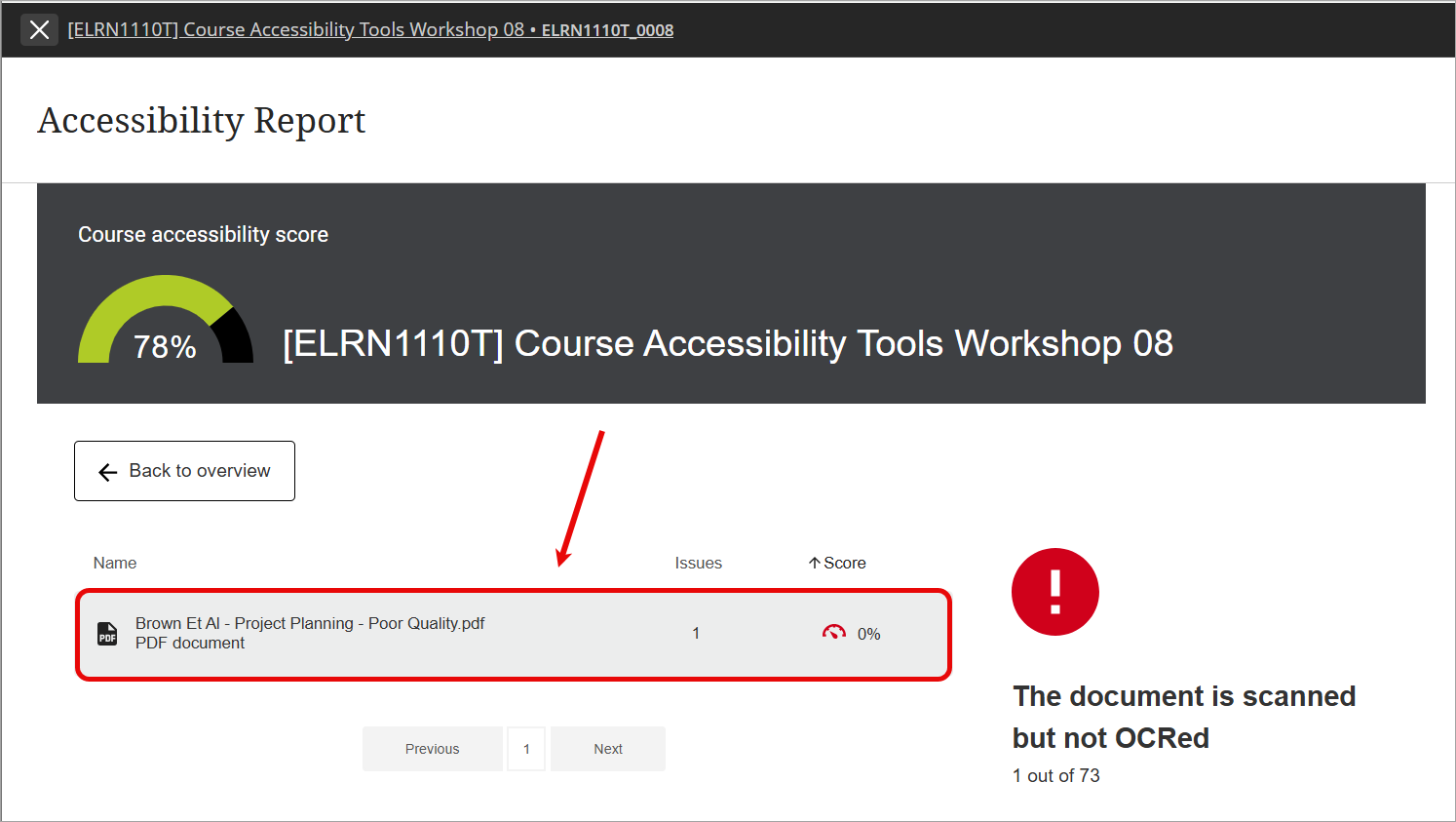
- This will open a pop-up window that will show a preview on the left and a panel on the right which will guide you through how to address the identified accessibility issue(s).
- Once the accessibility issue has been addressed, the content item will no longer appear in the list for that accessibility issue.
- Once all content items within a particular accessibility issue have been addressed, the issue will no longer appear in the Remaining issues list.