Managing staff access to your course (Ultra)
Enrol teaching or administrative staff
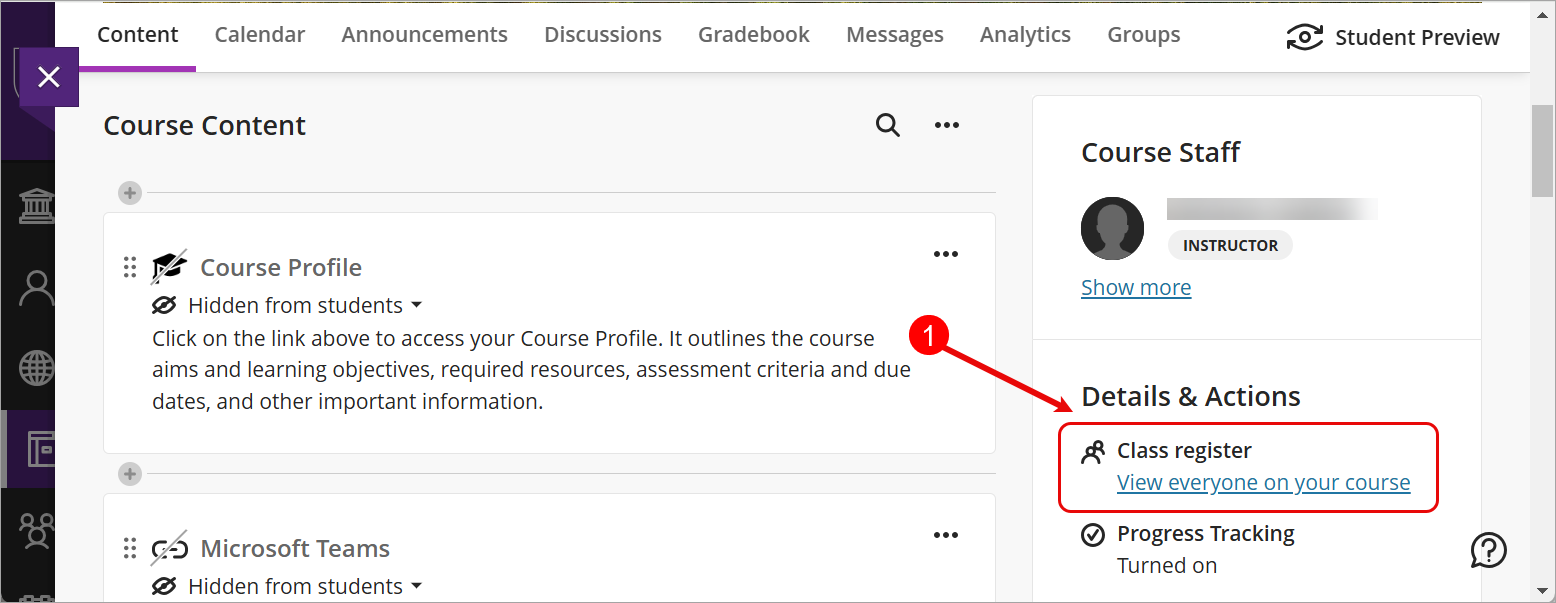
- Click on Class Register from the Details & Actions menu.
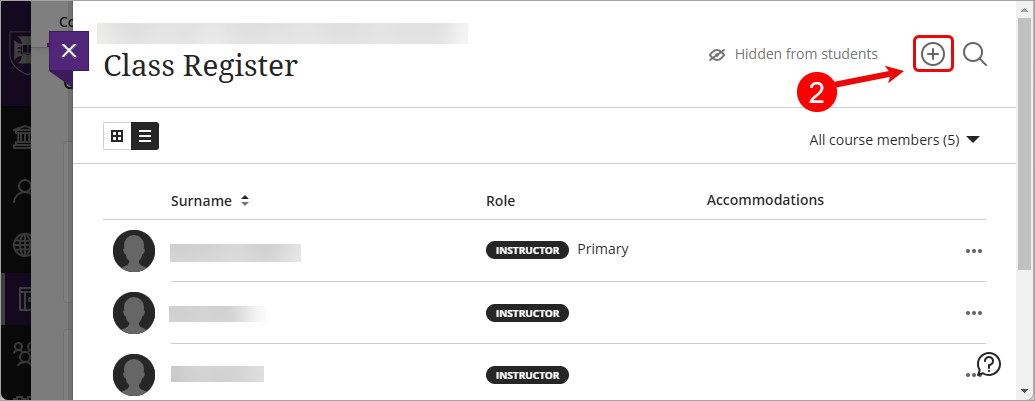
- Click on the Enrol People (Plus) button.
- Click on the Search box, enter the staff name or UQ username.
Note: Search is not limited to name only, you can search by first name, last name or UQ username, regardless of the placeholder text ('Type a name to find and enrol').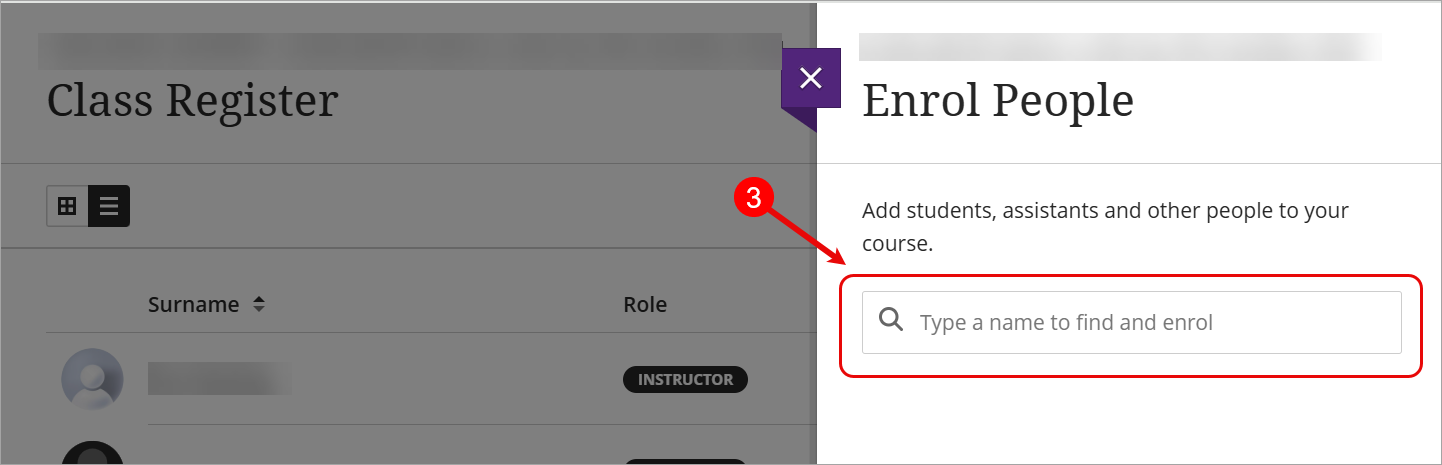
- Click on the Plus button next to the staff name.

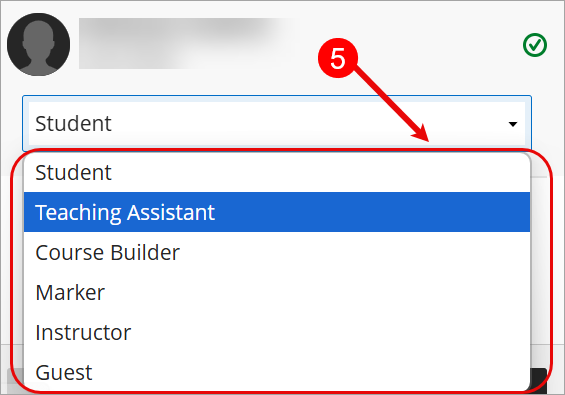
- Select the type of access required from the Drop-down list.
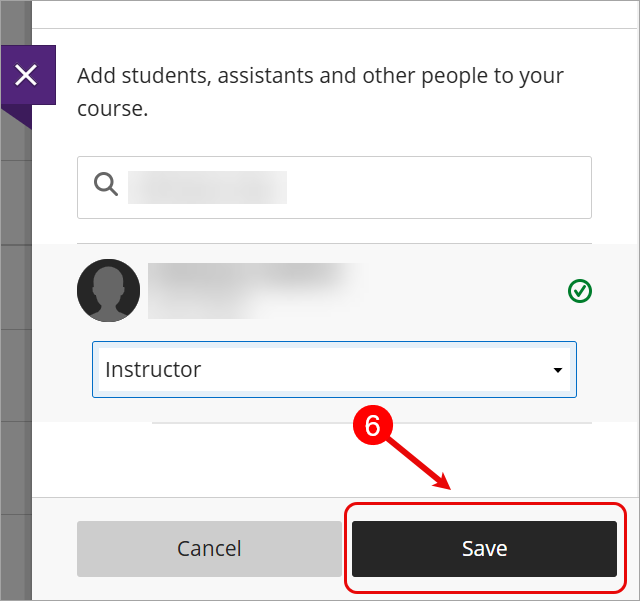
- Click on the Save button.
Remove teaching or administrative staff
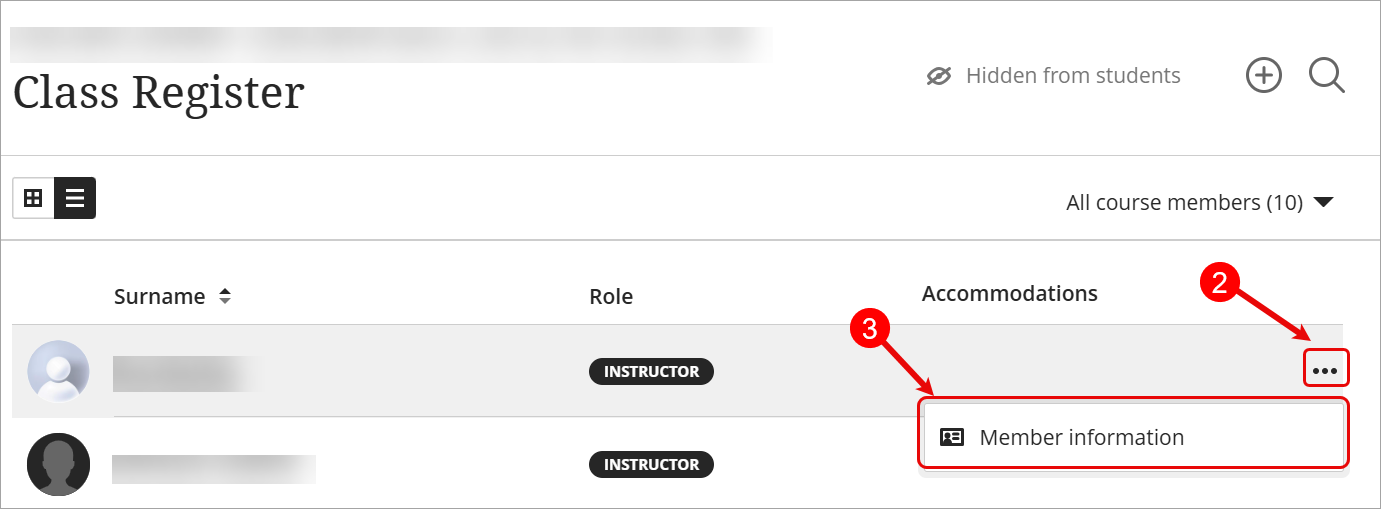
- Click on Class Register from the Details & Actions menu.
- Click on the ellipsis (3 dots) button to access Member information rubric
- Select Member information rubric
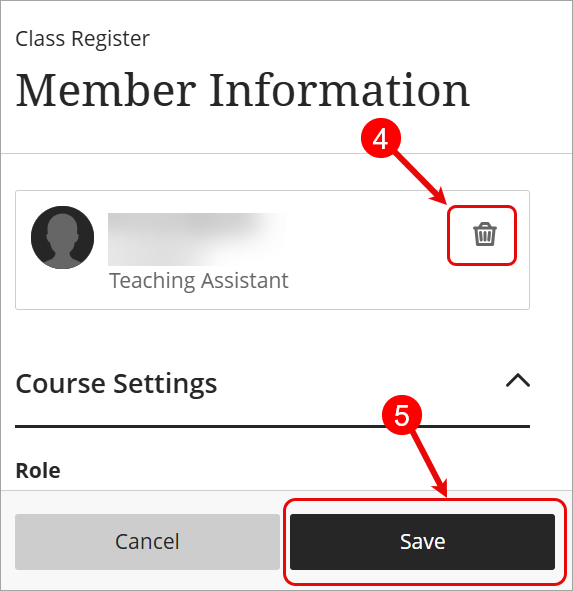
- Click on the Remove Member (Trash can) button.
Note: To remove an instructor, first change a user's role in course from instructor to Teaching Assisstant - Click on the Save button.
Change a user's role in course
- Click on Class Register from the Details & Actions menu.
- Click on the ellipsis (3 dots) button to access Member information rubric.
- Select Member information rubric.
- Click on the down arrow button under Role.
- Select the required role from the Drop-down list.

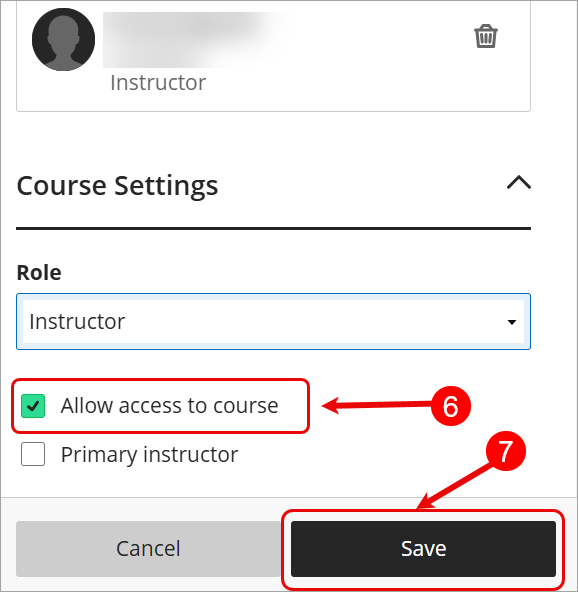
- Check the Allow access to course checkbox.
Note: Check the Primary instructor checkbox to make the staff the primary instructor of the course. - Click on the Save button.