Skip to menu Skip to content Skip to footer
The University of Queensland
  • Study
  • Research
  • Partners and community
  • About
eLearning
  • Home
  • Staff Guides (Ultra)
  • Student Guides (Ultra)
  • Workshops
  • Services
  • Projects
  • News
  • About
  • Contact
  • Study
  • Research
  • Partners and community
  • About
  • UQ home
  • News
  • Events
  • Give
  • Contact
  • UQ home
  • News
  • Events
  • Give
  • Contact
eLearning
  • Home
  • Staff Guides (Ultra)
  • Student Guides (Ultra)
  • Workshops
  • Services
  • Projects
  • News
  • About
  • Contact

Access H5P (Ultra)

  1. Home
  2. Staff Guides (Ultra)
  3. H5P (Interactive Learning Objects) (Ultra)

License request

In order to access H5P and begin creating interactive learning objects, you will need to request a license by emailing help@elearning.uq.edu.au.

Note: H5P licences will be automatically archived if not used for 12 months, although the activities created in your account will still be accessible to students. You will need to email help@elearning.uq.edu.au to request to have your account reactivated.

Set up your password

Once you have been assigned a license, you will receive an email from h5p.com to set up your password. 

  1. Click on the Set password link in the email. 

set password

  1. Enter a strong password in the Password and Confirm Password textboxes.
  2. Click on the Login button.

strong password

Access H5P directly

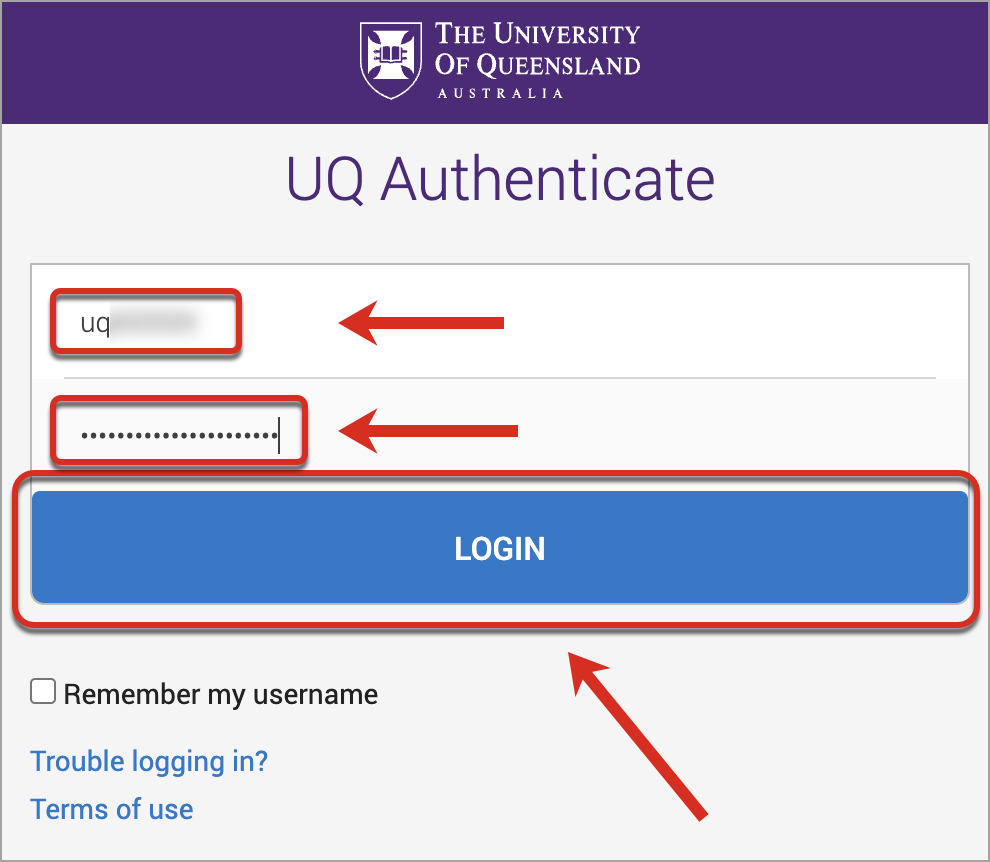
  1. Go to uq.h5p.com to login with UQ Authenticate.
  2. Enter your username in the Username textbox.
  3. Enter your password in the Password textbox.
  4. Click on the LOGIN button.

multifactor authentication

  1. Complete the Multifactor Authentication process to login.
  2. To get started, refer to the Create a H5P Object guide.

Access H5P through Learn.UQ (Blackboard)

  1. Go to learn.uq.edu.au and open your course.
  2. Click on the desired folder where you to would like to create and embed your H5P object (e.g. Week 1)
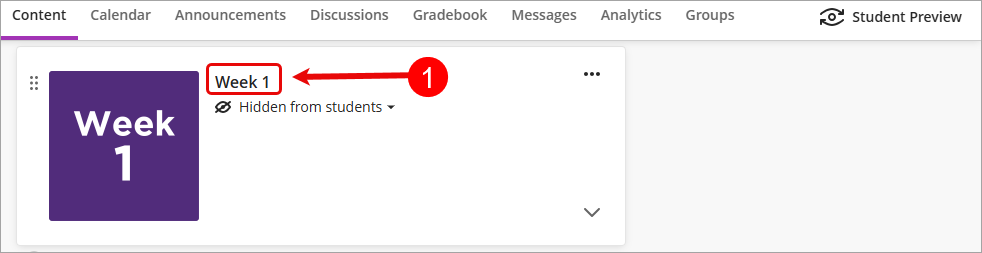
    Desired folder circle
  3. Click on the Add new content (+) sign.
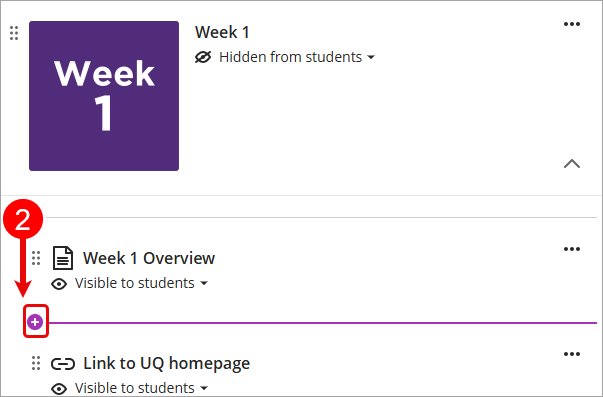
    Add New Content sign circle
  4. Select Create from the drop-down list.
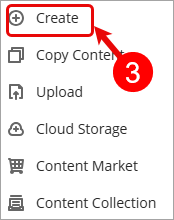
    Create button circle
  5. Select Document from the Create Item menu.
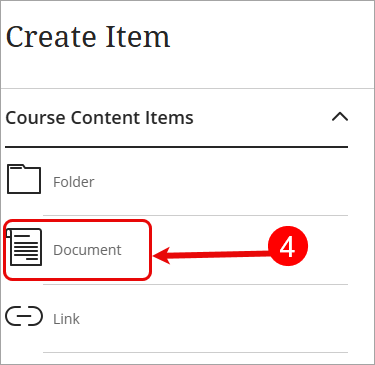
    Document circle
  6. Click on the Content button from the Select a type of content to add a block menu. 
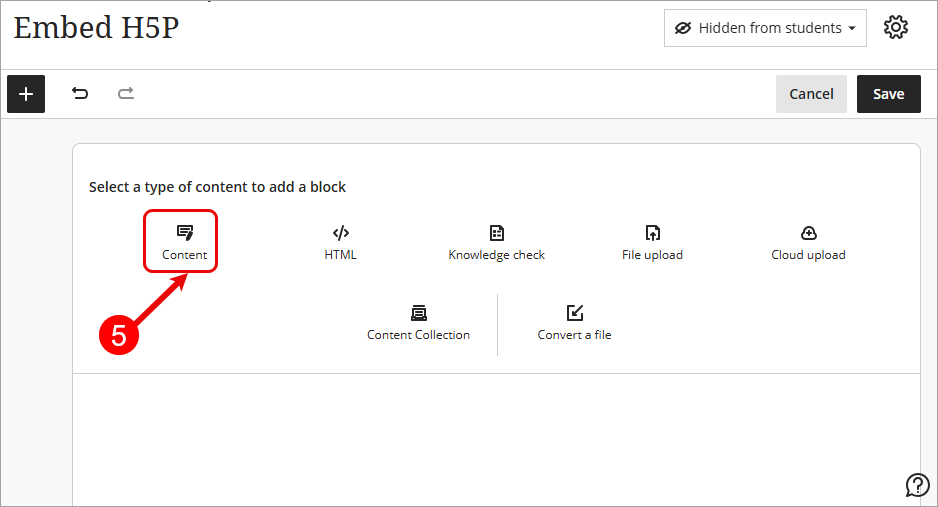
    Content button circle
  7. Click on the Insert content (+) button
  8. Select Content Market from the Insert content drop-down list
    Step 6-7 circle
  9. From the Content Market, click on the H5P button. 
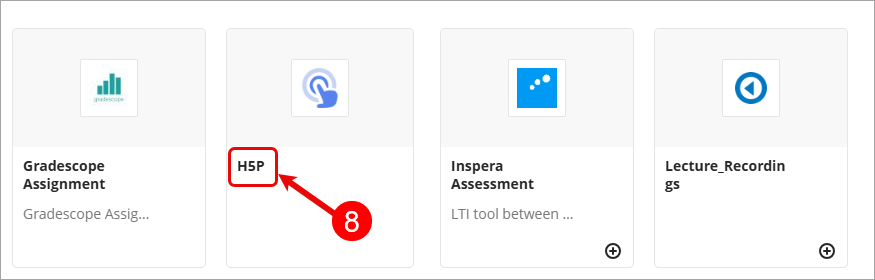
    H5P circle
  10. H5P will then launch in a new tab for you to start creating content. For more information, refer to the Create a H5P Object guide.

Note: If you are viewing, editing or embedding H5P content for the first time, a confirmation code will be sent to your email address and the following pop-up window will appear. Simply enter the confirmation code to proceed directly to your H5P account. 
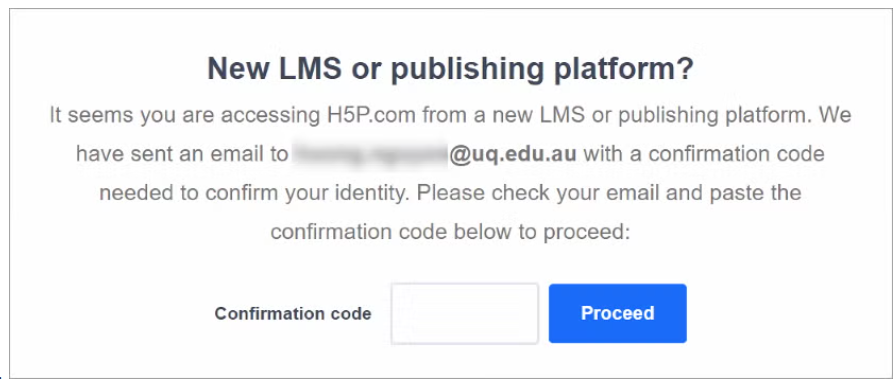
Confirmation code window

  1. To get started creating content, refer to the Create a H5P Object guide.
  • Access H5P (Ultra)
  • Access and clone a H5P template (Ultra)
  • Add a H5P object to a UQ Extend Course (Ultra)
  • Create a H5P Object (Ultra)
  • Embed a H5P Object in a Learn.UQ course (Ultra)
  • Enable H5P in a UQ Extend course (Ultra)
  • H5P content types (Ultra)
  • H5P naming and sharing guidelines (Ultra)
  • Languages in H5P (Ultra)
  • Link a H5P Object in a Learn.UQ course (Ultra)
  • Recommended settings and tips for H5P activity types (Ultra)
  • Reports in H5P (Ultra)
  • The Chase (H5P) (Ultra)
UQ acknowledges the Traditional Owners and their custodianship of the lands on which UQ is situated. Reconciliation at UQ
  • Media

    • Media team contacts
    • Find a subject matter expert
    • UQ News
  • Working with us

    • Careers and job search
    • Strategic Plan
    • Staff Intranet
    • IT support
  • Current students

    • my.UQ
    • Programs and courses
    • Academic calendar
    • Student support
    • IT support
  • Library

    • Library
    • Study and learning support
    • Research and publish
    • Visit
  • Contact

    • Contact UQ
    • Make a complaint
    • Faculties, schools, institutes and centres
    • Divisions and departments
    • Campuses, maps and transport
    • Media team contacts
    • Find a subject matter expert
    • UQ News
    • Careers and job search
    • Strategic Plan
    • Staff Intranet
    • IT support
    • my.UQ
    • Programs and courses
    • Academic calendar
    • Student support
    • IT support
    • Library
    • Study and learning support
    • Research and publish
    • Visit
    • Contact UQ
    • Make a complaint
    • Faculties, schools, institutes and centres
    • Divisions and departments
    • Campuses, maps and transport
Web login
  • © The University of Queensland
  • ABN: 63 942 912 684
  • CRICOS: 00025B
  • TEQSA: PRV12080
  • Copyright, privacy and disclaimer
  • Accessibility
  • Right to information
  • Feedback