
Submit your Turnitin assignment (Ultra Student)
This guide will explain how to submit your Turnitin assignment.
3. After the submission
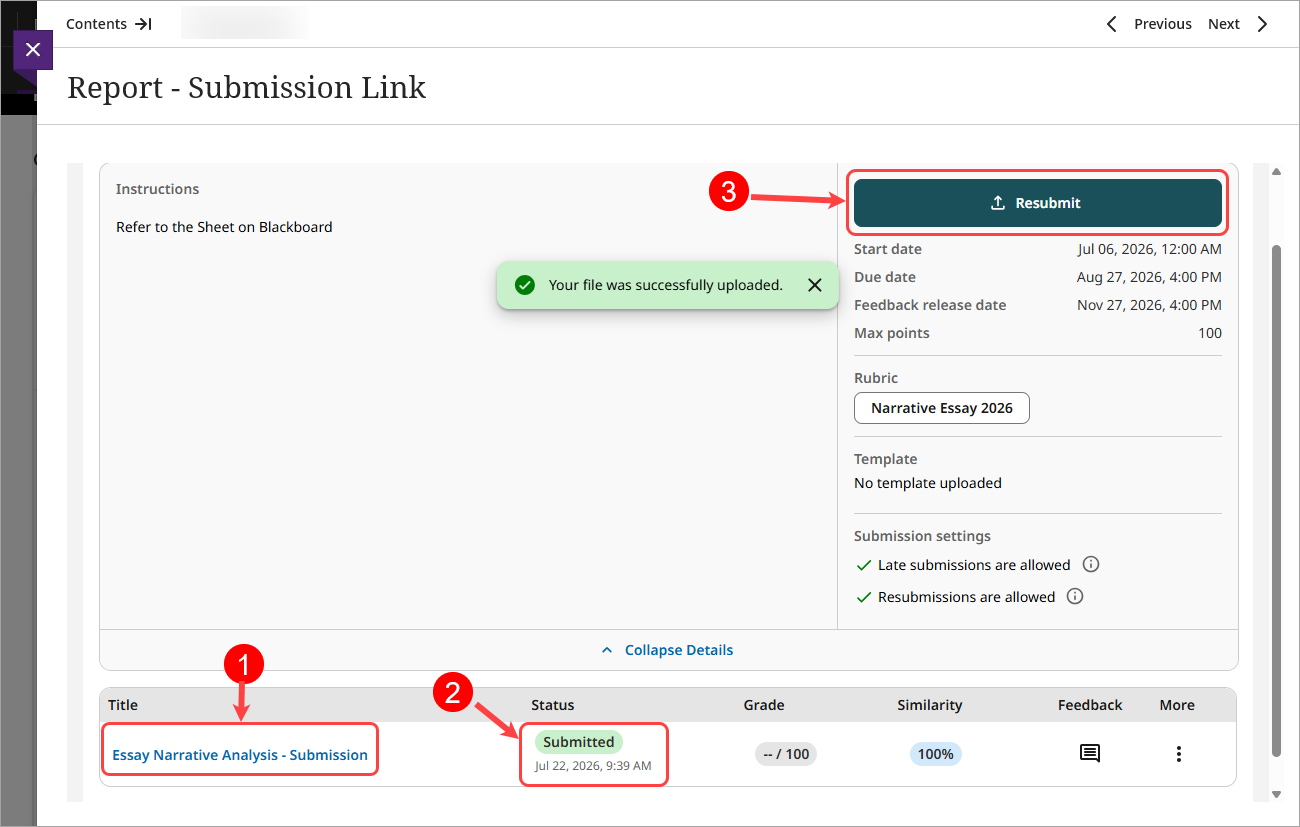
It is the student’s responsibility to check the assignment preview and confirm successful submission. If you don’t see Your file was successfully upload message, you should regard your submission as unsuccessful.
You will be redirected to the Assignment inbox page, where you can:
- View the name of the submitted file.
- View Status date and time of the upload.
- Resubmit your assignment if needed.
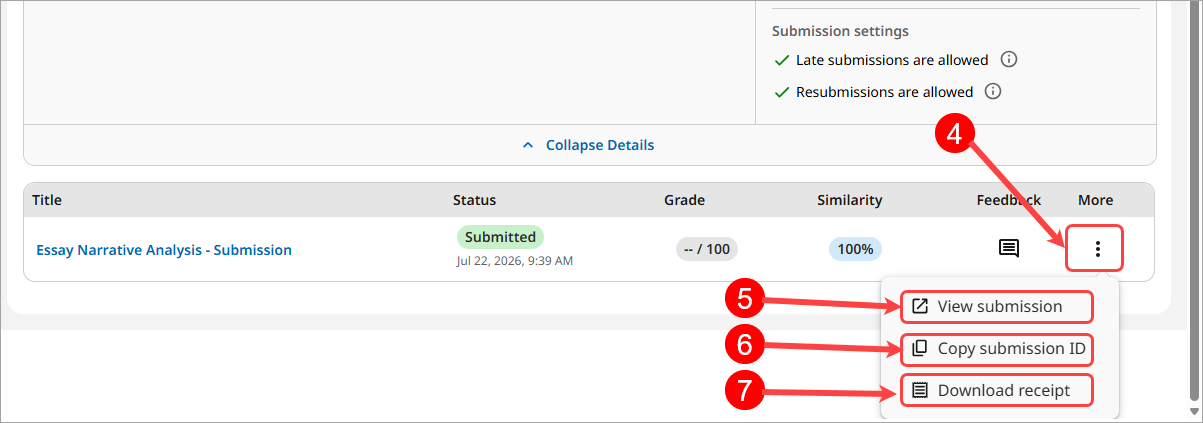
- Click on the More options elipsis (3 dots) button to view submission, copy submission ID, download Digital Receipt.
- View submission.
- Copy submission ID.
- Click on the Download Digitial Receipt icon to download a copy of the digital receipt as proof that you have submitted your assignment.
- If the submission was not successful:
- note the error message (preferably take a screenshot)
- go to your assignment page and see if it is possible to submit again
- follow the course procedure for informing your instructor or tutor of the failed submission including all relevant information.