
View Turnitin similarity report and marks (Ultra Student)
Similarity report
You can resubmit your assignment multipe times. Similarity reports are generated immediately for the first 3 submissions and any subsequent submissions will take 24 hours.
Access the similarity report
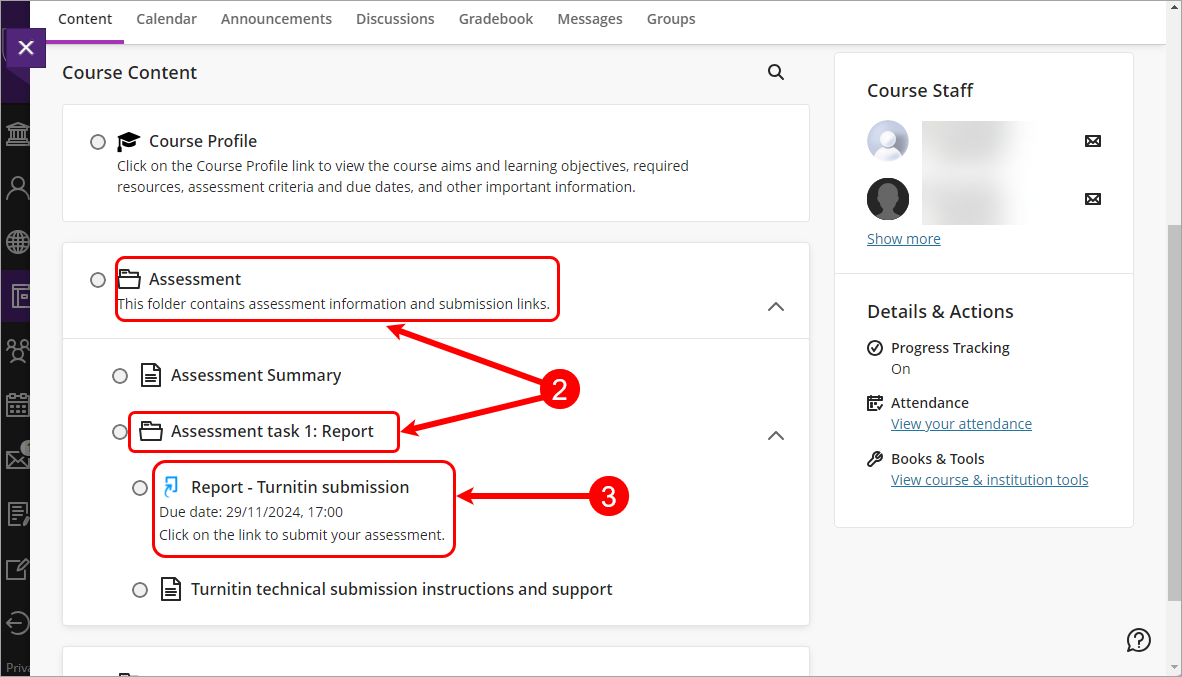
- Access your Learn.UQ course.
- Click on the Assessment folder and then click on the assessment task sub-folder.
- Click the link with the name of your assignment.

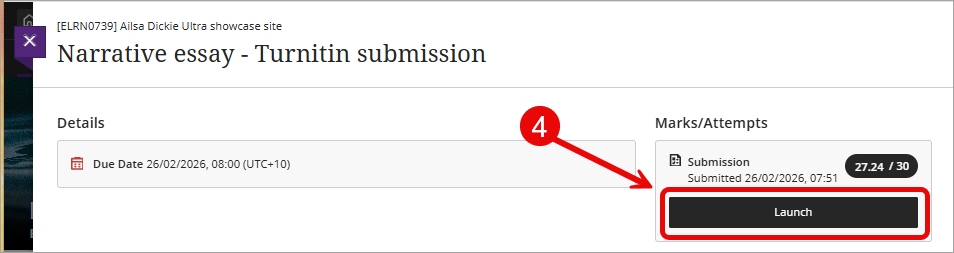
- Click on the Launch button.

- In the Similarity column, click on the % number.

View the similarity report
Refer to the Overview of the Similarity report by Turnitin.
Your marks
Access your marks and feedback
Note: Not all course coordinators who use Turnitin assignments will also use the tool to mark your assignment. Confirm with your course coordinator how you will receive assignment feedback.
- Access your Learn.UQ course.
- Click on the Assessment folder and then click on the assessment task sub-folder.
- Click the link with the name of your assignment.
- Click on the Launch button.
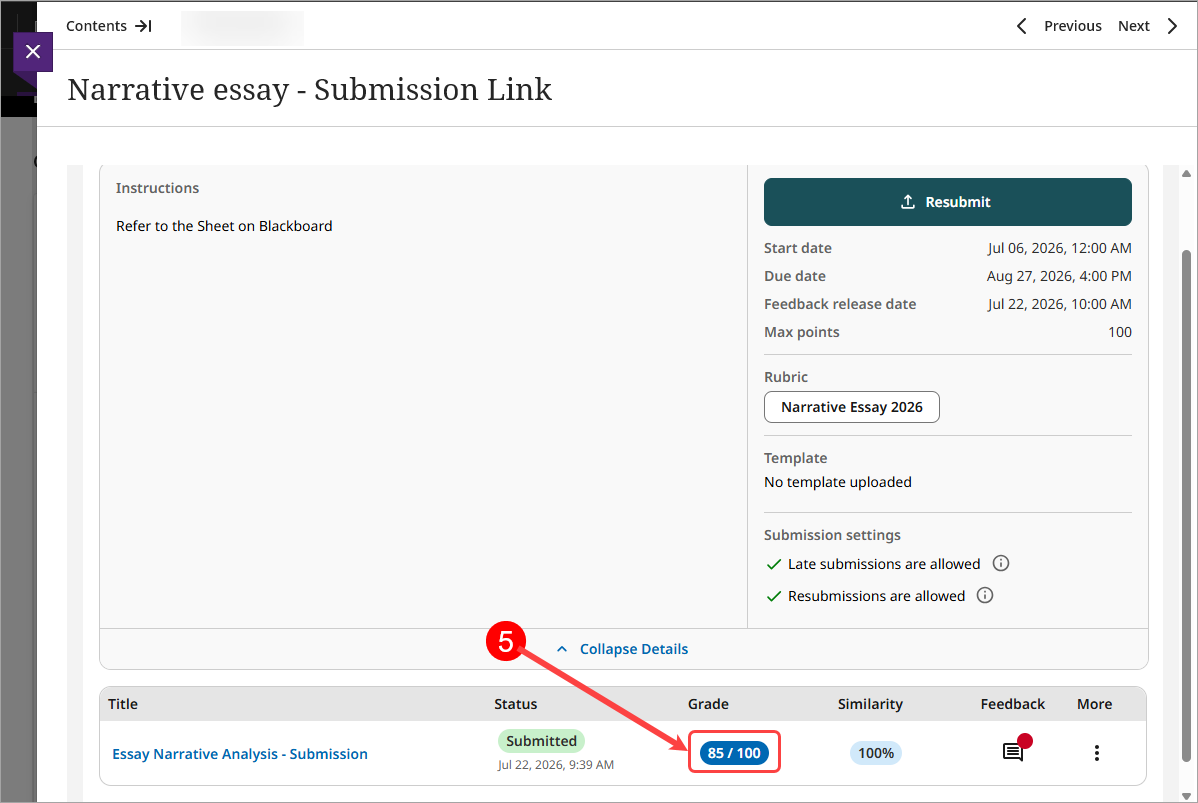
- Click on the number in the Grade column.
View marks and rubric
For instructions on reviewing your marks, refer to Reviewing your grade and rubric guide by Turnitin.
View your feedback
For instructions on reviewing your feedback, refer to Reviewing instructor feedback guide by Turnitin.